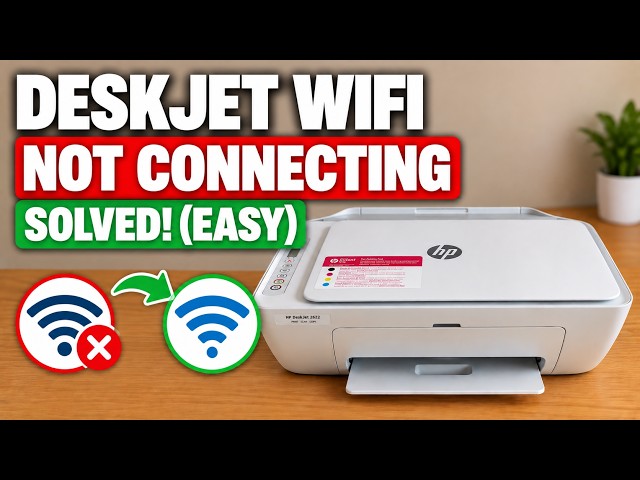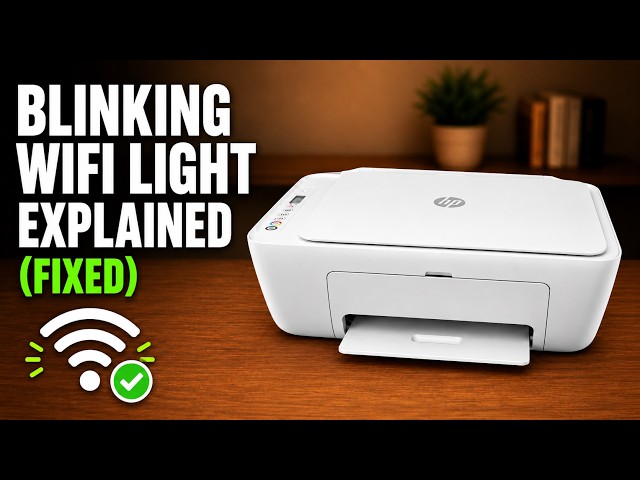
HP DeskJet 2600 blinking Wi-Fi light: what to check
A flashing blue wireless light means the DeskJet 2600 has not joined a wireless network. Check its light and connection stage before changing any saved settings.
Find a starting point for connection issues, error lights and paper problems.
A flashing blue wireless light means the DeskJet 2600 has not joined a wireless network. Check its light and connection stage before changing any saved settings.
Find where DeskJet 2600 setup is stopping: app discovery, the temporary printer connection, or the home network. Check the working connections before resetting wireless settings.
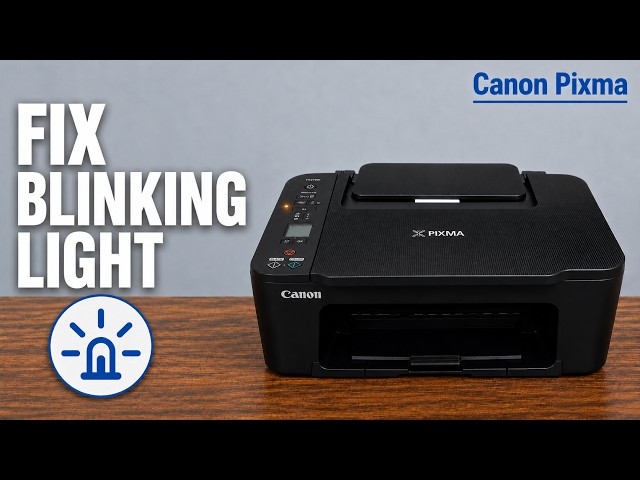
Read the TS3750i LCD and support code, then choose the right paper, cover or cartridge check for E02, E03, E04 or E05 without an unnecessary reset.
Check the printer’s Pwd label first. If a changed administrator password is lost, understand the full Factory Reset and Wi-Fi setup consequences.
Restore general settings with Machine Reset while preserving network and security settings. This is different from a full Factory Reset.
Match the jam location first, then follow the inside or paper-tray path. Let hot internal parts cool before reaching into the printer.
Restore the HL-L2445DW’s network configuration when you need to set it up again, with the connection and password consequences clear before you confirm.
Choose how long the HL-L2445DW waits before Sleep Mode. Sleep and Deep Sleep remain enabled; the timer is not a fix for every delayed print.
Use Windows driver search or the exact Brother download page. A “best driver already installed” result does not mean a new driver was installed.