Before you start
- Have sufficient ink and one A4/Letter sheet of plain paper. A pattern printed with low ink can give a misleading result.
- The optional Windows route requires the applicable Canon printer driver’s Maintenance tab; a generic driver may not expose these controls.
Step 1:Prepare the printer and paper
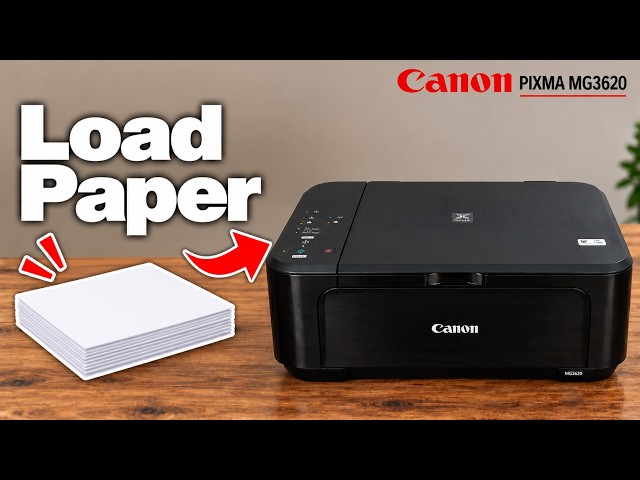
Turn the printer on. Load one A4/Letter plain sheet print-side down in the front tray, with guides against its edges. Open the output tray extension, paper output tray and output support. Wait for an active job to finish before starting the diagnostic.
If ink is low, resolve that first. A nozzle check reveals the printed pattern; it does not refill ink or establish that a cartridge must be replaced.
Step 2:Hold Stop for one Alarm flash
- Hold Stop and watch the orange Alarm lamp.
- As soon as Alarm has flashed once, release Stop immediately. Do not continue to the cleaning or alignment flash counts.
- Wait for the nozzle-check sheet to finish printing. Take the completed sheet from the output tray.
Step 3:Compare the pattern before cleaning
Use the illustrations in the linked Canon nozzle-pattern reference. Check the line grid for missing segments and the coloured areas for horizontal white streaks. A complete pattern does not call for cleaning merely because the source video mentions it.
If segments or colour bands are missing, the next supported action is the applicable print-head cleaning procedure, followed by another nozzle check. Cleaning consumes ink; a reset or alignment is not a substitute for diagnosing missing nozzles.
The small cumulative sheet number on a pattern is not an exact live page counter. Canon describes its update interval separately; it is not a measurement of cartridge health.
Optional: print the pattern from Windows
- Open Windows Printers & scanners and select the correct Canon printer. Open its Printing preferences and Canon Maintenance tab.
- Choose Nozzle Check, then Print Check Pattern. Confirm with OK when the driver asks.
- Compare the printed sheet in the Pattern Check dialog. Choose Exit if it matches the good pattern; choose Cleaning only when the pattern and ink condition justify it.
The source reaches the maintenance control; Canon’s driver reference supplies the final confirmation and result choices. If this tab is absent, use the printer-button route above or the applicable Canon driver rather than searching unrelated Windows controls.
Questions & troubleshooting
Which light should flash once?
The orange Alarm lamp, not the green ON lamp. Release Stop immediately after the first Alarm flash.
Does this procedure clean the nozzles?
No. It prints a diagnostic pattern. Cleaning is a separate ink-consuming procedure used when the pattern shows a problem.
What if the pattern is incomplete while ink is low?
Resolve the low ink first. Canon warns that a low-ink pattern may not be printed correctly, so it cannot reliably distinguish all causes.
References
- Professor Printer: source demonstration
- Canon: nozzle-check preparation and one-flash command
- Canon: missing-line and horizontal-streak pattern examples
- Canon: Windows Nozzle Check confirmation and result dialog
- Canon: front-tray print-side-down loading
- Canon: MG3600 manual explicitly includes MG3620 and MG3650