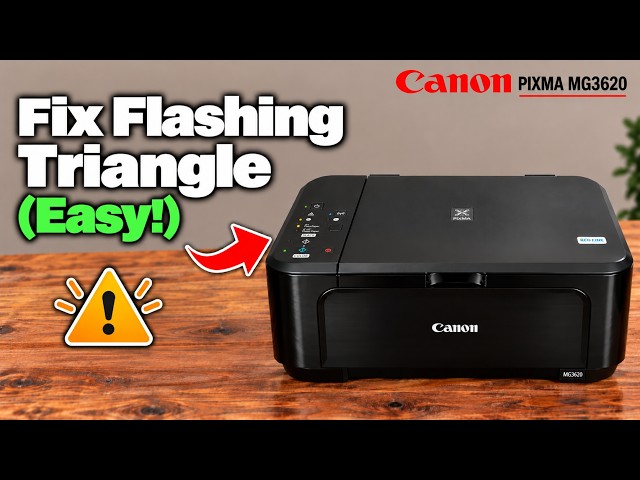
Before you start
- Read the support code on the computer and identify the affected black or colour cartridge. A blinking lamp alone does not distinguish an empty cartridge from recognition or installation faults.
Step 1:Separate a low-ink warning from a recognition fault
- A steadily lit ink lamp indicates low ink; prepare the correct regional cartridge.
- 13 orange Alarm flashes correspond to 1686; 16 correspond to 1688. Confirm the actual computer message.
- 14/1684 and 15/1682 concern recognition. Missing, wrong-position and incorrectly installed cartridges have other codes.
The presenter reports that replacing the black cartridge cleared its flashing lamp while the colour lamp remained. That is one observed report, not proof that every flashing light is caused by third-party ink. The source’s regional cartridge guesses are not a supply list; use the exact-model replacement guide.
Step 2:Choose replacement or the limited monitoring option
For 1686 or 1688, Canon lists replacing each affected cartridge as an option. Use the linked replacement procedure and keep both cartridges installed. If the aim is printing or copying, ink must actually remain; a button command cannot create it.
For recognition code 1684, install the appropriate cartridge. For 1682, Canon directs replacement and service if that does not resolve the error. Do not apply the monitoring bypass to these codes.
Step 3:For confirmed 1686/1688, use Stop only if you choose to continue
- With the confirmed 1686 or 1688 message present, decide whether to replace the affected cartridge or continue without its remaining-ink detection. Do not send an unrelated copy simply to manufacture an error.
- If choosing the documented monitoring option, hold Stop for at least five seconds and release. Apply it for each cartridge identified by the printer if a separate affected-cartridge warning appears.
- For printing/copying, check the actual resulting page. Continuation is possible only while ink remains; do not assume a blank or badly faded page is fixed because paper feeds.
- For scanning under these specific codes, Canon says scanning can continue after the monitoring action while all cartridges remain installed. Save and open the scan to check the actual result.
The ink lamp may remain lit or flashing after monitoring is disabled. A changed lamp is not the required proof of a repaired cartridge, and no accurate refilled level is promised.
If the warning remains, read the new message
Recheck the exact code. Use the cartridge guide for seating and correct regional replacement, and follow that code’s Canon service instruction if it persists. Do not repeatedly hold buttons in the hope of clearing an unrelated fault.
The supporting recordings recommend a full 21-flash reset after refilling. That resets machine/network settings and requires reconnection; the applicable ink-error instructions do not prescribe it as a refill fix. It is excluded from this procedure.
Questions & troubleshooting
Does five seconds reset the cartridge to full?
No. For 1686/1688 it disables remaining-ink detection. It does not add ink or establish a correct full-level reading.
Will it fix an unrecognized cartridge?
Do not use it as that remedy. Codes 1684 and 1682 have specific correct-cartridge/replacement instructions.
Can I still scan when ink is reported empty?
For the documented 1686/1688 states, Canon permits scanning after disabling monitoring while all cartridges remain installed. This does not establish that every unrelated printer fault can be bypassed.
Should I factory-reset after refilling?
The applicable ink-error procedures do not require it. A full reset erases network settings and is not a demonstrated repair for the cartridge.
References
- Professor Printer: source demonstration
- Canon: current 1686 print/copy and scan choices
- Canon: current1688 residual-ink and scan conditions
- Canon: 1684 recognition
- Canon: 1682 replacement/service
- Canon: ink lamps and used estimates
- Canon: error flash map
- Canon: full-reset consequences
- Canon: MG3600 manual explicitly includes MG3620 and MG3650
- Professor Printer: supporting source
- Professor Printer: supporting source