Brother HL-L2445DW
Add Brother HL-L2445DW to a Mac
Add the networked HL-L2445DW in macOS Printers & Scanners, then select it for a small print check.
Wi-Fi & connectivityRead & watch
Start with your exact Brother model, or browse the available guides below.
printertutorials.com is an independent resource and is not affiliated with Brother.
Choose a model to find its guides in one place.
Narrow the list by printer model or the task you need help with.
Add the networked HL-L2445DW in macOS Printers & Scanners, then select it for a small print check.
Check the printer’s Pwd label first. If a changed administrator password is lost, understand the full Factory Reset and Wi-Fi setup consequences.
Find the black toner supply indicator in Brother Mobile Connect, or check estimated toner and drum life on the printer’s LCD.
Use Brother Mobile Connect to register the HL-L2445DW, supply the home Wi-Fi password and check that setup finishes on the intended network.
Read the printer’s home-network IP address from its LCD or Brother Mobile Connect without changing the network configuration.
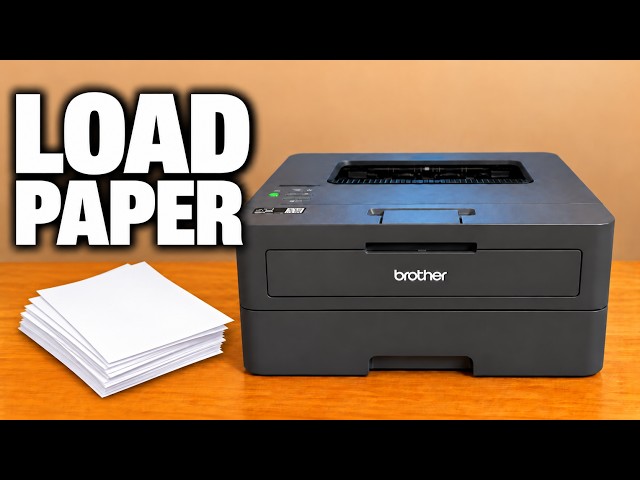
Adjust the front tray’s width and length guides, load paper below the maximum mark, and match the printer’s paper settings to the stack.
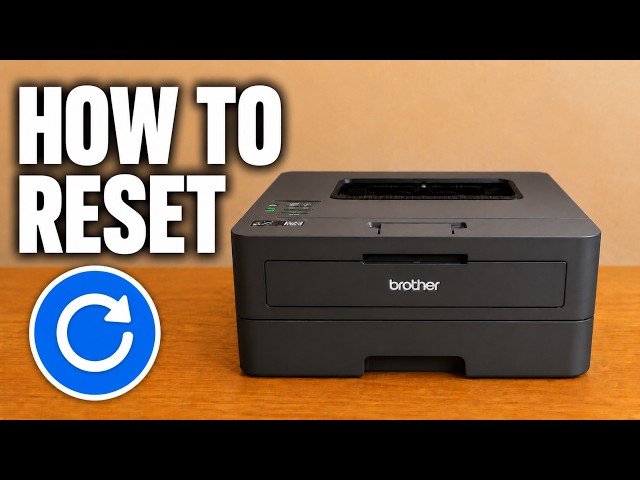
Restore general settings with Machine Reset while preserving network and security settings. This is different from a full Factory Reset.
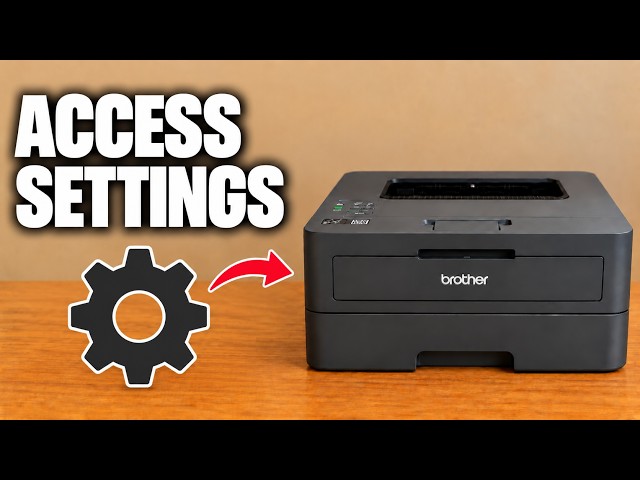
Use Brother Mobile Connect to open All Machine Settings, then sign in to the printer’s own web page with its current administrator password.
Match the jam location first, then follow the inside or paper-tray path. Let hot internal parts cool before reaching into the printer.
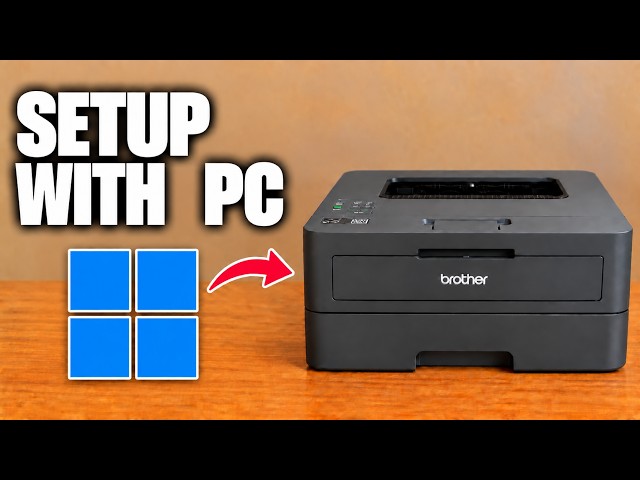
Find the printer on the same network, add it in Windows Printers & scanners and select it when printing a document.
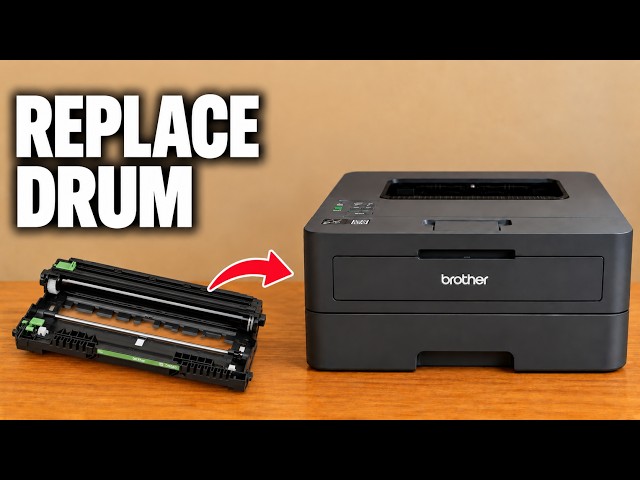
Move the toner cartridge into a new drum, reinstall the assembly and reset the drum counter. Reset the counter only when a new drum has been fitted.
Fit the toner into its separate drum unit, clean the corona wire and refit the assembly. Initial installation and replacement have different starting points.
Restore the HL-L2445DW’s network configuration when you need to set it up again, with the connection and password consequences clear before you confirm.
Choose how long the HL-L2445DW waits before Sleep Mode. Sleep and Deep Sleep remain enabled; the timer is not a fix for every delayed print.
Open the firmware update in Brother Mobile Connect, use the printer’s administrator password and let the update and restart finish.
Use Windows driver search or the exact Brother download page. A “best driver already installed” result does not mean a new driver was installed.