Before you start
- An HP DeskJet 2600 series printer within reach.
- For reconnecting: the current home Wi-Fi name and password, a 2.4 GHz network, and a phone with the official HP app.
Find the stage that is failing
This guide is for a DeskJet 2600 that is missing during HP app setup. The video demonstrates a recovery when Launch setup does not find the printer: connect the phone directly to the DeskJet, reach its settings, then connect the printer to the router.
Step 1:Check what is already working
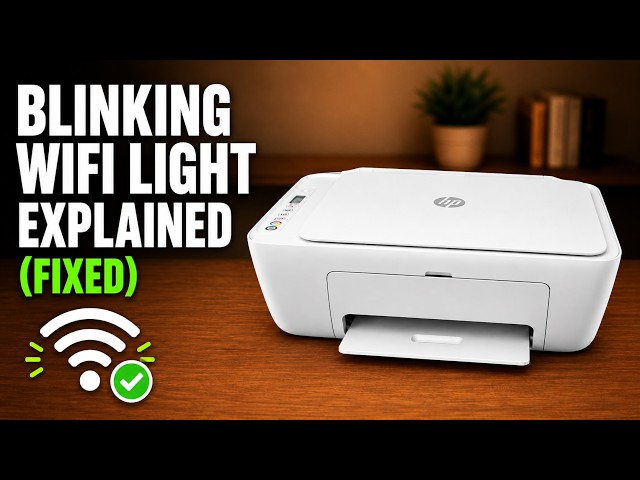
- Steady blue wireless light: the printer has joined a network. Put your phone on the intended home Wi-Fi and check the selected printer before clearing saved settings.
- Printer appears only on HP-Setup: the direct link is working. Continue to the router wizard below; do not repeat a reset merely because the printer is absent from home Wi-Fi.
- Home network absent from the wizard: check that the router offers 2.4 GHz, which HP specifies for this series.
- Wireless light off: wireless capability is disabled. Press Wireless to enable it, then check the resulting connection state.
If these checks restore discovery on your intended home Wi-Fi, stop here. If the printer still needs a new saved network, continue with wireless setup.
Step 2:Restore wireless setup only when needed
With the printer on, hold Wireless and Cancel together until Power starts blinking. Wait for that short activity to finish. HP uses the light response to identify the restore action; the spoken timing in this recording is not a universal reset instruction.
Step 3:Reach the printer through HP-Setup
Open the phone’s Wi-Fi settings. Choose the setup network identifying your DeskJet 2600; in the recording its name starts HP-Setup. Return to the HP app, choose Add device → Add an existing printer and select the DeskJet.
Step 4:Complete the router connection
- Open Printer settings → View all → Advanced settings.
- In the local printer interface, expand Network, then Wireless (802.11), and open Wireless Setup Wizard.
- Choose the intended home network, enter its password and continue.
- Wait for the completion summary and choose Finish.
Use the home router’s password at this stage. Being able to reach the local settings page does not mean this router connection has already been completed.
Step 5:Test discovery from home Wi-Fi
After setup, put the phone back on the home network chosen in the wizard. Check the printer’s steady blue wireless light and open its entry in the HP app. The video demonstrates finding the printer from that network, without leaving the phone on HP-Setup.
Questions & troubleshooting
HP-Setup works, but the printer disappears on home Wi-Fi.
The direct connection worked. Check that the Wireless Setup Wizard selected the intended home network, accepted its password and reached its completion summary. Then reconnect the phone to that same network.
The app uses different menu labels.
This recording uses the HP app on an iPhone, with no recorded version. Look for the printer’s settings and Advanced settings. If your interface does not provide that route, use the official model-specific support reference instead of substituting an unrelated model’s procedure.
The settings page shows a browser warning.
Do not dismiss an unfamiliar warning automatically. Confirm that you opened Advanced settings for your own printer and that it is the printer’s local interface. If that is uncertain, stop and use HP’s support instructions.
Should I perform a full factory reset or reinstall the app?
Neither action is established by this recovery. The demonstrated action restores wireless settings only. First isolate whether discovery, the direct link or the router connection is failing.