Before you start
- Have the actual paper packaging or dimensions available. A4 and Letter are different sizes.
- For a copy or scan, keep the original separate from the blank sheets loaded in the rear feeder.
Step 1:Check which part of the page is wrong
Look at the last sheet before changing anything. A crooked sheet or angled print calls for a feeder check. A wrong size or paper-type prompt calls for matching the settings. If only a copy or scan is tilted, check the original on the glass as well.
White borders or cropped photo edges can come from the selected layout. They do not by themselves mean that the paper is feeding incorrectly.
Step 2:Reload the paper without squeezing it
- Wait for the printer to finish feeding, then remove the stack from the rear feeder. Check that the sheets are flat and of one size and type.
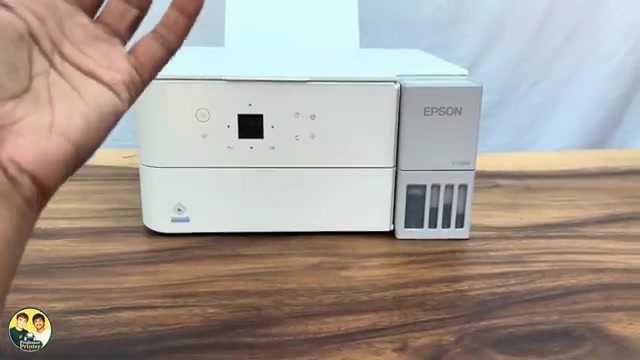
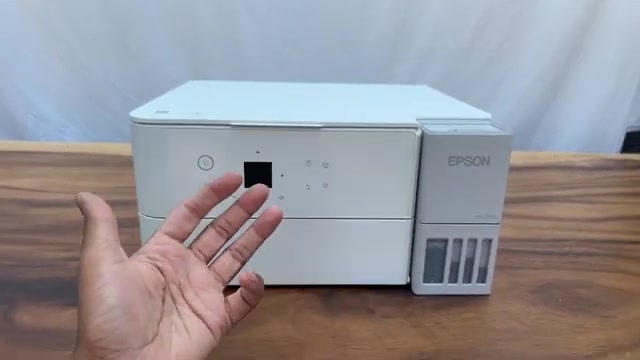
- Open the feeder guard and extend the rear paper support, then open the edge guides. Centre the paper on the support with the printable side up and the short edge entering first. Keep plain paper below the guide’s fill mark.
- Slide the guides to the edges without bowing the sheets. Extend the output tray.
Step 3:Match the printer and job to the loaded sheets
When the printer shows the paper-setting prompt, choose Change if the size or type is wrong. Select the actual size, then the matching media type, and confirm. Do not choose A4 or glossy simply because it is the example on screen.
If the prompt does not appear, open Settings → Printer Setup → Paper Source Settings → Paper Setting. Check the size and type in the computer or phone print dialogue too. All three—the physical sheet, printer registration and job settings—should agree.
Step 4:For copies or scans, align the original on the glass
Lift the document cover. Place the side to be copied or scanned face down, straight against the scanner glass’s corner mark, then close the cover gently. Follow the actual arrow, rather than a camera-relative “left” or “right” direction in the recording.
Changing the rear paper guides cannot straighten an original placed at an angle on the glass. For a computer print job, this scanner-glass step is unnecessary.
Step 5:Print or copy one page and inspect the result
Send one page using the corrected settings. Check the sheet’s position, size and intended content before sending a longer job. The recordings show checks and settings, not a measured before-and-after repair.
If the only remaining problem is white edges, confirm that the selected media supports Borderless and that the appropriate print or copy option is enabled. Borderless enlarges the image slightly and can crop edge content; a bordered layout may suit a document better. Use the related Windows photo-settings guide for those driver controls.
If straight paper still has broken lines or missing colours, investigate the nozzle pattern. If the paper itself feeds at an angle after careful loading, follow Epson’s paper-feed troubleshooting rather than repeating printhead alignment as a paper-feed repair.
Questions & troubleshooting
Should I run printhead alignment for a crooked sheet?
First correct the paper and guide position. Printhead alignment addresses misaligned printed lines or specific banding; it does not replace straight loading.
Why does the paper-setting screen not appear?
Epson allows Paper Setup Auto Display to be disabled. Open the Paper Setting menu directly to check the registered size/type. The lack of a prompt is not proof that the sheet is loaded incorrectly.
Will moving the original remove every white border?
No. Original placement and the selected borderless layout are separate. Use supported media and review the layout; borderless can crop the edges.