Before you start
- Supported flat paper; no active job while loading.
Distinguish Tray 1 from Tray 2
Read the actual control-panel message and the job’s selected paper source. A job requesting an empty or differently configured tray can wait even when there is paper elsewhere. If the message identifies a jam or paper is trapped, use the jam guide instead of sending more copies.
Step 1:Reload the indicated tray correctly
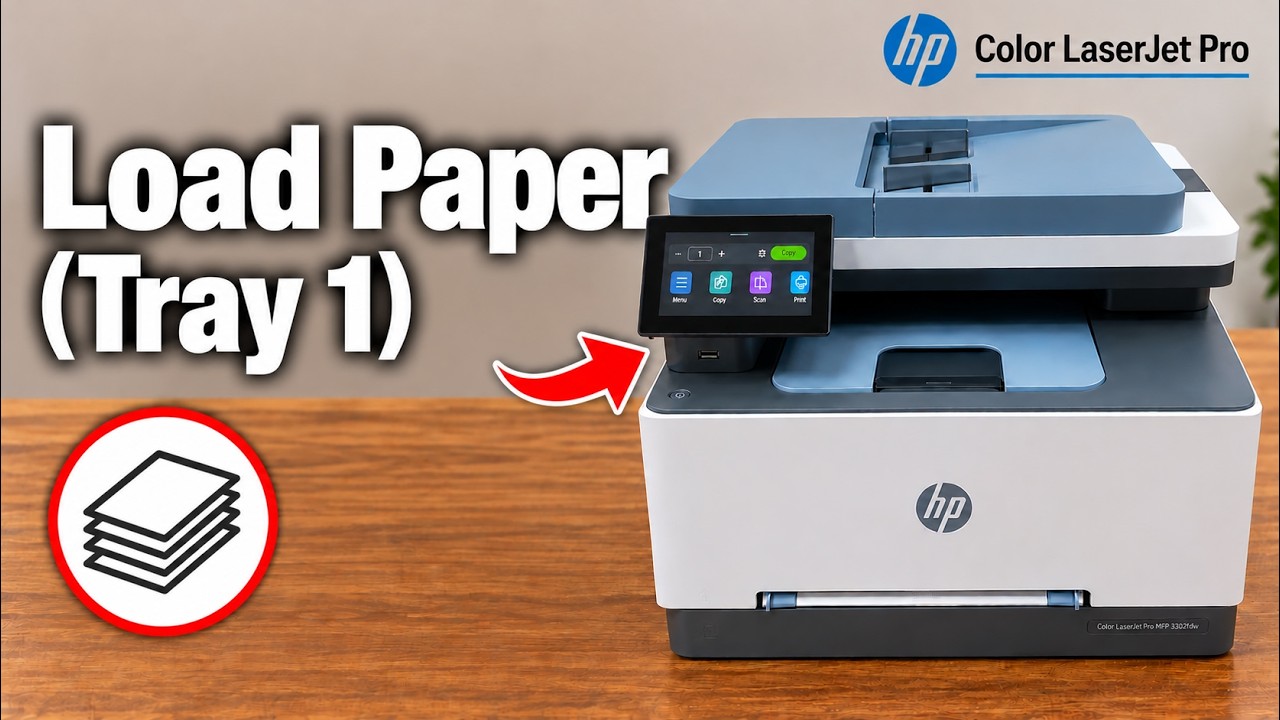
- Wait until printing has stopped. For Tray 1, load one supported sheet, top edge first, and fit the side guides lightly. Let the printer take it partway into the slot.
- For Tray 2, open the lower tray, move the guide latches for the actual size and load a flat stack within the marked height. Its stated capacity is up to 250 sheets of 75 g/m² paper.
- Fit guides against the paper without bending it, close Tray 2 fully and confirm the actual size/type when prompted. Do not open a tray while it is in use.
Step 2:Match the print job to the loaded paper
In the print dialog, select the intended tray and the actual size/type. On the source’s touchscreen prompt, Modify changes the recorded paper details. Guide position and paper-size settings both matter.
A Tray 2 lifting message is a tray action, not proof that the full print job has succeeded. Start one small job and inspect whether a single sheet feeds and exits correctly.
If the error returns
Check for curled/damaged paper, a misaligned stack, tightly pinched guides or an unclosed rear door. The presenters report that a power restart helped them, but that is not a guaranteed repair and does not remove a real obstruction.
If correctly loaded paper still will not feed, record the exact message and use HP support. Do not repeatedly add more sheets to the priority slot or pull a retained sheet out with tools.