Before you start
- Plan to reconnect the printer afterward; existing network printing will stop working until setup is complete.
- Use this when you intend to clear network configuration. A new router or connection problem does not automatically require a reset.
Understand what this option changes
LAN settings only returns the printer’s network settings to their defaults. It is the narrower choice when you want to clear connection configuration. Do not select Reset all by mistake: that broader reset also changes other settings and restores the administrator password.
Step 1:Find LAN settings only
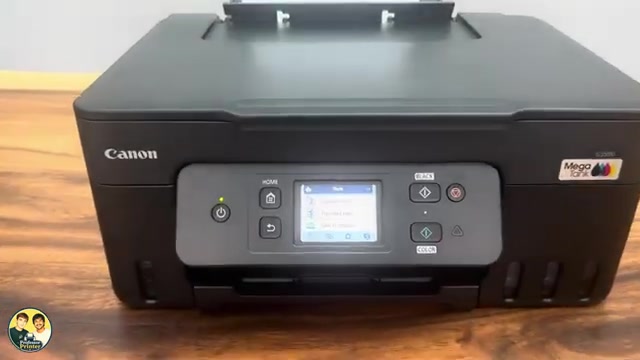
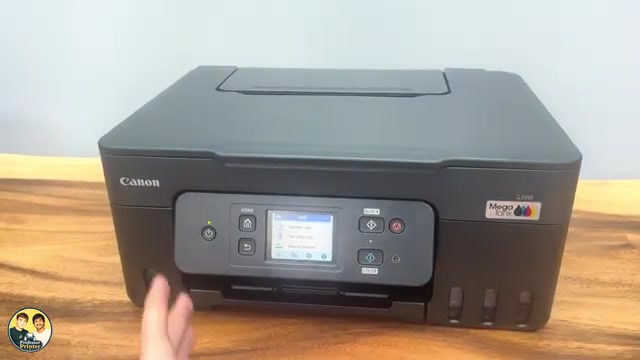
On HOME, select Setup → Printer settings → Reset settings. Choose LAN settings only from the list.
Step 2:Confirm the network reset
Read the confirmation and select Yes to restore the network defaults. Wait for the operation to finish and acknowledge any completion message.
Step 3:Reconnect before testing a print
Return to the connection setup for your intended network. Once the printer and your phone or computer are connected appropriately, select the printer and send a small test job from that device.
If it is still unavailable, check its current connection status and network details. Repeating Reset all is not the next automatic step; it changes more than the network configuration you intended to clear.
Questions & troubleshooting
Does this reset the administrator password too?
Canon separates LAN settings only from Reset all. Reset all is the option explicitly documented to restore the administrator password. Use the current password for any administrator prompt after a network-only reset.
Why does my computer still list the printer?
Resetting the printer’s LAN settings changes the printer, not every device’s saved printer list. Reconnect it and check the device’s selected printer before printing.