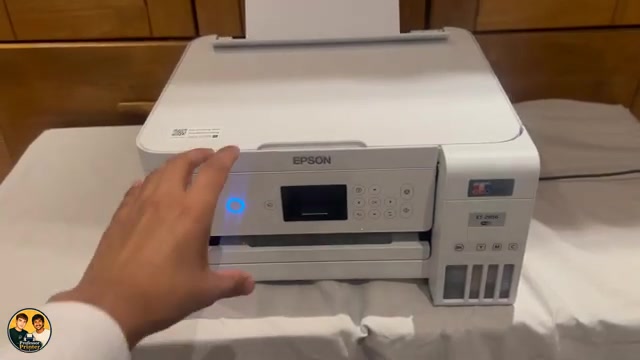
Before you start
- Have the intended Wi-Fi network name and current password ready, and permission to change a shared printer’s connection.
Know which connection will need setting up again
Select the network-only restore command
Turn the printer on and press Home. Open Settings → Restore Default Settings → Network Settings. Confirm that the prompt says it will restore network settings, then press OK as instructed.
This is the Network Settings choice inside Restore Default Settings, rather than simply opening the ordinary Network Settings menu. Do not choose Clear All Data and Settings for a network-only reset.
Let the command finish before restarting
Wait for the reset to finish. The source then uses the normal power control to turn the printer off and back on. Allow a normal shutdown; do not unplug it during the reset. The old network connection should no longer be active.
Set up the desired network and verify it
Use the printer’s Wi-Fi setup to select the intended network and enter its current password. For these models, Epson lists the Wi-Fi Setup Wizard under Settings → Network Settings → Wi-Fi Setup → Wi-Fi (Recommended). Follow the wizard rather than assuming the reset itself reconnects you.
Once connected, select this printer from a device on the intended network and check a small print. The reset recording does not demonstrate the entire reconnection and print sequence.
Questions & troubleshooting
Is a full factory reset the next compulsory step?
No. It has broader consequences. Use the actual network error and the model’s connection troubleshooting before discarding unrelated settings.