Before you start
- A connected printer selected in the official HP app.
- Installed ink and unused plain white A4 or Letter paper for diagnostic and alignment pages.
Use the report to choose the next action
Open the HP app and select this printer. Under Diagnostics, open Print quality tools and print the quality report. In another documented app layout, reports are under Product information → More Information and reports → Reports.
Examine its black and color blocks and straight lines. Misaligned or jagged lines point toward alignment; streaked or missing blocks can need automatic cleaning. A low-resolution original or incorrect paper setting is a different problem. Do not run every tool just because the source lists it.
Step 1:Print the alignment sheet
Load unused plain A4 or Letter paper. From Print quality tools choose Align printheads, then Print alignment page. If your layout puts this under View all print quality tools, open that section and choose Align.
Wait for the page to finish. Printing it starts the procedure; the printer must also scan it to complete calibration.
Step 2:Put the printed sheet on the scanner glass
Lift the scanner lid. Place the alignment sheet printed-side down, following the diagram on the sheet and the glass’s corner marks. In this recording the pattern is toward the left and the sheet sits against the indicated corner. Close the lid.
Use the flatbed glass for this alignment sheet, not the document feeder.
Step 3:Complete the active alignment prompt
Return to the app. Confirm that the page has printed, then choose Scan alignment page. Wait for the result without moving the sheet.
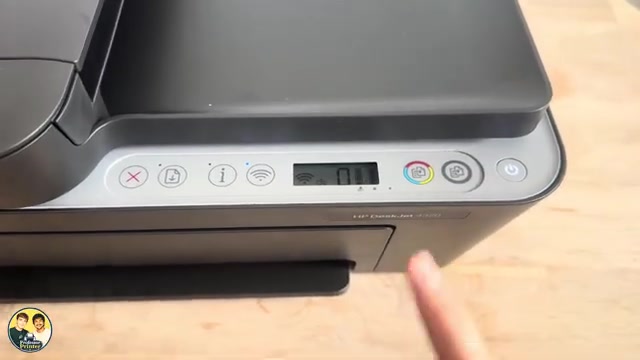
The presenter initially presses Black Copy, which starts an ordinary copy, then corrects this by using the app. Follow the active app workflow rather than treating a copy as successful alignment. A newly installed cartridge may instead trigger its own alignment instructions; follow those prompts.
Step 4:Check the completion message and your next print
The source reports “Alignment successful” after the app scans the page. Check for that confirmation on your own device, then remove the sheet from the glass.
Print the quality report again and compare the problem area. The recording demonstrates completion of alignment, not a measured before-and-after repair of every possible blurry image.
Match the print job to the paper and image
In the recorded Print photos workflow, select the image and choose the paper type actually loaded. The presenter uses plain paper and keeps Plain selected; do not select Photo paper merely because the file is a photo.
After Next, choose the appropriate color mode and set Print quality to Best when detail matters more than speed. Labels depend on the print app and available driver. Check the image preview and print one page to evaluate the result before starting a batch.
Good-quality source images and appropriate inkjet paper matter. A quality setting cannot restore detail missing from the original. The video selects these options but does not show a finished comparison print.
Use automatic cleaning only when indicated
If the report has missing or streaked black or color blocks, use the app’s cartridge or printhead cleaning tool and inspect its test page. Follow a further cleaning level only if the quality is still unacceptable. HP says to wait at least 30 minutes before starting another full cycle for a badly clogged printhead.
Unnecessary cleaning uses ink and reduces cartridge life. Do not wipe, press or soak the nozzles. If the supported tools and settings do not resolve the fault, use HP’s exact-model quality guidance or contact support rather than assuming a new cartridge is the only answer.
Questions & troubleshooting
Does printing the alignment page finish the job?
No. Scan that sheet through the active alignment workflow and wait for the completion message. An ordinary photocopy does not confirm calibration.
Should I clean after every alignment?
No. Use the diagnostic result: alignment addresses line or color positioning; automatic cleaning addresses appropriate missing or streaked ink symptoms.
Why is Best quality still blurry?
Check the original image, selected paper type and actual paper. If the diagnostic report is also defective, follow the symptom-specific maintenance route. The video does not establish a universal one-step fix.