Use alignment when prompted or indicated by print quality
Load unused plain white A4 or Letter paper and make sure the cartridges are installed. Extend the output tray. Alignment uses ink and paper; do it when the printer prompts after cartridge installation or a quality check indicates it, rather than as a routine cure for every printing issue.
Step 1:Open Cartridge Alignment
On the touchscreen open Menu → Tools → Troubleshooting → Cartridge Alignment. If the firmware groups these controls under Print Quality, open that group first. Choose Continue and allow the alignment page to print completely.
Step 2:Place the printed sheet on the scanner glass
Lift the scanner cover and place the printed side of the alignment page face down. Align it with the marked top-left corner and guides on the glass, then close the cover. Use the printed page the printer just produced.
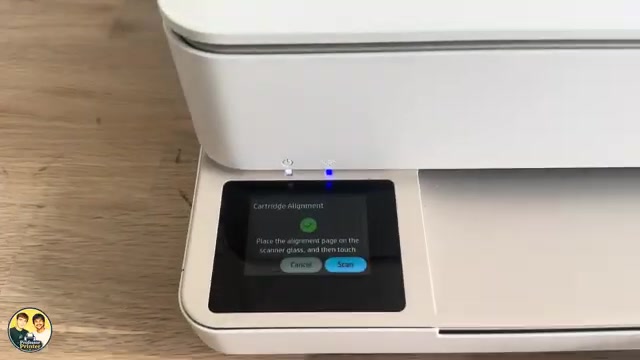
Step 3:Choose Scan on the alignment prompt
Return to the alignment screen and choose Scan. Wait for the calibration to finish; do not move the page while it scans. This is the alignment workflow, not the normal Copy command.
Step 4:Confirm completion and check a print
The source reaches Cartridge alignment completed. A progress percentage or a printed sheet on its own is not that completion message. Remove the alignment page after scanning finishes, then check your original document’s output.
If alignment fails, check that the page is face down, correctly aligned and printed on unused plain white paper. HP notes that colored paper can cause failure. If it keeps failing, follow the print-quality guidance and contact HP if supported cleaning does not help.