Read which cartridge and error the printer reports
Record the exact message and the color it identifies. Missing, incompatible and not-communicating messages can require different follow-up. In this source, the presenter deliberately removed a cartridge to produce the missing-cartridge message; it is not a demonstration of a damaged-cartridge repair.
Step 1:Check the supply against your exact printer and region
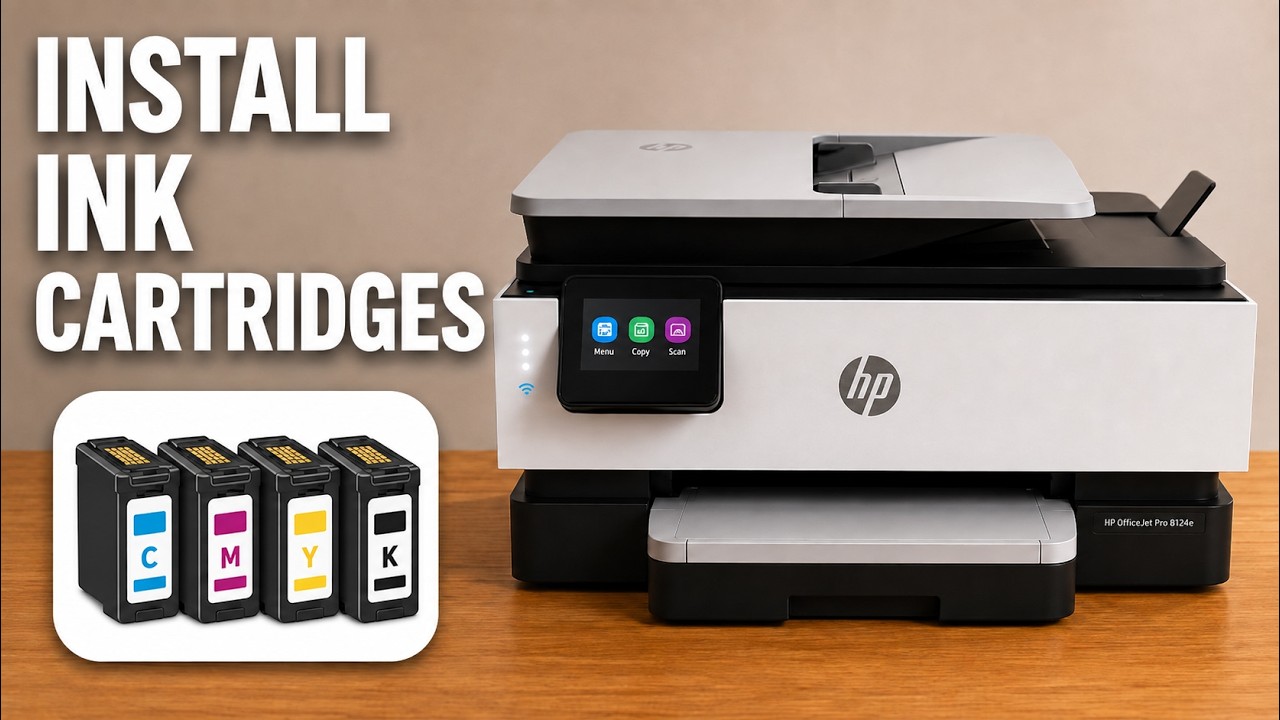
Open the front door and raise the cartridge access door. Wait for the cartridge mechanism to stop. Compare the cartridge identification with your printer’s supply label and HP’s current exact-model, country-specific cartridge information.
The number in the video belongs to its source printer. A cartridge that physically fits is not necessarily the correct regional supply. If the printer asks for SETUP cartridges during first installation, follow that specific requirement rather than substituting an unrelated replacement.
Step 2:Reseat the indicated cartridge
Keep the printer powered for the normal cartridge-installation procedure. Press the indicated cartridge’s front tab to release it, then lift it out. Handle its body, not the electrical contacts or ink outlet.
Check that the replacement’s packaging and orange protective cap have been removed according to its package. Match the color symbol to its slot, guide the cartridge into position and press it down until it clicks. Do not force a supply that does not match the slot.
Step 3:Close the doors and check the new message
Lower the access door and close the front door. Let the printer check the cartridges. If the message clears, verify a small print job rather than assuming the earlier error guarantees that all printing works.
If it remains, retain the exact wording and cartridge identification and follow HP’s matching cartridge-error instructions or contact support. Do not scrape contacts, force the carriage or repeatedly buy replacements without checking the specific message.