Before you start
- Print and examine a nozzle-check sheet first. Have more plain A4 paper available for the check afterwards.
- Check the actual tank windows and resolve low-ink or maintenance errors. Low ink can prevent cleaning; do not override the printer’s restriction.
Choose maintenance from the pattern
Ordinary Cleaning is the first choice when only some nozzle-pattern segments are missing. Epson specifies Power Cleaning for a blank pattern or one with more than half its lines missing. If the pattern is complete, stop: cleaning needlessly consumes ink.
Step 1:Start the appropriate cycle
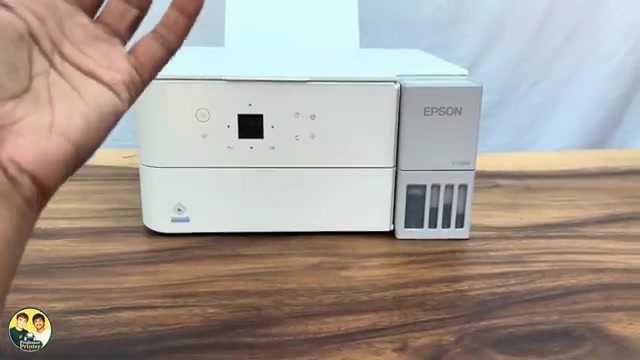
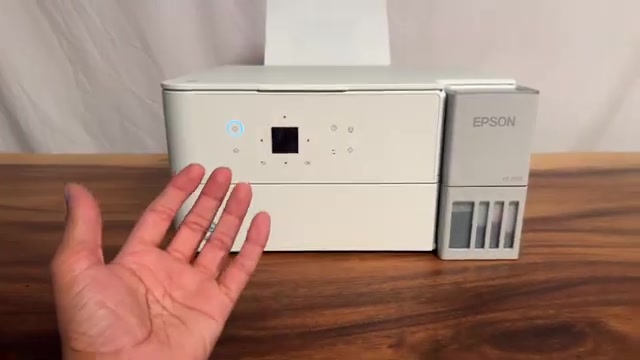
- From Home, open Maintenance, or More → Maintenance on a layout that groups it there. Select Head Cleaning and press OK.
- When asked about a nozzle check, choose Yes if you have not checked the current pattern. If you have just checked it, choose No to reach the cleaning choices.
- Select Cleaning for the ordinary cycle, or Power Cleaning only when the pattern warrants it. Confirm the on-screen prompts.
- Leave the printer powered on and the scanner unit closed throughout the cycle. Wait for the completion message; do not use the presenter’s estimated duration as a timer.
You can also start the appropriate cleaning directly from the Yes response after a nozzle check. If a displayed ink or maintenance error prevents the operation, resolve that message before trying again.
Step 2:Inspect the new pattern and stop when it is complete
Use the nozzle pattern printed after the cleaning workflow, or run Nozzle Check if the selected route asks you to do so. Compare it with the earlier sheet. Complete black and colour lines are the result you need; stop cleaning once those are present.
The recording explains the menus and starts a route, but does not establish that a completed cleaning repaired a defective page. Judge your own new pattern rather than treating the demonstration as a promised fix.
Step 3:Pause before further maintenance
If the pattern is still incomplete after three ordinary cleaning/check cycles, or after one Power Cleaning, Epson says to wait at least 12 hours without printing. It recommends turning the printer off normally during that wait. Then run a nozzle check; if necessary, run ordinary Cleaning and check once more.
If that still fails, consult the separate Power Ink Flushing instructions or Epson support. Flushing replaces ink in the tubes and has its own minimum-ink and maintenance-box requirements. It is not another name for Power Cleaning, and this article does not direct you to start it blindly.
Questions & troubleshooting
Are Power Cleaning and Power Ink Flushing the same?
No. The current manual lists them as different maintenance operations. Flushing has additional tank-level and maintenance-box conditions; read its separate procedure before considering it.
Do I wait 24 hours or one week as the video suggests?
Use the current ET-2950-series instructions here: at least 12 hours without printing after the stated unsuccessful cycles. The video’s weekly rule is not carried into this guide.
Why will the printer not start cleaning?
Read the displayed error. Insufficient ink or another maintenance condition can stop the operation; having enough ink for an ordinary page does not prove every maintenance operation is available.