Before you start
- Identify the actual jam location on the control panel.
- Allow the rear fuser to cool; stop if paper cannot be removed without force or disassembly.
Follow the jam message before opening the printer
Read the displayed jam location or help animation. Turn the printer off before the access steps below; disconnect power before reaching inside. The rear fuser can stay hot after printing: let it cool before handling that area. Use both hands to pull accessible paper straight out gently and check for torn fragments.
Step 1:Clear the priority slot or lower-tray path
- Pull Tray 2 completely out. Remove accessible jammed or damaged sheets from that tray area.
- For a jam in Tray 1, or paper deep in the Tray 2 feed area, HP directs you to press down on the single-sheet priority slot and pull that slot tray out. Follow the manual’s illustration for this removable part; do not unscrew the internal rod.
- Gently draw accessible paper straight out. If it resists or cannot be reached without dismantling, stop and seek service.
- Push the priority slot tray back in if removed, then reinsert and close Tray 2.
Step 2:Check the rear path when the message points there
With the printer off and the fuser cool, open the rear access door. Gently remove accessible jammed or damaged paper. For visible output-bin paper, HP directs using both hands on the leading edge to avoid tearing; do not reach into a hot mechanism.
Close the rear door securely when finished. These steps concern the printing paper path; an original jammed in the scanner’s document feeder needs its separate HP feeder instructions.
Restore covers and check one job
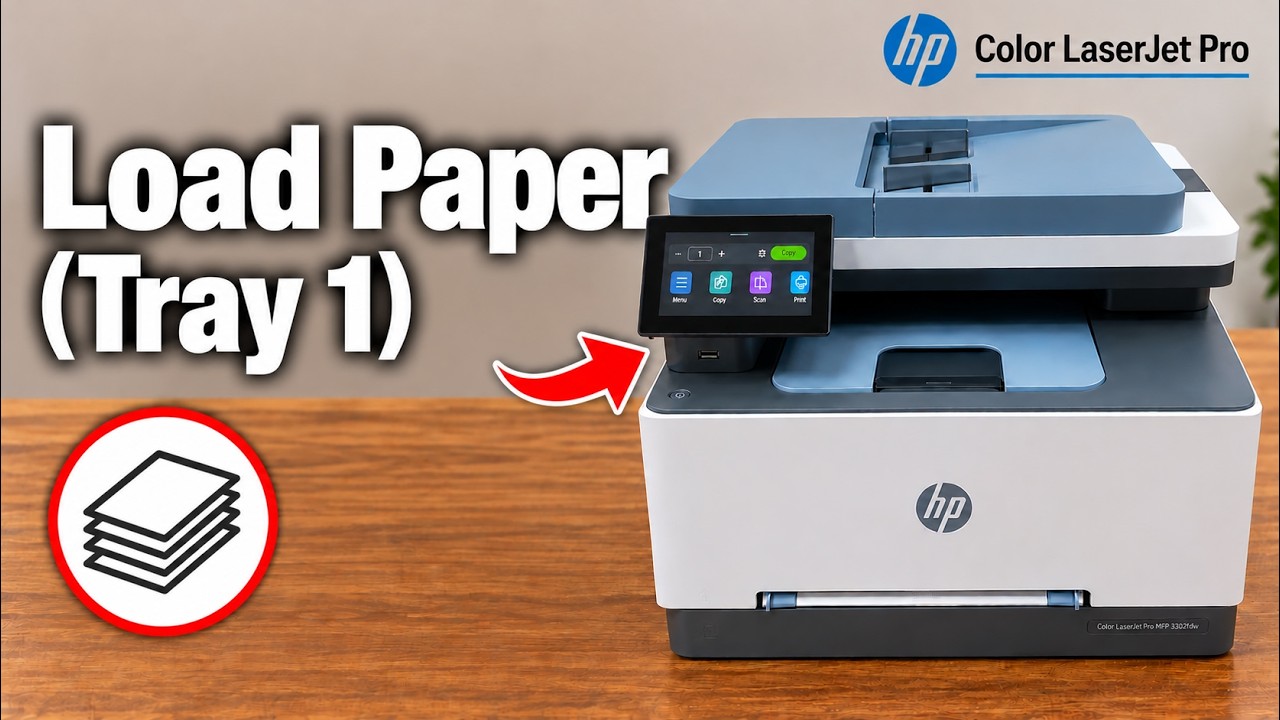
Check that all removed trays and covers are correctly back in place. Reconnect power, turn on the printer and read its status. Reload the intended tray correctly—one sheet in Tray 1—and send a small job only after the jam message clears.
If the warning remains, paper tears or the path cannot be accessed safely, stop and use HP support. The source does not demonstrate that unscrewing parts or repeatedly forcing jobs is a verified repair.