Before you start
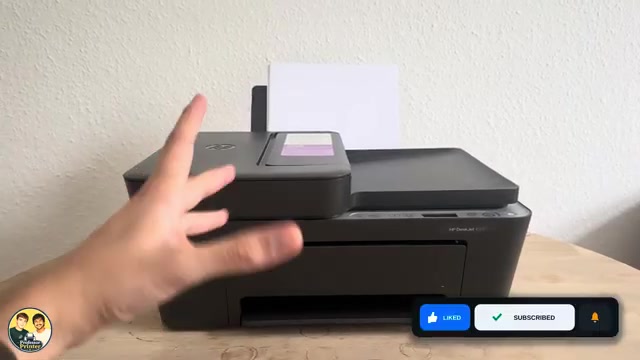
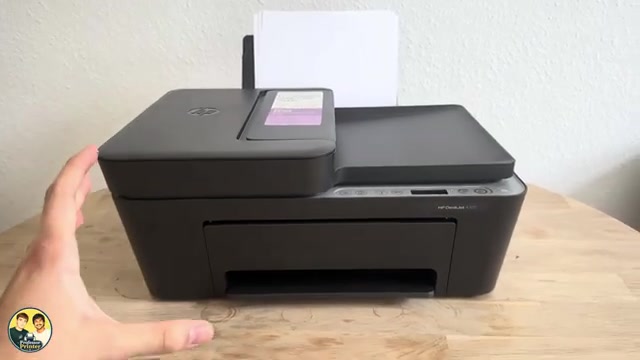
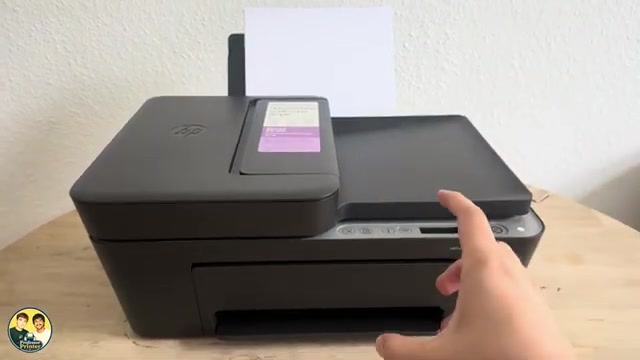
- Read any displayed error and software message before pressing combinations. Load paper and open the output tray before deliberately printing a report.
Use the everyday controls
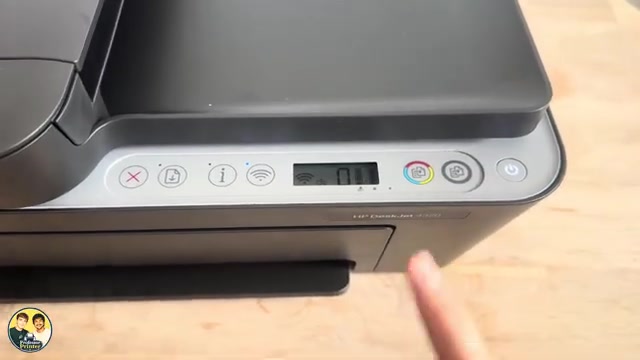
- Power: turns the printer on or off. Allow shutdown to finish before unplugging; normal blinking can mean startup, shutdown or a job in progress. Fast blinking can indicate an open access door or an error.
- Cancel (X): stops the current operation. Press it once and let the mechanism stop; do not pull a moving sheet out. This is not a universal factory-reset or error-clear button.
- Resume: continues an interrupted job after its cause has been resolved, such as adding paper or clearing a jam. Read the warning first rather than treating Resume as a bypass for every error.
- Information (i): prints a summary/status page. During a prompted Wi-Fi setup, a flashing Information light can instead ask you to confirm the connection.
- Wi-Fi: turns the wireless capability on or off. Turning it off interrupts wireless access; it does not remove a paper jam.
- Color Copy and Black Copy: start the corresponding copy. With the original and paper loaded, press the same button again quickly to increase copies, up to nine.
Step 1:Stop the current print or copy job
Press X/Cancel once while the unwanted job is active. Wait for printing or copying to stop, then collect any sheet that has fully exited. The short supporting source demonstrates stopping a copy partway through.
This stops the current operation on the printer. If another queued job starts afterwards, cancel that job in the sending app or print queue as well; a single press is not a promise that every device’s queue has been erased.
Read the status together with the lights
- A steady Wi-Fi light with the network icon indicates a connection. Blinking can mean setup, an attempted connection or WPS; read the accompanying icon and current task. Off means wireless is disabled.
- The number area is used for copy count, E error codes and activity/alignment states. It is not a reliable count of every document in a computer’s print queue.
- The left ink icon is tri-colour and the right is black. They are estimated levels; flashing combinations can indicate cartridge faults or low-ink warnings.
- E4 is a paper-jam report; E3 concerns a stalled carriage. A blinking A after an alignment page is a prompt to complete alignment, not an ink-volume reading.
Distinguish report presses from long holds
To print a basic Information Page, load paper and press Information once. Pressing Wi-Fi and Information together briefly prints the Wi-Fi test/network configuration reports. Holding that same pair for 5 seconds instead produces the WPS PIN page. Keep reports private because they can include network names, addresses or credentials.
For an ink warning, paper error or failed alignment, use its specific guide. Pressing more buttons before identifying the state can start a different task.
Questions & troubleshooting
Does Cancel delete all jobs from every device?
It stops the current printer operation. Other queued jobs can still arrive; cancel those in their sending app or queue if necessary.
Why did pressing Wi-Fi disconnect my printer?
A normal press toggles wireless capability. If it was on, that press turns it off; this differs from a network reset.
Is every flashing Power light an error?
No. Normal blinking accompanies activity or startup/shutdown; fast blinking can indicate an open door or an error. Check the actual display and software message.
Are the network report and WPS PIN the same?
No. A brief Wi-Fi+Information press prints network reports; holding that pair for 5 seconds prints a WPS PIN page. Do not share either publicly.
References
- Professor Printer: source demonstration
- HP: controls, reports and display states, printed pages 3–7 and 32–38; network reset, printed page 51
- HP: exact-series blinking lights and error meanings
- HP: exact DeskJet 4320 specifications
- HP: exact DeskJet 4355 specifications
- Professor Printer: supporting source