Before you start
- Use a small flat stack of supported plain paper for the test. Remove curled, bent, damp or torn sheets.
- For roller cleaning, have a long lint-free cotton swab, distilled or filtered water and a flashlight. Never reach inside a powered printer.
Step 1:Check and reload the paper first
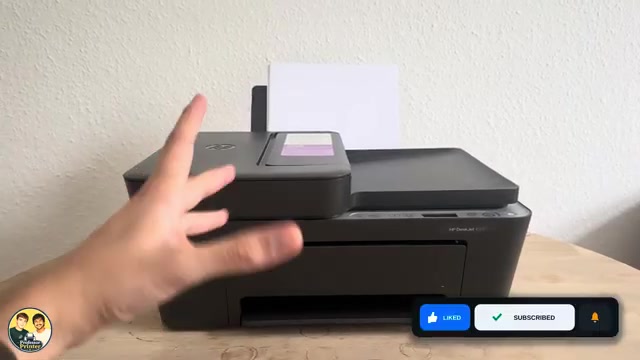
Stop the job and remove the rear paper stack. Check that it is one size and type, without damaged or stuck-together sheets. Raise the input support, open the width guide, then load the stack in portrait orientation print-side up until it stops naturally. Bring the guide to the edge and open the output tray and extension.
Match the app’s paper size/type to the actual stack. Try one short print. An empty tray, poor loading or wrong paper can cause feeding trouble without dirty rollers. If E4 or trapped paper is present, use the jam guide first.
Step 2:Clean the rear pickup rollers only if needed
- Turn the printer off and unplug its power cord and other cables. Remove the paper and raise the input tray.
- Lift and hold the input-tray shield without removing it. Locate the grey pickup rollers with a flashlight. Do not jam an object into the shield to hold it open.
- Lightly dampen the swab with water and squeeze out excess liquid. Wipe the rollers while rotating them upward with your fingers, using moderate pressure to remove dirt. Do not pour liquid into the printer.
- Lower the shield and allow the rollers to dry completely, approximately 10 minutes, before reconnecting power.
These complete preparation and drying steps come from HP’s exact 2900/4300 paper-pick instructions. The source identifies the rollers but explicitly does not perform the cleaning; it does not prove that wetting them “reactivates stickiness” or guarantees a repair.
Step 3:Test the feed and stop if the fault persists
Reconnect power/cables, turn the printer on, reload suitable paper and send one short job. Check that the printer takes one sheet and produces output. If the feed still fails, inspect for an obstruction through the documented jam-access route rather than prodding deeper into the tray.
HP also lists a power restart after physical checks: turn off, disconnect from power, wait 60 seconds, reconnect and turn on. If feeding still fails, use HP service. This is not a factory reset or a promise to repair worn parts.
Questions & troubleshooting
Does water restore a roller’s stickiness?
The verified purpose is to remove dust and dirt. The source’s “reactivation” explanation and guaranteed result are not established.
Can I leave the printer plugged in while wiping?
No. Disconnect power before reaching inside and allow the rollers to dry completely before reconnecting.
What if the top feeder does not take my original?
That is a different path from the rear pickup rollers shown here. Use the document-feeder section of HP’s linked instructions; do not apply rear-tray access steps to the ADF.