Before clearing the connection
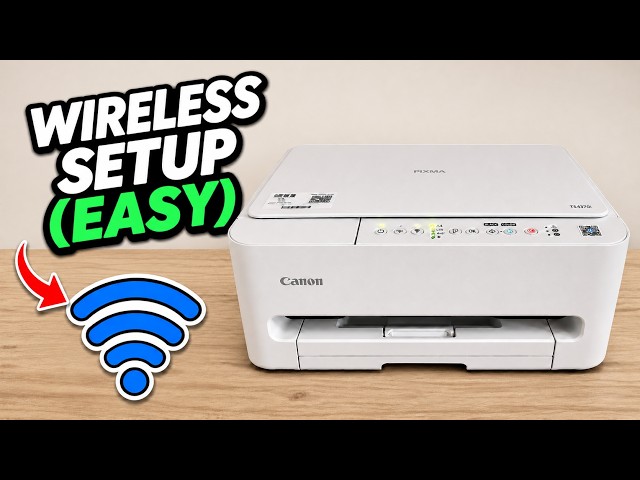
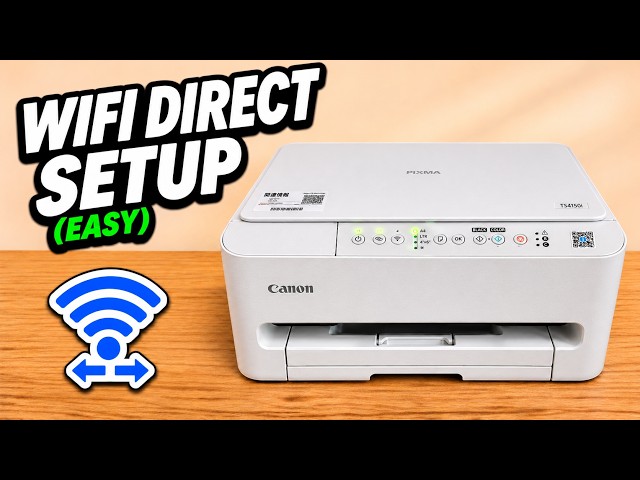
Use this when you want to remove the saved network, such as after changing routers. Devices that used the old wireless connection will need the printer to finish Wi-Fi setup again before they can print.
Watch this section at 0:15Step 1:Count fifteen flashes of the Alarm lamp
With the printer on, find Stop, the far-right button marked with a triangle inside a circle. Hold it down as the Alarm lamp flashes. Release on flash fifteen. Do not continue to sixteen, which selects the full printer reset.
Watch this section at 0:44Step 2:Wait for the previous connection to clear
The power lamp flashes while the printer changes its settings. If the printer was connected to Wi-Fi, the previous steady Wi-Fi light goes out. A printer that was already disconnected can have that light off from the start.
Watch this section at 1:48Step 3:Start a new wireless setup
Connect your iPhone to the home Wi-Fi you want the printer to use and turn Bluetooth on. Open Canon PRINT and tap Search. Finding the printer lets you start setup. Continue until the app confirms that it has joined the network.