Before you start
- Have a flashlight and space to support the printer. Do not use tweezers, sharp tools or force to reach paper.
- Before reaching inside, turn the printer off and unplug its power and other cables as described below. Let any carriage movement stop first.
Step 1:Cancel and identify the affected path
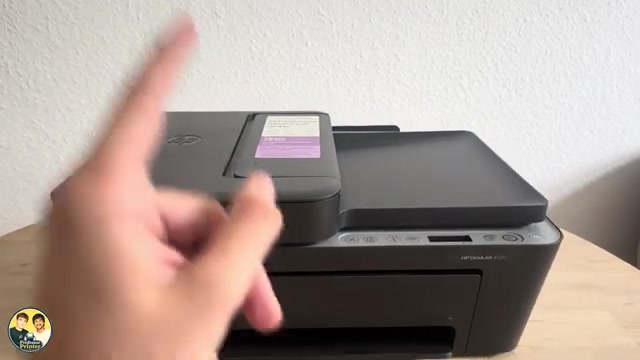
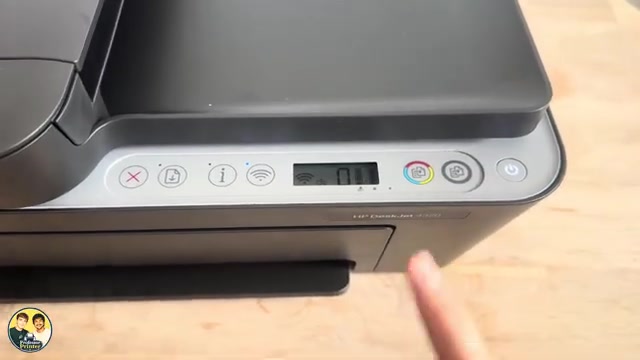
Press Cancel once and allow the printer to stop. If E4 remains, inspect the input and output paths, cartridge-access area and, where needed, the bottom cleanout door. A feeder jam concerns originals being copied or scanned, not the rear supply of blank paper.
HP notes that a reported jam can be real or false. The source shows access locations rather than a complete demonstrated jam-removal-and-test result. Do not assume unseen paper exists or that the error is already fixed.
Step 2:Check the input and output openings
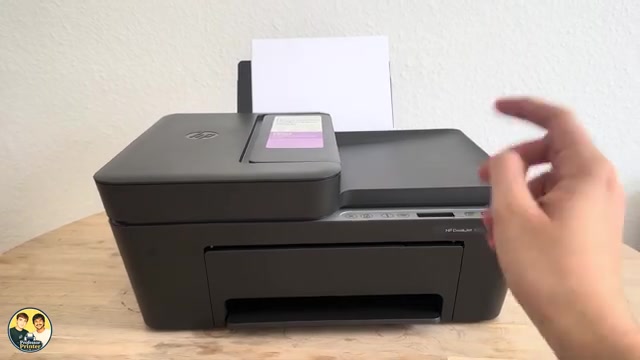
Remove loose blank paper from the rear tray and inspect the visible path. Gently pull accessible jammed sheets straight out with both hands, keeping the sheet intact. Check the output opening too. Do not remove the input-tray shield or insert long tweezers as suggested in the source.
If paper is deeper inside, stop pulling from an inaccessible angle and use the access area below. Before reaching into internal parts, turn the printer off and disconnect power.
Step 3:Inspect the cartridge-access area with power disconnected
- Open the front and cartridge-access doors. Wait for the carriage to become idle and quiet.
- Press Power to turn off, unplug the power cord, and disconnect other cables. Use the flashlight to locate paper or foreign objects.
- Pull an accessible whole sheet slowly with both hands. Remove visible torn fragments without touching delicate strips, cables or nozzle/contact areas.
- If the carriage is centred and blocks inspection, HP’s applicable manual allows sliding it to the right only after power is disconnected. Do not force a stuck carriage.
- Close the access door after the path is clear.
Step 4:If needed, use the bottom cleanout door
Keep the printer off and unplugged. Close the input tray, output extension and output tray. Following the specific 4300 manual, lift the front so the printer rests securely on its rear to reach the base. Do not copy the video’s upside-down position.
Release the two tabs and open the bottom door. Slowly remove any trapped paper and check for fragments with a flashlight. Close the door until both tabs click into place, then return the printer to its normal upright position. If you cannot support it safely, stop and seek assistance.
Step 5:If the original is trapped in the document feeder
With the job stopped and power disconnected, open the top document-feeder cover. Gently remove the trapped original, preserving the sheet and checking for torn pieces, then close the cover securely. This access is relevant when using the feeder; it does not replace checking the print paper path for an E4 print jam.
Step 6:Reconnect and check one page
Make sure all covers and both bottom tabs are secured. Reconnect power and any other cables, turn the printer on, load a small flat stack and try a copy or short print. Check that the sheet feeds and exits normally and E4 clears.
If E4 persists despite clear paths, HP’s task guidance provides a power restart: turn off, unplug from power, wait 60 seconds, reconnect directly to a wall outlet and turn on. This does not remove a physical obstruction and is not a factory/network reset. Persistent faults after these checks need HP service rather than sharper tools.
Questions & troubleshooting
Can I use long tweezers to reach a scrap?
No. HP’s applicable manual specifically excludes sharp tools such as tweezers or needle-nose pliers. Use the proper access door and stop if the scrap cannot be reached without force.
Should I turn this printer upside down?
Use the 4300 manual’s supported rear-resting position for bottom access. Do not transfer another model’s orientation or the source’s upside-down demonstration.
Why is E4 still present with no paper visible?
HP says jam reports can be false or an inaccessible fragment may remain. Check all relevant paths, secure covers and try the documented power restart; persistent faults need service.