Before you start
- Read the full display and HP software message before changing anything. E0 is a cartridge connectivity/problem state, not proof that the cartridge is empty.
- Use the printer’s own cartridge label and the exact regional supply listing. Have a protected surface ready if a cartridge must be removed.
Step 1:Identify which cartridge and message need attention
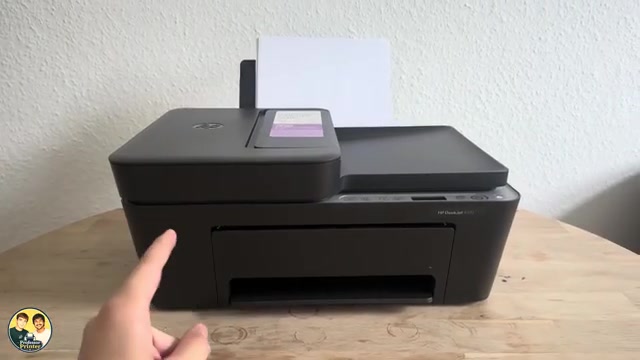
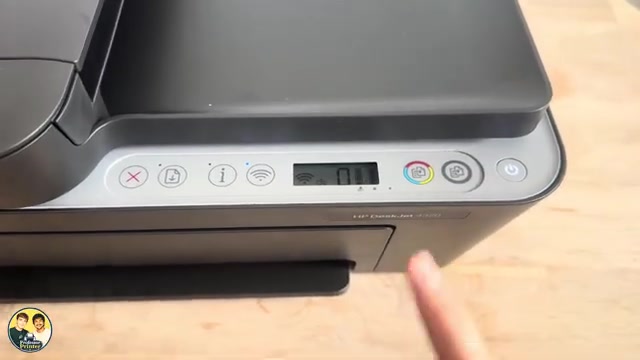
HP identifies the left cartridge icon as tri-colour and the right as black. E0 with a flashing icon points to the corresponding cartridge; both non-empty cartridges appearing empty can indicate incorrect seating. Other blinking combinations have different meanings, so check the software message as well.
The main recording deliberately loosens a cartridge and later reports that the warning clears. The supporting E0 clip does not actually have E0 on screen. Neither proves that every blinking light has the same cause or that every replacement will fix it.
Step 2:Reseat the affected cartridge correctly
- Leave the printer on, open the front and cartridge-access doors, and wait for the carriage to centre and stop. Do not pull the carriage into position.
- Press the affected cartridge down to release it and pull it out by the sides. Do not touch the contacts or nozzles.
- Check the model/region number and inspect for damage. Remove only any remaining orange/protective nozzle tape, not the attached circuit.
- Insert tri-colour on the left or black on the right. Slide in at a slight upward angle and push into its seated position until it clicks. Check that neither cartridge is tilted upward.
- Close the access door. For E0, HP’s current specific procedure says to press Cancel, then check whether the error clears.
You do not need to remove both cartridges when only one is indicated. The article does not add rubbing, soaking or tools as a speculative fix for cartridge contacts.
Step 3:If E0 remains, restart once and recheck
After the seating/tape/compatibility check, turn the printer off, wait 60 seconds, then turn it on again. Allow initialisation to complete and read the status. This is HP’s E0 restart step, not a factory reset, firmware rollback or Wi-Fi reset.
If the same E0 remains with a compatible, correctly seated cartridge, HP’s next step is replacement of the affected cartridge. Check its warranty/support options first. If a new compatible cartridge does not resolve it, contact HP service rather than repeating resets or forcing parts.
Do not confuse low-ink warnings with E0
HP’s separate blinking-light guidance distinguishes missing or improperly installed cartridges from very-low-ink/previously-used messages. Read the exact app message. For the documented low-ink/Resume pattern, HP permits Resume to continue and replacement when output is no longer acceptable; that is not a universal override for E0.
Step 4:Confirm the result
Once the warning clears, print a small sample and inspect it. If the error persists, preserve the exact code/message for support. Do not buy both cartridges merely because a source clip uses a general “blinking ink” title.
Questions & troubleshooting
Does E0 mean the ink is empty?
Not by itself. HP describes a cartridge problem/connectivity state. Check the indicated cartridge, installation and software message.
Should I pull the cartridge carriage forward?
No. With the printer on and the door open, wait for it to move and stop by itself. Do not force it.
Will a factory reset fix a cartridge error?
This guide does not prescribe one. Check the cartridge, complete the applicable E0 restart, and seek cartridge or printer service if the error remains.
Are all refilled cartridges automatically disabled?
The source’s blanket statement is too broad. HP’s circuitry and compatibility requirements matter; a blinking light alone does not establish that refilling caused it.
References
- Professor Printer: source demonstration
- HP: exact 2900/4300 E0 check, Cancel and 60-second restart sequence
- HP: distinguish ink-icon patterns from low-ink messages
- HP: removal/insertion and icon meanings, printed pages 28–29 and 32–36
- HP: current regional supplies table
- HP: exact DeskJet 4320 specifications
- HP: exact DeskJet 4355 specifications
- Professor Printer: supporting source
- HP: applicable manual dynamic-security explanation, printed page 26