Before you start
- Plain white paper loaded print-side up in the rear tray.
- The HP app connected to this printer, with ink installed.
Check the job and cartridge state first
Make sure the page you selected contains visible content, the paper type and size match the loaded paper, and colour output is selected when needed. Read the ink estimate and any cartridge error. A blank page alone does not establish dried ink as the cause.
The source demonstrates manual nozzle wiping and suggests soaking. Those actions are not part of this written procedure. HP cautions against touching cartridge nozzles and provides the automated cleaning method below.
Step 1:Open the connected printer’s quality tools
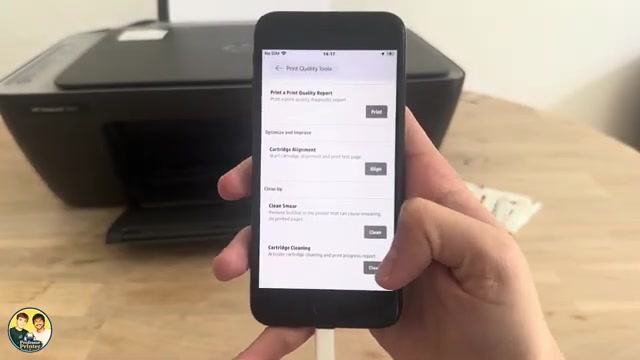
Load plain white paper, open the HP app and select the printer. Under Diagnostics or Tools, open Print quality tools. If needed, choose View all print quality tools. The recording reaches this page after first trying the wrong View all section; use the named quality-tools function.
Step 2:Run one cleaning and inspect the test page
Choose Cartridge cleaning or Clean printhead, depending on the app’s wording. Let the routine finish and print its test page. Examine whether the missing black or colours have returned and whether streaks remain. Stop cleaning if the result is acceptable.
Step 3:Use the next cleaning level only if needed
If the test is still poor and the app offers a second-level cleaning, follow that prompt and inspect the next result. HP says badly clogged cartridges may need another cleaning cycle, but wait at least 30 minutes before starting another complete cycle. Do not run repeated cleanings merely as routine maintenance: they consume ink and reduce cartridge life.
Check a real document after cleaning
Print a small document with the intended colour and paper settings and compare it with the earlier output. If missing ink remains, check the correct cartridge, any error and HP’s model-specific quality guidance. Keep a faulty print sample for support. A new cartridge is not a guaranteed cure for every blank-page cause.
Questions & troubleshooting
The cleaning option is unavailable.
Check that the HP app has selected this printer, that it can communicate with it, and that no unresolved printer error is blocking the task. Do not substitute wiping or soaking the nozzles.
The output is doubled or misaligned rather than blank.
Use the alignment guide for that symptom. Cleaning and alignment address different checks; neither guarantees that every print-quality problem is solved.