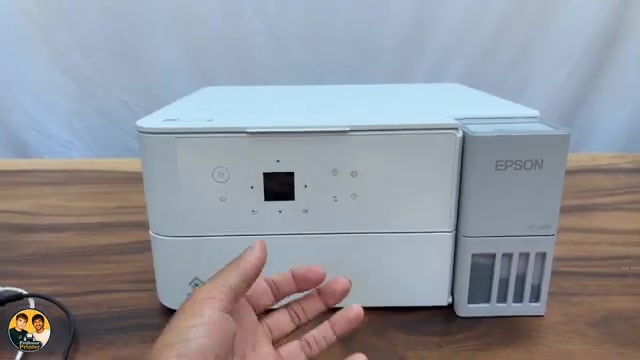
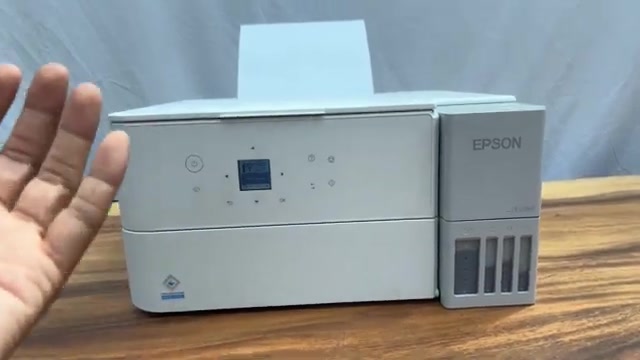
Before you start
- Know the current network name and password before erasing the saved connection. Plan to reconnect every device that needs the printer.
- Read the current connection error and try ordinary reconnection before a reset. This changes network settings; it does not repair a paper jam or clogged nozzle.
Check the network before removing its settings
- Confirm the printer and router are on, and that the selected network name and current password are correct.
- Move the printer closer to the router for diagnosis if reception is poor. Do not buy an extender simply because the source suggests one.
- Load plain paper and open Settings → Network Settings → Connection Check. Print the report and follow its specific error guidance.
- For an ordinary restart, use the power button and wait for the power light to go out. Do not pull the plug while the printer is operating.
Changing to another router can often be handled by running Wi-Fi Setup Wizard with the new details. Reset only when you intend to discard the saved network configuration or the applicable troubleshooting calls for it.
Understand what Network Settings resets
Do not choose Clear All Data and Settings as a supposedly safer Wi-Fi fix. That broader option clears personal information and resets all settings; it is not necessary for the network-only procedure below.
Step 1:Restore only Network Settings
- From Home, select Settings and press OK.
- Open Restore Default Settings, select Network Settings and press OK. Check the selection before confirming the restore prompt.
- Wait for the completion message. Follow any restart prompt. The source turns the printer off with Power, waits for shutdown, then turns it back on; do not interrupt a restore that is still processing.
Step 2:Reconnect to the intended router
- Open Wi-Fi Setup → Wi-Fi, confirm OK and select Wi-Fi Setup Wizard.
- Choose the exact intended network. Enter its current password with the arrow/OK keyboard, using the character switch for capitals, digits and symbols.
- Select the screen’s OK and confirm with the physical OK button. Wait for setup to complete and confirm the result.
- Re-select or add the printer in the phone/computer app as needed. Review the administrator password using Epson’s Web Config instructions and change the restored default to a secure value.
The default administrator credential is on your own printer’s label, as explained by Epson’s label guide. It is not the router password and should not be copied from a video.
Step 3:Print and check the connection again
From a device on the same network, print a short document and verify the physical page. If connection still fails, print a fresh connection report and use its error code or contact Epson. Repeating resets does not diagnose every cause.
The source reaches a setup-complete message. Its broader suggestions about changing every SSID containing symbols or replacing the printer are not adopted as general remedies.
Questions & troubleshooting
Does this reset my administrator password too?
Epson says initializing network settings returns the administrator password to its default. After reconnecting, review that setting and use a secure replacement rather than assuming the old password remains.
Should I choose Clear All Data and Settings?
Not for this network-only task. It has a wider effect and clears personal information and all settings. The supporting source’s “safer” description is misleading.
Will this help a missing colour or paper jam?
No. A network reset addresses saved network configuration. Use the task-specific ink or paper diagnosis for physical printing faults.
Can I use the router sticker password?
Only if the router still uses that default. Ask the network administrator for the current password when it has been changed.