Before you start
- Use Reset all only when you intend to restore the printer’s settings. It is not a general repair for paper jams or print-quality faults.
- Have the details needed to reconnect the printer to your network and devices after the reset.
Choose the appropriate reset
Reset all is broader than a Wi-Fi reset. Canon states that it returns printer settings and the administrator password to their defaults. If you only need to remove the network configuration, use LAN settings only instead.
Step 1:Open Reset settings
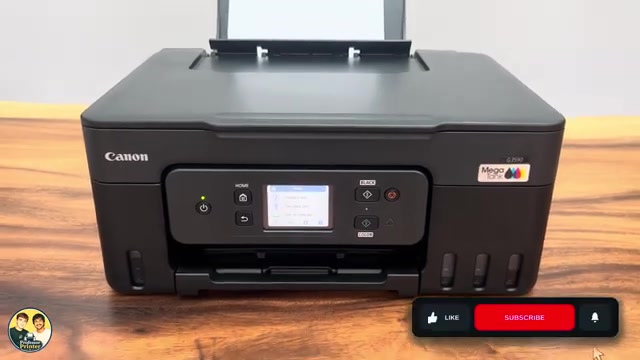
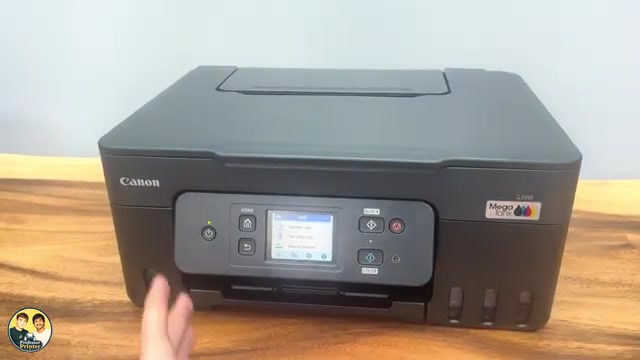
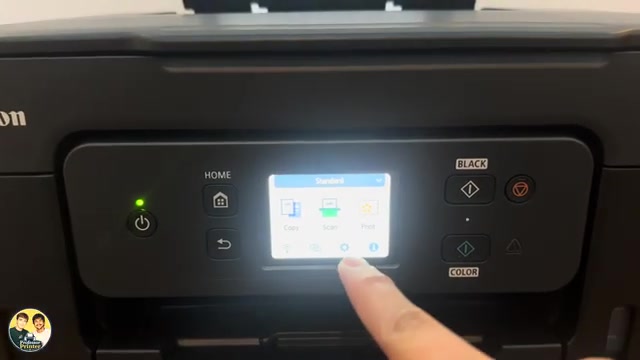
From HOME, select Setup → Printer settings. Scroll to Reset settings and open it.
Step 2:Select Reset all and confirm
Select Reset all. Read the confirmation and choose Yes only if you accept the consequences above. Allow the reset to finish and acknowledge any completion message shown on the screen.
Step 3:Restore your connection and required settings
After the reset, the old Wi-Fi configuration is no longer available for normal network printing. Repeat connection setup for your own network and confirm that your phone or computer can find the printer before sending a new job.
The source returns to a disconnected network state and an Easy wireless connect option. A full connection procedure is a separate task; the reset itself is not proof that a previous printing problem has been fixed.
Questions & troubleshooting
Is Reset all the same as LAN settings only?
No. LAN settings only returns network settings to their defaults. Reset all is broader and also restores the administrator password and other printer settings.
Will resetting fix a paper jam or worn part?
This is a settings reset. It does not remove paper, replenish ink or repair hardware. Identify the actual problem before choosing a consequential reset.