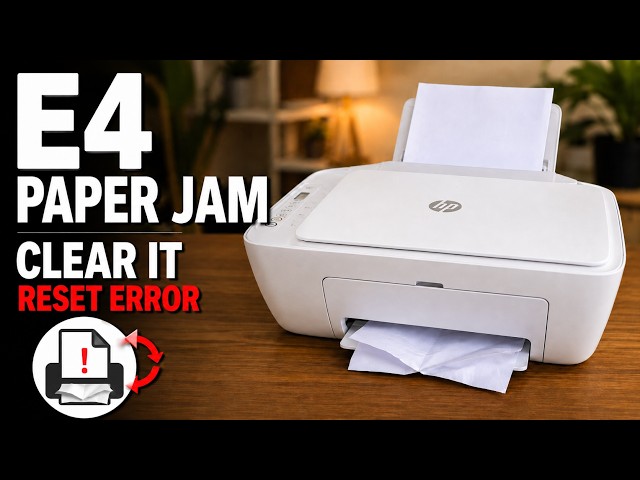
E3 identifies a carriage jam
The carriage holds the ink cartridges and travels across the printer. E3 means its movement has stalled; it is not simply a low-ink warning and does not prove that new cartridges are needed. Crumpled paper or another obstruction can restrict it.
Step 1:Stop the job and disconnect power
If Cancel is lit, press it and wait for the printer to become quiet. Turn the printer off, then disconnect its power cord before reaching inside. Open the front output door and inner cartridge-access door.
Step 2:Inspect the path with a flashlight
Look for loose paper, dislodged labels or other debris around the carriage. Remove accessible obstructions gently. If the carriage is free to move, slide it carefully to each side to inspect the hidden parts of its path. Never force a locked or stuck carriage, pull a clear plastic strip or disconnect internal parts.
Step 3:Close the door and check the error
Close the cartridge-access door, reconnect power and turn the printer on. Check whether E3 clears and try a small print. The recording tours the areas to inspect; it does not demonstrate a repaired fault on every affected printer.
If no obstruction is found
If paper is trapped elsewhere, follow the separate 2600 paper-jam guide for the input, output and underside access areas. Keep power disconnected whenever reaching inside or moving the carriage.
HP’s next check for an unexplained E3 is a power restart: turn off, unplug from the power source, wait 60 seconds, reconnect directly to a wall outlet and the printer, then turn on. This restarts power; it is not a wireless-settings reset. If the carriage remains stuck or the error returns, use HP support rather than repeating forceful movement or buying supplies on a guess.