Before you start
- Observe which symbols are lit, whether they are steady or flashing, and any message on the connected computer.
Step 1:Identify the six buttons
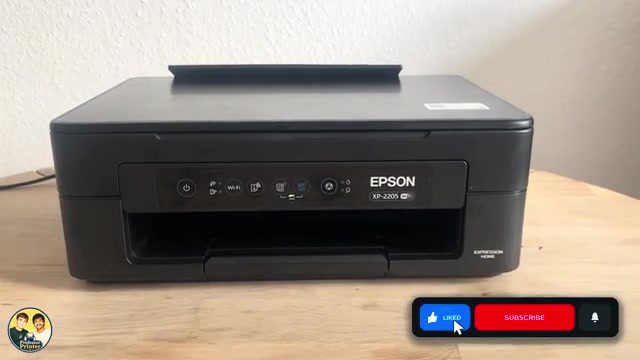
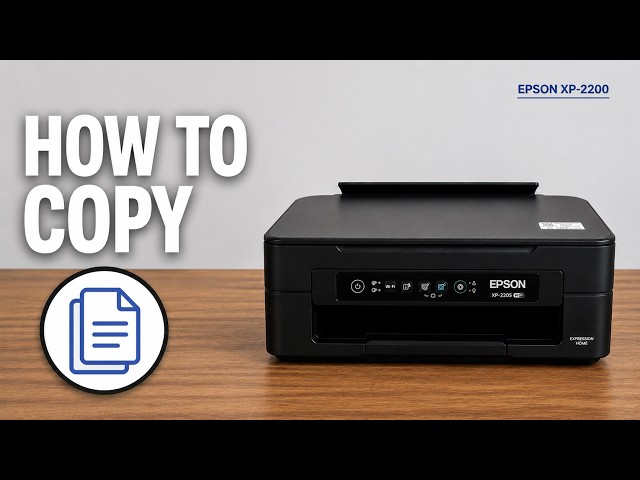
From left to right, the XP-2205 has Power, Wi-Fi, Network information, Black-and-white copy, Colour copy and Stop. The information button shows a sheet with an “i” and small network squares; Stop is a triangle inside a circle. The two network lamps are between Power and Wi-Fi. The ink-drop and paper lamps are beside Stop.
- Power: switch the printer off with this button and wait for its light to go out before unplugging.
- Wi-Fi: a short press clears a Wi-Fi connection error. Holding it for more than five seconds starts WPS setup.
- Network information: press once for a connection report; hold at least five seconds for the more detailed network status sheet. Load plain paper first.
- Copy buttons: start a black-and-white or colour copy on A4 plain paper. See the linked copying guide for placement and additional copies.
- Stop: cancel the current operation. Longer holds perform maintenance or cartridge positioning, so use the procedure for the task you actually intend.
Step 2:Read the network lamps
The upper wireless-network lamp indicates connection through a router; the lower lamp indicates Wi-Fi Direct. Alternating flashes can be part of setup or a network reset, so let the operation you started finish. If a Wi-Fi connection attempt fails and both network lamps flash together, press Wi-Fi to clear that error, then inspect the connection report before retrying.
When accepting a Wi-Fi Direct device connection, follow that connection’s approval prompt instead of treating its flashing lamps as a reason to erase the network settings. A steady wireless lamp confirms a connection, not that the computer has selected the correct printer.
Step 3:Distinguish low ink from a cartridge problem
- Ink lamp flashing: a cartridge is nearly empty. Prepare a replacement; printing can continue until the lamp becomes steady.
- Ink lamp steady: a cartridge may be empty, missing, unrecognized, unsupported or have insufficient ink for charging. Read the computer’s status message to identify the cartridge and cause. Do not assume that every solid ink lamp means a new cartridge is required.
Step 4:Check the paper lamp and its speed
- Paper lamp steady: no paper was loaded or multiple sheets fed together. Correct the paper loading and press either copy button.
- Paper lamp flashing slowly, about every 1.25 seconds: a paper jam. Remove the jam using the location-specific instructions before pressing a copy button.
- Paper lamp flashing quickly, about every half second: paper remains inside. Epson instructs loading A4 paper in portrait orientation in the rear feeder and pressing a copy button to eject it. Stop if the paper cannot move freely.
When both ink and paper lamps are steadily lit after an interrupted shutdown, clear the error with a copy button, cancel pending print jobs and check the nozzles. This steady pattern is different from the flashing service warnings below.
Step 5:Recognize a service or firmware warning
- Ink and paper lamps flashing together: an ink pad is nearing or has reached its service limit. Contact Epson or an authorized service provider.
- Ink and paper lamps flashing alternately: the borderless-printing ink pad needs service. Bordered printing may remain available; follow the computer’s message.
- Both network lamps plus both orange lamps steadily lit: firmware recovery mode after a failed update. Use the exact model’s Epson support instructions; recovery requires a USB-connected computer.
- Power, both network lamps and both orange lamps flashing: a general printer error. Check for trapped paper or remaining packaging without forcing moving parts, turn the printer off and on, and contact Epson if the error remains.
Questions & troubleshooting
Will holding Stop clear every warning?
No. Five seconds can start cleaning, and a longer hold can move the cartridge holder under different ink-light conditions. Identify the fault before using a button combination.
Does a flashing ink lamp stop all printing?
No. Epson distinguishes a nearly empty cartridge with a flashing lamp from a steady cartridge-error lamp. Check the computer message for the exact condition.