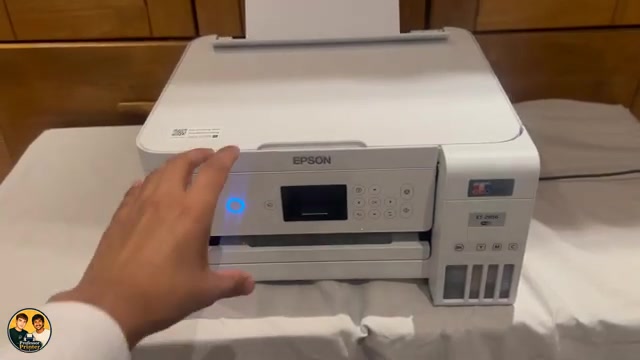
Before you start
- Check actual ink levels in all four tanks. Refill correctly before running maintenance if ink is too low; changing an estimate does not add ink.
- Load plain paper, extend the output tray and resolve any LCD error before cleaning. Keep a previous faulty print for comparison.
Step 1:Start with a nozzle check
The presenter reports that cyan had previously been missing on an ET-2856. That history is one reported fault, not proof that every missing colour has the same cause.
- Press Home, select Maintenance with the arrow buttons and confirm OK. Select Nozzle Check.
- Follow the paper prompt and press Start to print the pattern. Let the sheet feed without pulling it while the printer is operating.
- Inspect every black and colour pattern. If all lines are present, choose No and finish; do not clean merely because an earlier photo looked wrong.
A sheet that feeds incorrectly needs its paper problem addressed separately. The source’s interrupted sheet is not a reason to reach into a moving printer.
Step 2:Use ordinary cleaning for missing segments
If some segments are missing, choose Yes at the pattern question and confirm the cleaning prompt. Alternatively, open Maintenance → Head Cleaning and press Start. Keep the printer powered on and the scanner unit closed until the completion message and next pattern.
Compare the new pattern. Stop as soon as it is complete. If three ordinary cleaning/check cycles do not improve it, turn the printer off normally and wait at least 12 hours without printing. Then check the nozzles again and repeat ordinary cleaning only if needed.
If almost the entire pattern is missing, Epson directs you to leave the nozzle-check dialogue with No and consider Power Cleaning. Read its prerequisites below first; do not repeat ordinary cleaning indefinitely.
Check the consequences before Power Cleaning
Consider this operation for the severe pattern case, or when the ordinary-cleaning and waiting sequence has not improved the pattern. The source suggests half-full tanks as a preference; Epson’s documented minimum is one-third in every tank. Do not substitute an arbitrary “one bar” estimate.
This ET-2850-series Power Cleaning procedure is not interchangeable with the newer ET-2950 series, whose manual separates Power Cleaning and Power Ink Flushing.
Step 3:Run the confirmed operation and let it finish
- Check that the output tray is extended, there is no LCD error and every tank meets the minimum.
- Open Home → Maintenance → Power Cleaning. Read each warning and confirm with OK only when the conditions are satisfied.
- Complete the start confirmation displayed on the LCD. The source reaches a hold-to-start prompt but deliberately does not run this operation on camera.
- Wait for the completion confirmation without turning off the printer or opening the scanner unit. Then print and inspect a new nozzle check.
Do not use the presenter’s ten-to-fifteen-minute estimate as a guaranteed duration. Follow the printer’s own progress and completion state.
Step 4:Wait before repeating and seek the right support
If output has not improved, turn the printer off normally and wait at least 12 hours without printing before another nozzle check. Epson requires at least 12 hours between Power Cleaning operations. Choose further maintenance from the new pattern rather than repeatedly pressing the same control.
If the problem continues after the documented maintenance, contact Epson. This source does not demonstrate manual internal cleaning, prove that a printer must be replaced or show a new successful power-clean result. Its success claim is the presenter’s account of a prior attempt.
Questions & troubleshooting
Should I clean three times every time?
No. Three is a limit before the stated pause, not a routine target. Stop when the pattern is complete and do not continue through an error.
Can I use Power Cleaning with only one low colour?
No. Epson requires every tank to be at least one-third full. Check the actual windows; enough ink for a page is not necessarily enough for this operation.
Does the video show the power-clean repair completing?
No. The presenter describes a previous successful experience and stops at the final start prompt to avoid using ink again.
Is this the ET-2950 Power Cleaning procedure?
No. This guide covers ET-2856 and ET-2850. The newer manual distinguishes maintenance operations differently, so use the guide for your exact model.