Power and wireless controls
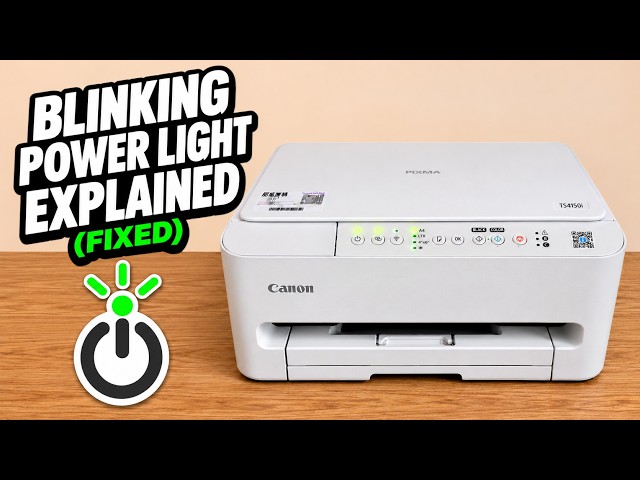
Press Power once to switch the printer on or off. A blinking power lamp can mean the printer is busy. The chain-link Wireless Connect button starts wireless setup. The adjacent Wireless Select button changes wireless settings. A steady Wi-Fi lamp accompanies the working router connection.
Watch this section at 0:47Paper Select and OK
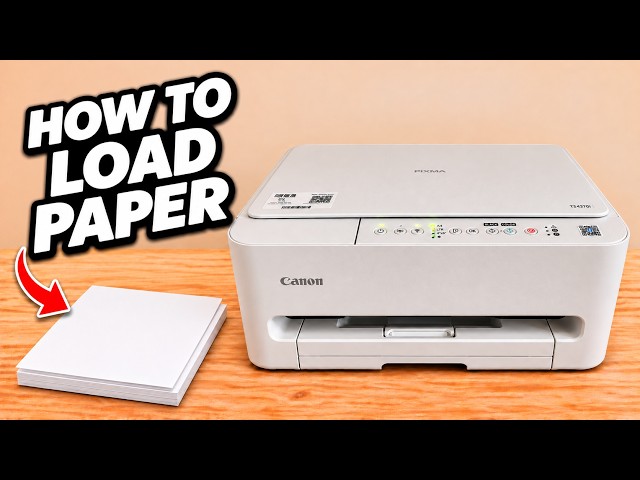
Tap Paper Select to move through the paper size lamps, then press OK to confirm the size you loaded. OK can also resume an interrupted job once you have fixed the cause. For example, if a network report stops because the paper runs out, load more paper and press OK.
Watch this section at 3:56Black and Color copy buttons
Place the original printed side down against the arrow at the upper-left of the glass and close the lid. Press Black for a black-and-white copy or Color for a colour copy. The sheet comes out into the front output tray.
Watch this section at 7:35B, C and the Alarm indicator
B refers to the black cartridge and C to the colour cartridge. A steady ink lamp in copy standby can indicate low ink. A flashing lamp needs the accompanying error information. The separate triangle Alarm lamp can also signal a problem such as an empty cassette.
Watch this section at 9:00Stop and the maintenance selections
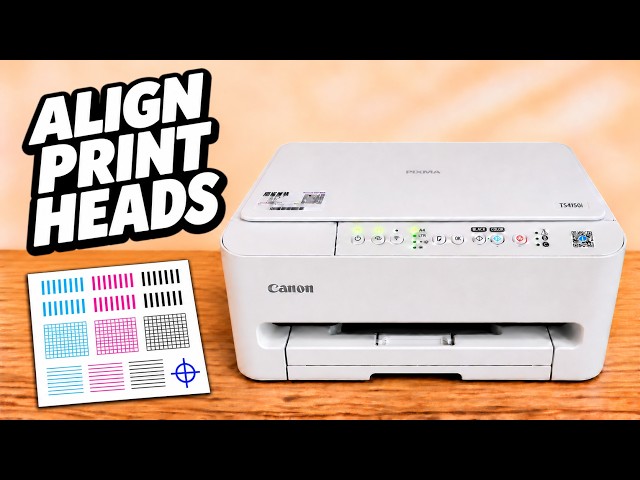
Tap Stop to cancel the current job. Holding it has a different effect. Count the flashes of the separate Alarm lamp, then release to select an operation. One flash selects a nozzle check, two select cleaning, three select deep cleaning, and four select printing the alignment sheet. Use the individual maintenance guide for the remaining steps.
Watch this section at 10:19