Before you start
- Have new A4 or Letter plain sheets. For glass cleaning use a soft, clean, dry, lint-free cloth, not the damp cloth suggested in the recording.
- Before unplugging for manual glass cleaning, finish fax activity and send/print any stored documents you need. Canon warns that unplugging erases stored fax documents and resets date/time.
Match the remedy to the marks
- Check the actual loaded paper, its printable side and matching media/size settings first. Curled or unsuitable paper and an incorrect media setting can cause smears or rubbing.
- If the mark appears only in copies or scans, inspect the original and the corresponding scanner glass. An ADF streak needs the applicable ADF-glass procedure, not indiscriminate cleaning of the print path.
- If ink marks appear on the back of printed sheets, Canon directs bottom-plate cleaning.
- A dirty feed roller can affect paper pickup. Roller cleaning wears the rollers, so run it only when the feed condition calls for it.
The three maintenance tasks below are alternatives for different evidence, not a required sequence to run on every smudge.
Step 1:For affected flatbed copies or scans: clean gently
- Finish sending/receiving faxes and preserve any needed stored documents. Turn the printer off normally and unplug it before manual cleaning.
- Open the document cover. Use a soft, clean, dry, lint-free cloth to wipe the glass and the inner cover gently.
- Remove residue without pressing hard or scratching the surface. Do not use paper towels, rough cloth or chemical cleaner.
- Close the cover, reconnect power and turn the printer on. Check date/time as necessary and repeat the same copy or scan to compare.
Step 2:For back-of-page stains: prepare the cleaning sheet
- With power on, remove ordinary paper from the front tray. Use one new A4 or Letter plain sheet.
- Fold it in half widthwise, then open it. Fold one end to meet that centre crease and open it again, leaving a centre crease and another crease in one half.
- Load only this sheet with the raised ridges of the creases facing up. The end belonging to the half without the additional crease goes into the printer first. Compare with Canon’s linked loading diagram if unsure.
- Register its actual A4 or Letter size and Plain paper. Open the output tray, pull out the output support and open the extension.
The special folded-sheet preparation is essential to this operation. Simply starting the menu with an ordinary stack does not follow the bottom-plate instructions.
Step 3:Run Btm Plate Cleaning and inspect the sheet
- Press Setup, select Maintenance and press OK.
- Select Btm Plate Cleaning and press OK. Let the sheet feed through completely.
- Check its creases for picked-up ink. If they are dirty, repeat with a newly prepared sheet, not the same used sheet.
- Print a normal page and compare the stain. If it persists after repeating, consult Canon’s linked illustrated internal-protrusion instructions or service support before attempting further manual access.
This article’s procedure ends at the normal menu-driven cleaning; do not dismantle the printer or wipe unidentified internal parts.
Step 4:Only when needed: complete both roller-cleaning stages
- Turn the printer on, remove all paper from the front tray and open the output path.
- Select Setup → Maintenance → Roller Cleaning, pressing OK to confirm. Let the rollers rotate without paper.
- Wait for the rollers to stop. Load one A4 or Letter plain sheet in the normal front-tray orientation, print-side down, with guides set to its edges.
- Press OK to continue. Cleaning is complete when the sheet is ejected.
Do not add paper during the first dry rotation. If the relevant feeding problem remains after the documented cycle, Canon directs service support rather than endless repetition.
Questions & troubleshooting
Should I run roller cleaning for every ink smudge?
No. First identify the cause. Roller cleaning wears the roller; bottom-plate cleaning is the documented option for stains from inside the print path.
Can I use an unfolded sheet for bottom-plate cleaning?
Use the specific new, twice-creased sheet and orientation in Canon’s instructions. Inspect the creases afterwards and use a new sheet for a repeat.
Can I clean the scanner with a damp paper towel?
Canon specifies a dry, soft, lint-free cloth and warns against paper towels, rough materials and chemical cleaners.
Why mention fax documents before unplugging?
Canon warns that unplugging erases documents stored in the printer and resets date/time. Preserve needed documents and finish fax activity first.
References
- Professor Printer: source demonstration
- Canon: distinguish paper, glass, roller and internal stains
- Canon: back-of-paper stains and bottom-plate cleaning
- Canon: dry glass/cover cleaning and fax-memory consequence
- Canon: folded-sheet preparation, loading diagram and bottom-plate cycle
- Canon: roller cleaning without paper, then one sheet
- Canon: normal front-tray paper orientation
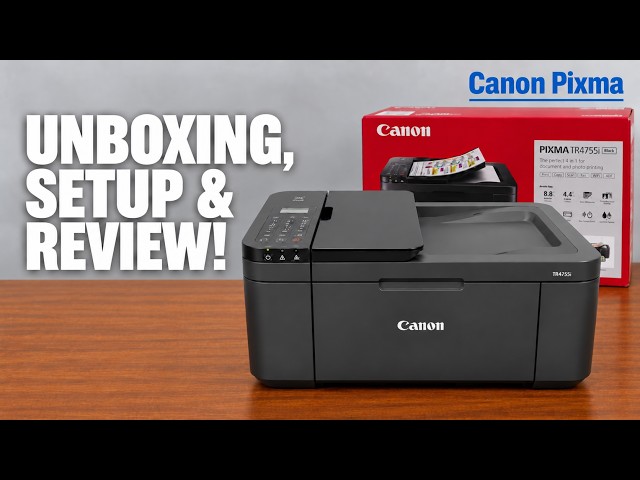
- Canon: applicable manual explicitly lists TR4720 and TR4755i