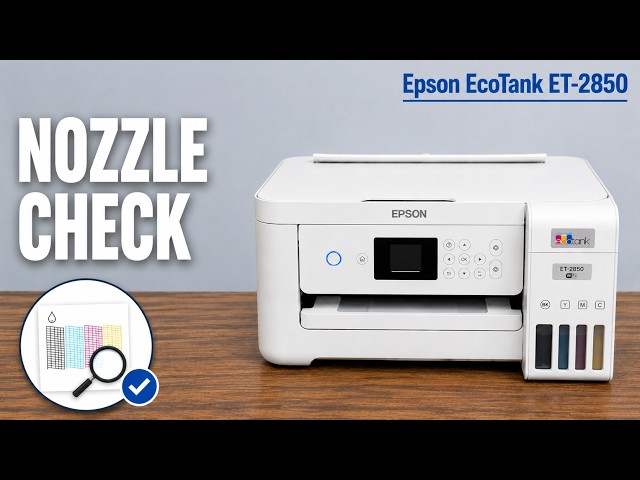
Before you start
- Finish active jobs and make sure you are authorized to reset a shared printer.
- Have the network details and any settings you need to restore. A settings reset changes configuration; it does not physically clean the print head.
Choose the reset scope deliberately
Epson lists Network Settings, Copy Settings, Scan Settings and Clear All Data and Settings under Restore Default Settings. A reset is not a cure for an empty tank, paper obstruction or clogged nozzle.
Open the full-reset command
Turn the printer on and press Home. Use the arrow buttons to open Settings, then Restore Default Settings. Select Clear All Data and Settings and press OK. Read the confirmation and proceed only if this is the intended scope.
Allow the reset to complete
Follow the printer’s displayed progress and completion prompts. Do not interrupt a reset by pulling the power cable. The presenter describes switching off normally with the power button, confirming the shutdown, then turning the printer back on after the reset has finished.
Configure the printer again and check a job
Follow the printer’s setup prompts and re-enter the intended network configuration. Check the paper and other settings before printing. Select the reconnected printer on your phone or computer as needed, then try a small print.
The recording does not establish a successful repair of every fault. If the original problem is print quality, inspect a nozzle pattern rather than repeating a settings reset.