HP DeskJet 2600 blinking Wi-Fi light: what to check
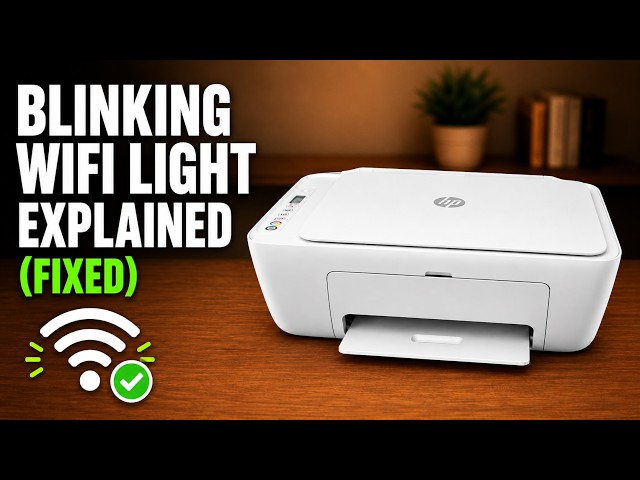
A flashing blue wireless light means the DeskJet 2600 has not joined a wireless network. Check its light and connection stage before changing any saved settings.
Start with your exact HP model, or browse the available guides below.
printertutorials.com is an independent resource and is not affiliated with HP.
Choose a model to find its guides in one place.
Narrow the list by printer model or the task you need help with.
A flashing blue wireless light means the DeskJet 2600 has not joined a wireless network. Check its light and connection stage before changing any saved settings.
Reconnect a DeskJet 2600 after a router, Wi-Fi name or password change. Try HP app setup, use the demonstrated recovery if discovery fails, then check the printer from home Wi-Fi.
Find where DeskJet 2600 setup is stopping: app discovery, the temporary printer connection, or the home network. Check the working connections before resetting wireless settings.
Remove and seat the cartridges in an HP ENVY 6120e, check estimated ink levels, and know when alignment is expected after fitting a new cartridge.
Set up the demonstrated DeskJet 2920 with paper, cartridges, alignment and iPhone Wi-Fi setup, then add it on a Mac and save a scan.
Use the DeskJet 2600’s Cancel button to stop the current operation and understand why a computer queue may still contain other jobs.
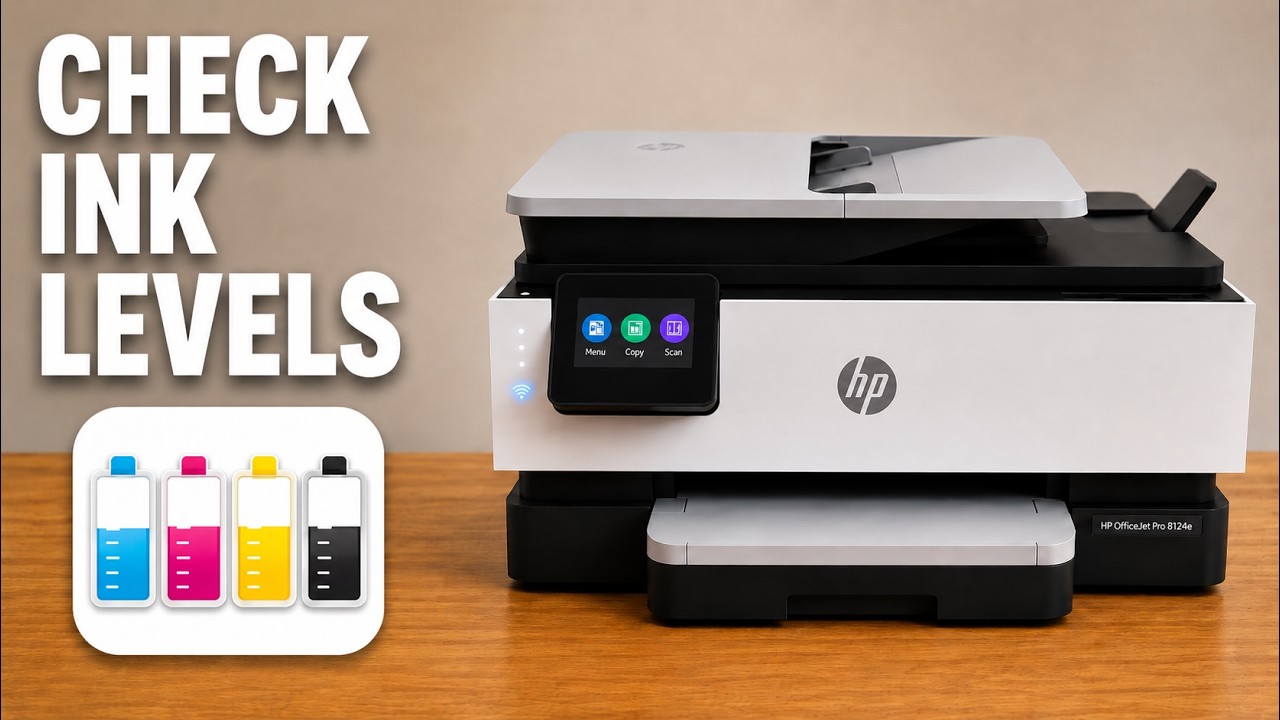
Read the DeskJet 2600’s ink indicators, print its status report or view estimated levels in the connected HP app.
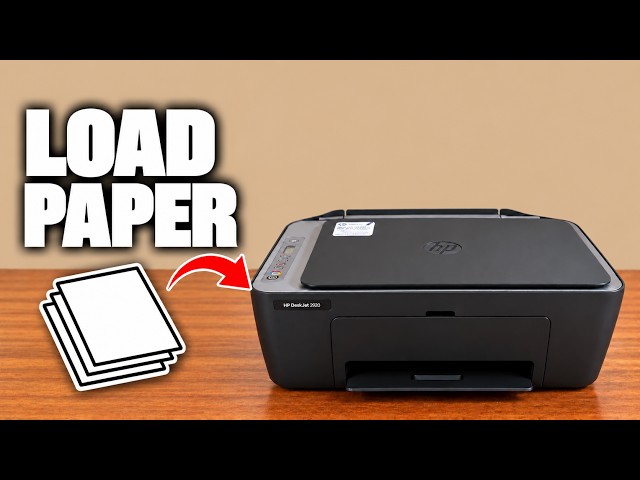
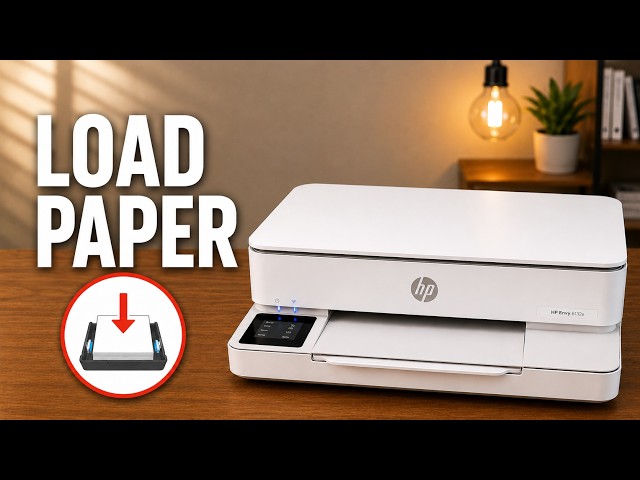
Open the rear input tray, position plain paper correctly and adjust the guide and output support on a DeskJet 2600.
Print page one, reload that sheet and print page two using the HP phone app, with paper orientation and mismatch checks.
Check missing black or colour on a DeskJet 2600, run the HP app’s cleaning tool, inspect the test page and decide when to stop.
Reload a DeskJet 2600 correctly, check the rear feed path and clean its paper rollers safely if loading checks do not resolve the problem.
Hold the correct DeskJet 2600 button to print its status report, and distinguish it from the separate hardware test and network pages.
Open the DeskJet 2600 cartridge area, release the old cartridge and seat the correct replacement. Two source demonstrations cover the same task.
Raise the rear support, load a straight paper stack and adjust the guide on the demonstrated DeskJet 2920. Check the paper message before resuming a job.
Connect the demonstrated DeskJet 2920 to home Wi-Fi, confirm the Information-button prompt, and add it to a Mac on the same network.
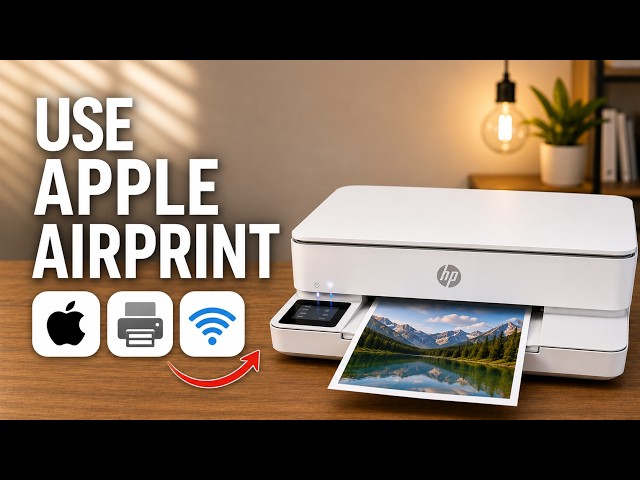
Open an iPhone document, select the ENVY 6100e through AirPrint and check the page settings and printed result.
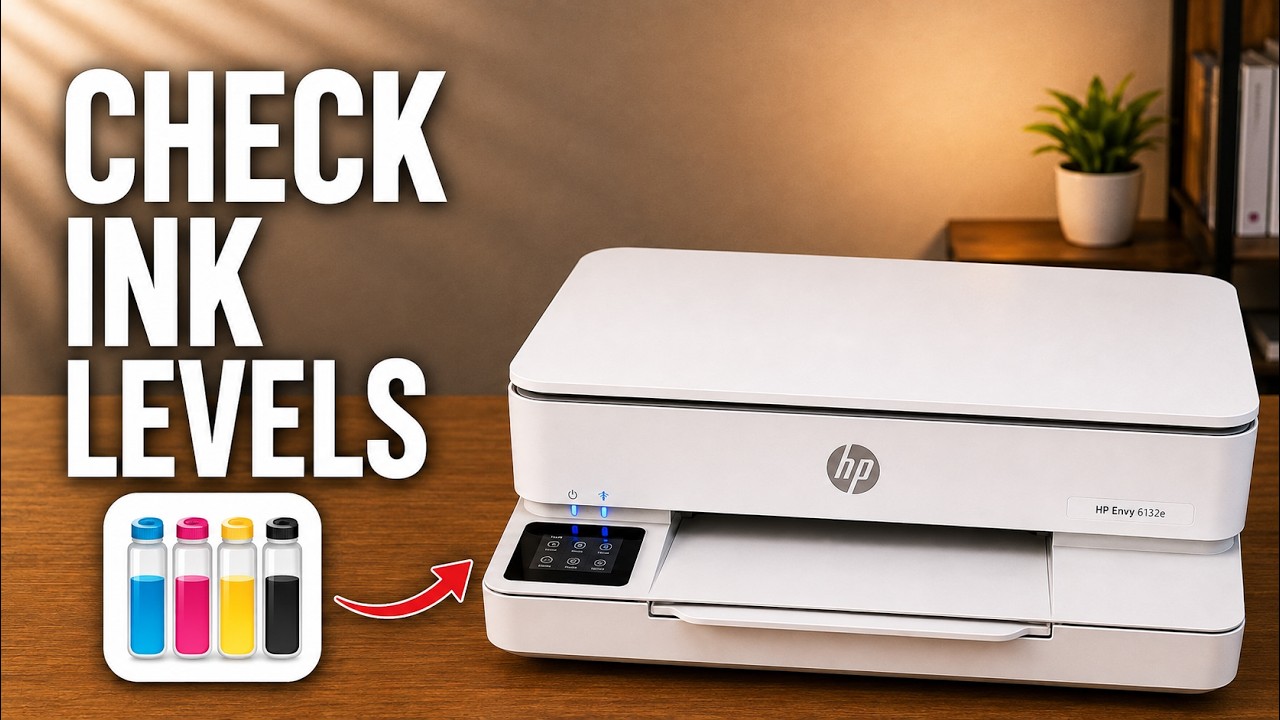
View the ENVY 6100e’s estimated ink on its touchscreen, in the HP app or on its local settings page without mistaking an estimate for a print-quality test.
Use the ENVY 6100e touchscreen to choose your home network, check the connection and restore only network settings if needed.
Locate the ENVY 6100e’s default printer PIN and distinguish it from the router password and Wi-Fi Direct credentials.
Understand what the ENVY 6100e’s restore options change, try the relevant checks first and use its normal touchscreen reset menu.
Connect an iPhone directly to the ENVY 6100e’s own wireless network, find its password and return to normal Wi-Fi afterward.
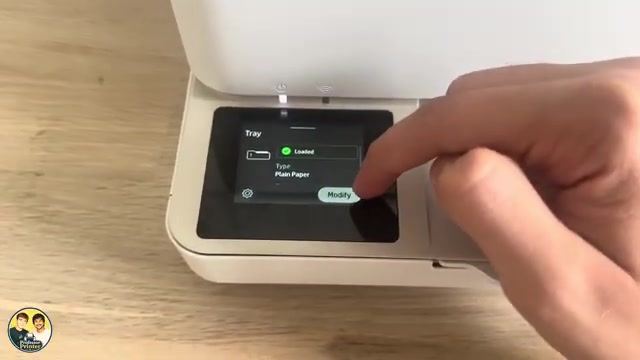
Load plain paper without bending the sheets, set the tray’s actual size and type, and check the next print on the demonstrated ENVY 6132e.
Set the photo-paper side, size and type, then choose the HP app’s photo print settings. The source demonstrates settings, without a glossy-paper test print.
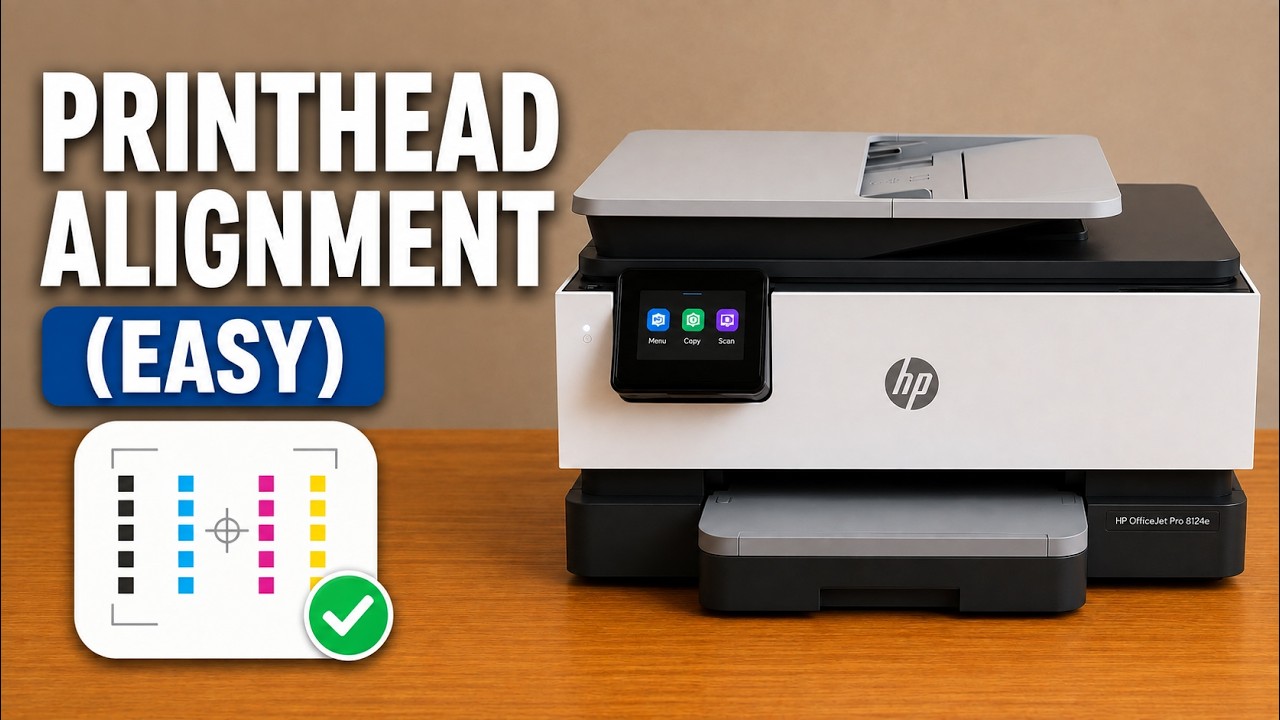
Print the alignment sheet, place it on the scanner glass and scan it to finish alignment. Use plain white paper and wait for the completion message.
Use Supplies on the touchscreen to inspect estimated cartridge levels and the separate printhead status. The HP app also shows supply estimates.
Use the printer’s touchscreen Wi-Fi Setup Wizard, enter your home-network password and then add the connected printer in the HP app.
Make a copy from the scanner glass or feed several original pages through the top document feeder using the printer’s touchscreen.
Find the default printer PIN on the label inside the access door, and distinguish it from your home Wi-Fi password and Wi-Fi Direct credentials.
Load paper and setup cartridges, align the printer, connect it to home Wi-Fi with an iPhone, then add the existing printer on a Mac.
Load the bottom tray, adjust its guides and match the printer’s paper size and type settings. Photo paper goes with its printable side down.
Print the printer’s network details or Wi-Fi test report from its touchscreen. Use the results for connection checks, not as a print-quality test.
Check the print zone, paper path, input tray and document feeder. Keep the printer level and use the correct access points instead of pulling from the output opening.
Open the cartridge access door, release the old cartridge and seat its replacement in the matching color slot. Check the cartridge number for your region first.
Identify the displayed error before changing anything: paper-size mismatch, carriage or paper jams, scanner failure, empty ink, and printer or update errors need different responses.
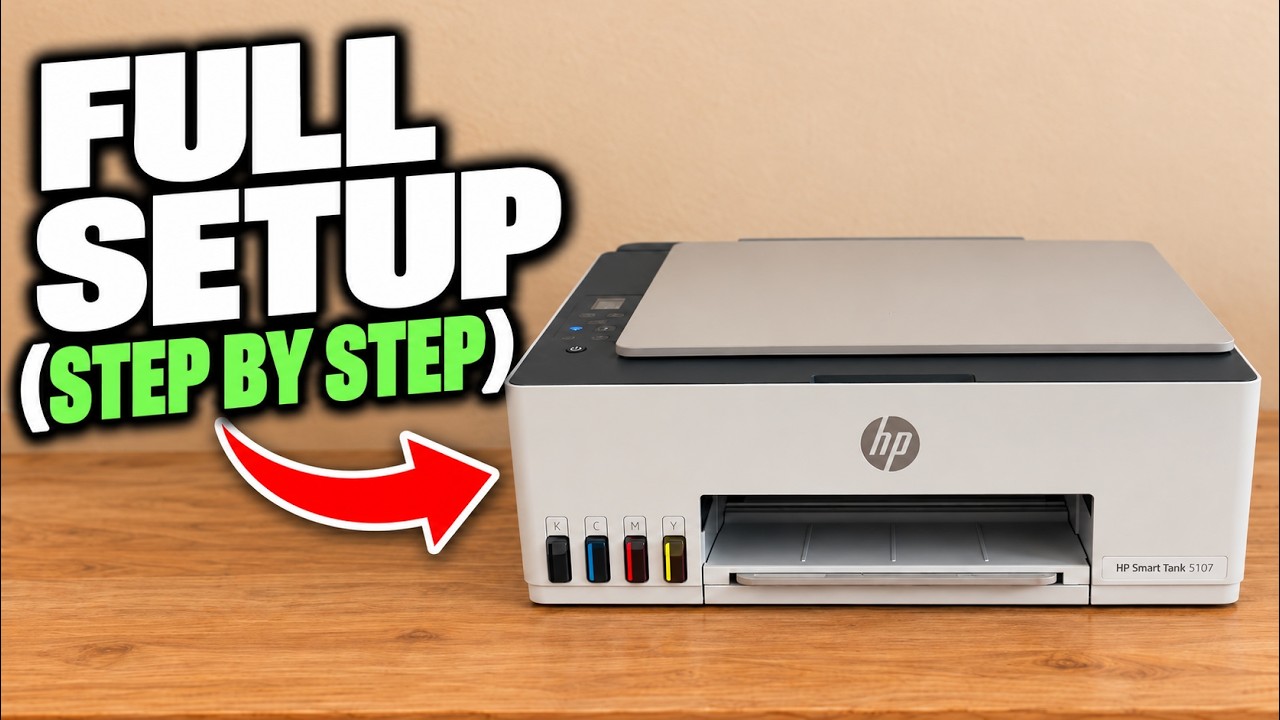
Set up the Smart Tank 5107 hardware, complete its alignment sheet and connect it to home Wi-Fi with the HP iPhone app.