Before you start
- Print and inspect a nozzle-check pattern first. Missing lines or horizontal white streaks can justify cleaning; a complete pattern does not.
- Have sufficient ink and supported A4/Letter plain paper for the separate post-cleaning nozzle checks. Cleaning consumes ink, and deep cleaning consumes more.
Start with the actual nozzle pattern
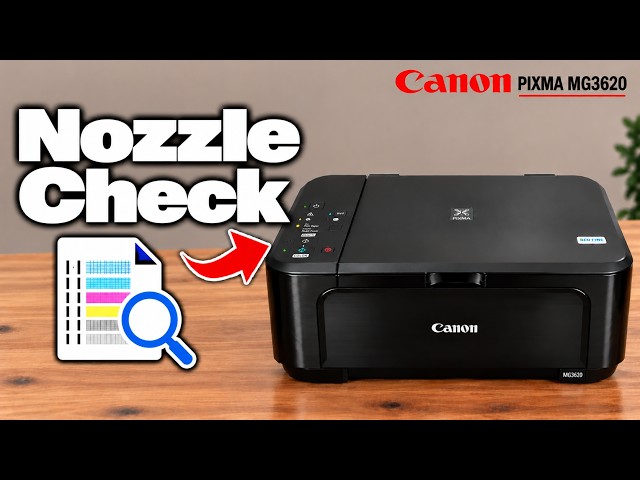
Compare the nozzle-check grid and colour areas with Canon’s examples. For missing segments or horizontal white streaks, start with ordinary cleaning. Do not issue cleaning commands solely because a page is crooked or text is misaligned; those can require paper or alignment checks instead.
Step 1:Run ordinary cleaning: two Alarm flashes
- Turn the printer on. Hold Stop and count the orange Alarm flashes.
- Release Stop immediately after the second Alarm flash. Let cleaning run without other operations.
- Wait until ON is steady after flashing. Canon estimates about one to two minutes, but the completed lamp state is the cue to continue.
- Load a plain A4/Letter sheet print-side down, open the complete output path and print a new nozzle check using the separate one-Alarm-flash command. Compare it with the previous pattern.
If it is complete, stop. If the same missing segments remain, one more ordinary cleaning/check can be appropriate. Do not mistake cleaning noise alone for a demonstrated improvement.
Step 2:Escalate only after two unsuccessful ordinary cycles
- If the pattern still needs cleaning after two ordinary cleaning/check cycles, hold Stop while the printer is on and release immediately after three orange Alarm flashes.
- Wait for deep cleaning to finish and ON to become steady; do not interrupt it or operate other controls.
- Print and inspect another nozzle check. A completed pattern is the reason to stop, not a reason to run an extra preventive cycle.
Deep cleaning uses more ink than ordinary cleaning. The video demonstrates the command but does not establish a measured before/after recovery of a defective pattern.
Step 3:If deep cleaning does not resolve the pattern
Turn the printer off normally, leave the power cord connected and wait 24 hours before another deep cleaning, as Canon directs. Then check the pattern again. Do not repeatedly run the deep command back-to-back.
If the fault persists after that sequence, Canon directs replacement of the affected FINE cartridge with a compatible new one. If replacement also fails to resolve it, contact the applicable service centre. This is not a recommendation to buy a cartridge before diagnosing the pattern, and no third-party refill or warning bypass is part of this procedure.
Optional Windows maintenance controls
The source also opens the selected printer’s Printing preferences → Maintenance. With the applicable Canon driver, Cleaning and Deep Cleaning are separate controls; choose only the operation justified by the same pattern-based sequence above.
Read the driver’s initial-check items and ink-group selection, then confirm the chosen operation. Wait for completion and use Nozzle Check to inspect the result. If the Canon Maintenance tab is absent, use the complete panel route above rather than assuming generic Windows controls have the same functions.
Questions & troubleshooting
Will the printer automatically print a nozzle sheet after the button cleaning?
Canon’s panel instructions tell you to print the check separately after cleaning. Do not wait indefinitely for an automatic sheet promised by the narration.
How many standard cleanings should I run?
Only as needed. Canon says to consider deep cleaning if two ordinary cleanings have not resolved the pattern; two is an escalation point, not a target when the first attempt already works.
Can I repeat deep cleaning immediately?
Canon says to power off, leave the power cord connected and wait 24 hours before repeating it when the first deep cleaning does not resolve the issue.
Does cleaning fix every quality problem?
No. It addresses a nozzle-pattern problem and consumes ink. Misaligned lines, wrong paper/settings or mechanical faults require their own diagnosis.
References
- Professor Printer: source demonstration
- Canon: ordinary cleaning and two-cycle escalation
- Canon: deep cleaning, 24-hour wait and replacement/service endpoint
- Canon: separate nozzle-check command
- Canon: pattern interpretation
- Canon: Windows maintenance controls and ink-group selection
- Canon: supported paper loading
- Canon: MG3600 manual explicitly includes MG3620 and MG3650
- Canon: maintenance sequence and power-cord requirement during the 24-hour wait