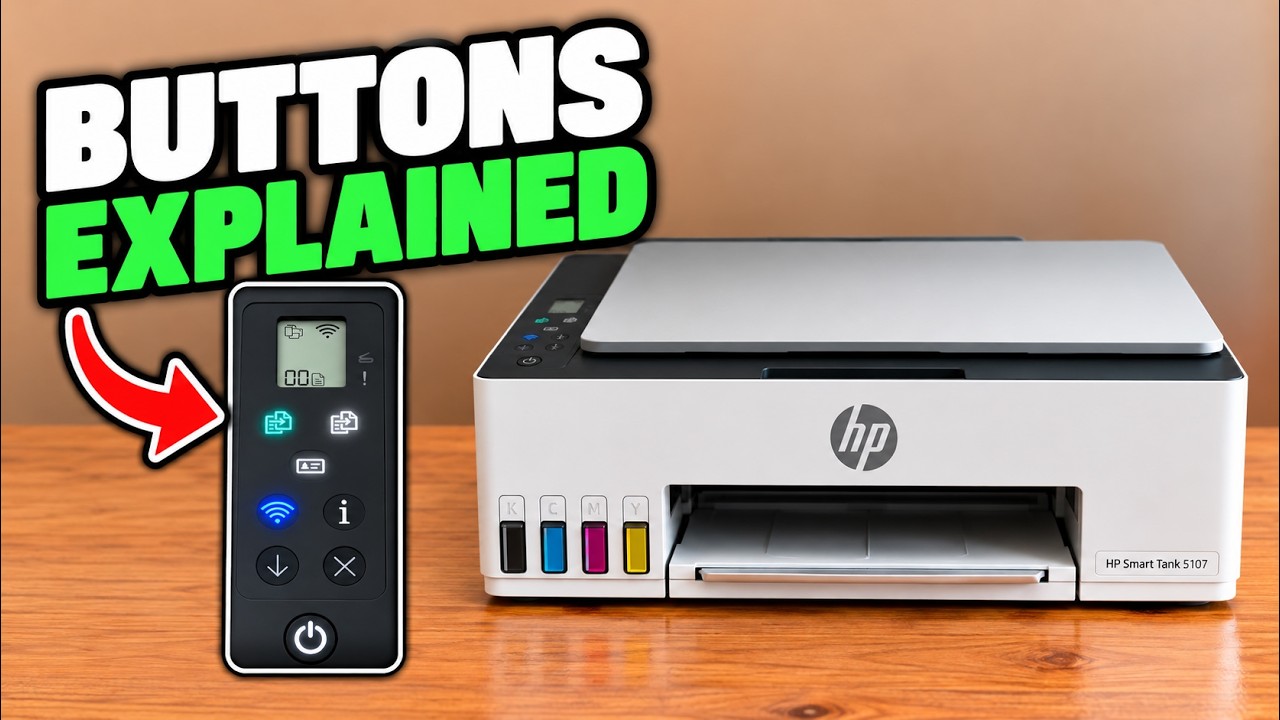
Read the code before choosing a remedy
Read the E code on the printer display and the accompanying message in the HP app. These nine source videos explain the 5100-series codes on the same Smart Tank control layout. This guide keeps their different causes separate; a Wi-Fi reset is not a general remedy for an E code.
E1 or E2: match the job’s paper size to the loaded sheet
E1 is a paper-size mismatch; E2 specifically concerns length. Press Cancel to stop the current job. Check the actual paper in the rear tray, then change the document or photo print settings to that size—or load the size requested by the job.
The E1 source has a 5 × 7-inch sheet while the app expects A4. A4, Letter and Legal are not interchangeable. Reopen the print preview, check its Paper size selection and send a new job after correcting the mismatch. Clearing the old error alone does not correct the next job.
E3: inspect the stalled carriage
The carriage is the part that moves the printheads across the sheet. Open the front door and look for a visible obstruction or an improperly closed printhead cover. Keep the printhead cover closed; do not remove the heads as a routine response to E3.
Stop the job before attempting to remove accessible trapped paper. Keep clear of moving parts, and switch off and unplug before manually moving or reaching around the carriage. Pull accessible paper gently without tearing it. Do not force a carriage that will not move or use sharp tools inside.
After clearing an obstruction, close the front door and reconnect power if disconnected. HP provides Resume to continue or Cancel to stop the job. If the error remains, restart the printer once; seek HP support if it still returns.
E4: locate the paper jam
Cancel the job first. Inspect the rear input path, front output area and the accessible area behind the front door for a trapped sheet or torn fragment. Remove accessible paper slowly with both hands, pulling it straight out. Do not remove the rear input-tray shield or open the printhead cover during this basic inspection.
The source shows the front and rear access areas, but its claim that those are the only possible jam locations is incomplete. HP also documents a bottom-access procedure with specific ink-leak precautions. If the paper is inaccessible, use the linked HP E4 instructions rather than turning this ink-tank printer upside down or guessing how to open its underside.
Close the doors, reload suitable paper and check whether the error has cleared before resending the job. A restart does not remove a fragment still lodged in the path.
E5: try the scanner again, then restart if needed
E5 means the scanner is not working. HP’s first action is Cancel, followed by another scan attempt. If it still fails, turn the printer off, allow shutdown to finish, and turn it back on.
Printing may still work while the scanner has a fault. If scanning continues to fail, record the code and contact HP support. The video’s warranty duration is not a promise about your coverage; check the terms and status for your own printer.
E6: power-cycle a general printer error
Press Power to switch the printer off and wait for shutdown to finish. Unplug its power cable, wait one minute, reconnect the cable and turn it on again. Check whether E6 returns.
This is a power cycle, not a factory reset. E6 does not identify a particular broken part. If it persists, contact HP with the code rather than replacing a component based on the number alone.
E7: refill the empty ink tank or tanks
E7 indicates one or more empty tanks. Inspect the tank windows and the indicated ink icons. Obtain the correct ink for your exact model and region; do not choose a bottle solely from a similar printer number.
Open the front door and the cap of the tank that needs filling. Match the bottle color to that tank, open the bottle as its packaging directs and seat it upside down on the fill port. Let the ink flow without squeezing the bottle or overfilling the tank. Remove and recap the bottle, firmly close the tank cap, then close the front door. Recheck the tank level and error state.
E8: restart once, then seek support if it returns
HP describes E8 as a fatal printer error. Turn the printer off and then on again. Wait for the startup process to finish and check the display. If E8 remains, contact HP support.
The code alone does not prove that the whole printer must be replaced, nor does it establish warranty eligibility. The source discusses those possibilities but does not diagnose a specific failed component.
E9: recover from a firmware or update error
Turn the printer off and back on. If E9 remains and the printer is reachable in the HP app, select the printer, open Printer Settings → Advanced Settings, then Tools → Printer Updates → Firmware Updates in the printer’s own web interface.
Use your own printer’s administrator PIN or current password if prompted, and choose Check Now to check for a firmware update. The source reaches an up-to-date result; it does not demonstrate installing an update on a printer with E9. Confirm you are opening the intended local printer before entering its credential.
If the printer cannot be reached, HP directs users to the exact model’s firmware on its official support site; a temporary USB connection to a computer may be needed. That computer recovery process is not demonstrated step by step in this source. Do not substitute a guessed firmware download or treat every browser certificate warning as harmless.
Confirm the result for the task that failed
Once the code clears, retry one small job of the same kind: printing for a paper or ink error, scanning for E5. Check the actual result. If the code returns, keep its exact number and the relevant app message for support instead of repeating increasingly broad resets.
Questions & troubleshooting
Should I factory-reset the printer for an E code?
A factory reset is not the shared remedy for E1–E9. Match the action to the code: for example, E1/E2 need matching paper settings, while E7 needs ink in the indicated tank.
What if the error disappears but the next job still fails?
Check the result of that specific job and the current message. An error clearing is not proof that the original paper setting, obstruction, scanner fault or update problem has been resolved.
References
- Professor Printer: E1 source explanation
- Professor Printer: E2 source explanation
- Professor Printer: E3 source explanation
- Professor Printer: E4 source explanation
- Professor Printer: E5 source explanation
- Professor Printer: E6 source explanation
- Professor Printer: E7 source explanation
- Professor Printer: E8 source explanation
- Professor Printer: E9 source explanation
- HP Smart Tank 5100 user guide: error codes and maintenance
- HP: Smart Tank blinking lights and error codes
- HP: Smart Tank 5000/5100 E4 paper-jam procedure
- HP Smart Tank 5107: applicable 5100-series user guide