Before you start
- Use this only when a full settings reset is intended. Have the information needed to reconnect to Wi-Fi and restore any settings you still need.
- Wait for current jobs to finish. This is not a nozzle clean, ink refill, waste-ink service reset or firmware downgrade.
Step 1:Choose the correct reset scope
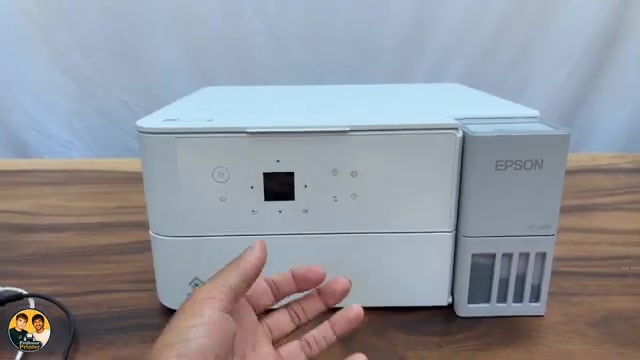
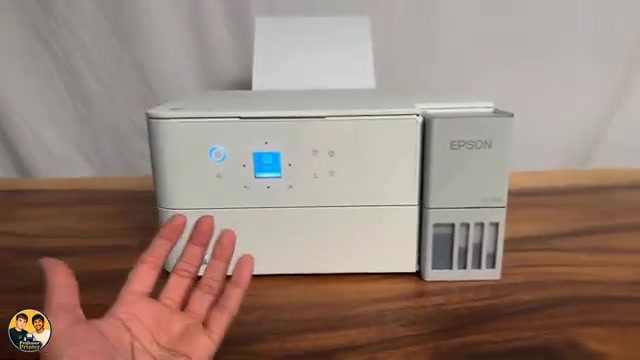
Open Settings → Restore Default Settings. Epson lists separate Network Settings, Copy Settings and Scan Settings choices, as well as Clear All Data and Settings.
Step 2:Confirm Clear All Data and Settings
Select Clear All Data and Settings and read the confirmation on the LCD. Confirm only when you intend that scope. Let the operation finish without interrupting the printer.
In the source, the printer asks for a restart after restoring the settings. Turn it off with its power button, wait for shutdown, then turn it back on as prompted.
Step 3:Complete the prompts for your own preferences
Choose your language and read the displayed setup, network-service and customer-research notices. Make your own choices; do not repeatedly accept prompts without reading them.
The source speculates about how Epson sells user data. That claim is not established by this procedure. Epson describes Customer Research as providing product-usage information when you agree.
Step 4:Reconnect and check one intended task
Use the Wi-Fi setup guide to join your intended network again, then check the printer selection on your computer or phone. Restore any print, copy or scan preferences you still need.
Verify the required task with one page. A successful settings reset does not demonstrate repair of a paper jam, damaged part or missing ink.
Questions & troubleshooting
Is this the same as resetting just Wi-Fi?
No. Network Settings is a narrower option. Clear All Data and Settings also restores the other settings and clears stored personal information.
Does this reset ink-pad service warnings or refill the ink?
This guide does not provide a service-counter override or change physical ink. Follow the actual maintenance message and model-specific instructions.
Will I need to reconnect my devices?
The printer’s network configuration is reset. Set up its network again, then check that each computer or phone is using the intended printer.