Before you start
- Flat supported paper, a clean cotton swab and water only if cleaning becomes necessary.
Check the paper before cleaning anything
Wait for any current job to finish, then remove the stack. Reject curled, folded, dusty or torn sheets and do not mix different paper sizes or types. Look for an obstruction in the input area without pushing objects deeper into the printer.
A visible jam or E4 needs the applicable location-specific jam procedure. This guide addresses paper that fails to feed; cleaning a roller is not a substitute for removing a confirmed jam safely.
Step 1:Reload a flat stack correctly
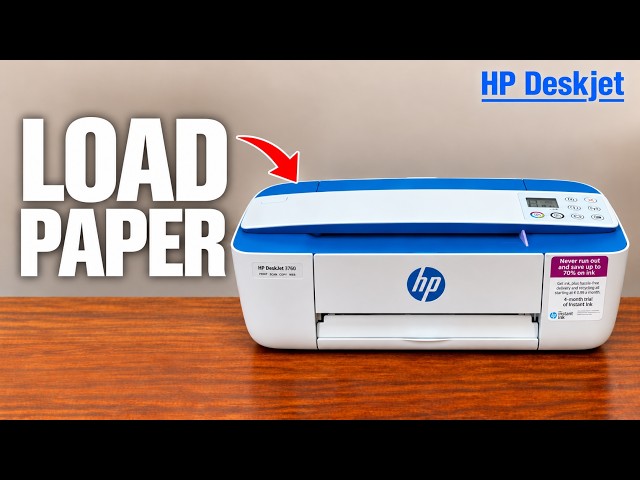
Raise the rear input tray and its extension. Move the width guide outward, tap the paper edges into alignment and place a modest stack against the right side, short edge down and print-side up. Do not force the stack too far into the feeder.
Bring the guide gently against the stack without bending it. Open and extend the output tray and raise its paper catch. In the sending app, match the paper size and type to what is actually loaded, then try one page.
Step 2:If pickup still fails, clean only the accessible pickup rollers
Raise the input tray and extender. Lift and hold the input-tray shield, without removing it, and look down for the gray paper-pick rollers. Use a flashlight if needed. If you cannot positively identify or reach the rollers described in HP’s illustrated procedure, stop and use that reference or HP support.
Lightly dampen a clean cotton swab with water and squeeze out excess moisture. Apply moderate pressure against a roller while rotating it upward with a finger to remove buildup; repeat across the accessible pickup rollers. Do not pour water into the printer or treat an unidentified black or white part as a sensor to scrub.
Release the shield and allow the rollers to dry completely, approximately ten minutes. Reconnect the cables and power, turn the printer on and reload the paper correctly.
Step 3:Retry and identify any remaining symptom
Send one small document with matching size/type. Check that one sheet feeds squarely and exits with the intended content. The source discusses possible fixes but does not establish a completed recovery for every pickup fault.
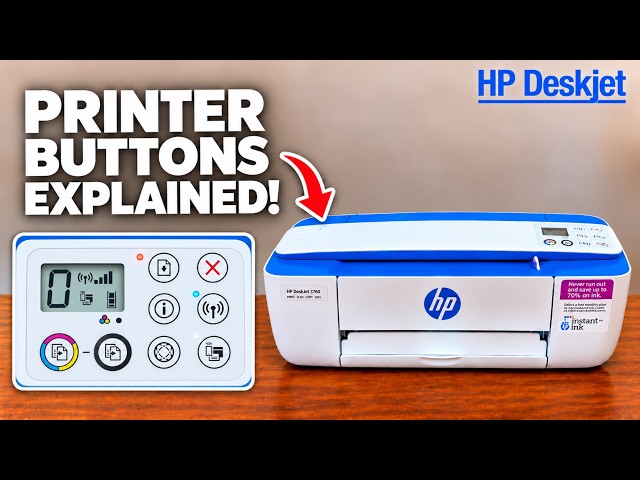
If it still does not feed, note the exact indicator/code and use the remaining checks in HP’s paper-feed guide or contact support. Avoid repeated force, improvised tools or network resets for a physical pickup problem.