Before you start
- The full LCD error code, plus any support number and message on your computer.
- The exact TS3750i model and regional cartridge details if the code concerns ink.
Read the complete code before choosing a fix
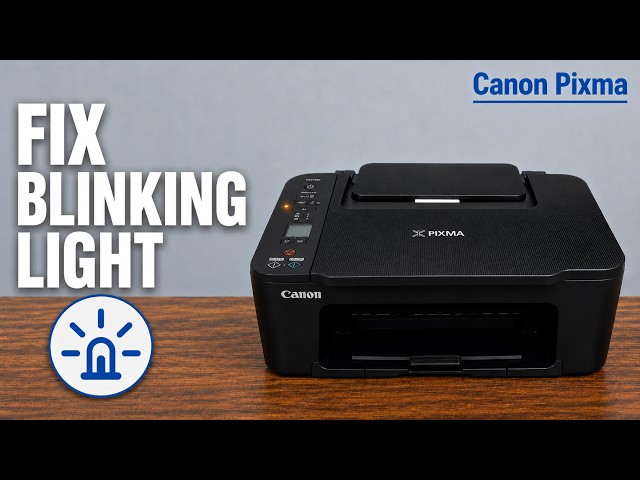
A blinking orange alarm light does not identify one universal problem. Read the characters cycling on the TS3750i LCD, then check any more detailed support code on the computer. For example, the LCD cycles through E, 0 and 3 for E03. The support code distinguishes an open cover from a jam.
- E02: no paper or a pause to reinsert paper for manual duplex printing.
- E03: the cover opened during printing or paper jammed while feeding from the rear tray.
- E04: a missing, incorrectly installed or incompatible cartridge.
- E05: a cartridge-recognition problem; use the detailed code and Canon’s cartridge checks.
Step 1:E02: distinguish missing paper from manual duplex
If the support code is 1000, check that paper is present and correctly loaded in the rear tray. Align the guides with the paper edges, then press the printer’s OK button to clear that error. For initial setup, Canon specifies one or more sheets of A4 or Letter plain paper; do not cancel an alignment-sheet print just to clear this prompt.
If the computer is asking for the second side of a manual-duplex job, follow that job’s reinsertion instructions instead. E02 can represent that expected pause, so adding a fresh stack is not always the right response.
Step 2:E03: use the support code to separate the causes
- 1203 means the cover was opened during printing. Follow Canon’s 1203 remedy, including its paper-removal direction if a sheet remains inside, then close the cover and press OK. Check the interrupted page: Canon warns that it is not automatically reprinted.
- 1300 means a rear-feed paper jam. Use the linked 1300 page to choose the procedure for paper visible at the outlet/rear tray or paper jammed inside. Do not guess a pulling direction when the paper’s location is unclear.
Step 3:E04 and E05: check installation before replacement
For E04 with support code 168A, Canon identifies a missing, incorrectly installed or incompatible cartridge. Check the exact model and regional cartridge requirement before buying a replacement; physical fit alone does not prove compatibility.
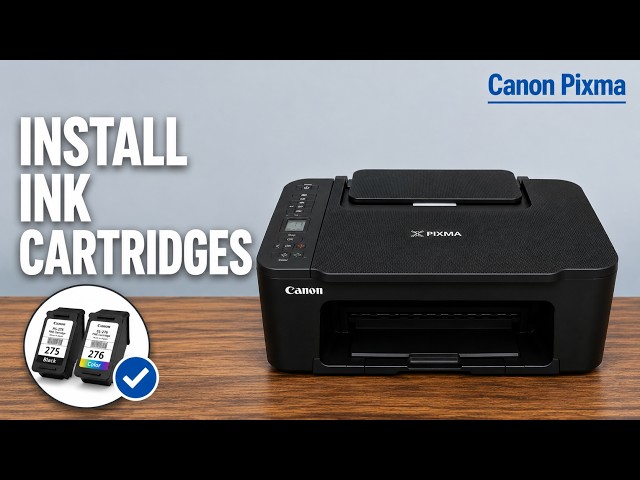
For E05, record the detailed support code and check both cartridge positions and model numbers. Canon’s TS3700 table places colour on the left and black on the right. If you need to inspect installation, follow the linked cartridge procedure: keep the printer on, open the cover, wait for the holder to stop, and use the lock levers. Never drag the moving holder or touch the contacts and nozzles.
After fitting the correctly specified cartridges, raise the locking levers until they click and close the cover. If the recognition error remains, use the exact support-code remedy; do not keep reseating cartridges or assume every E05 needs the same replacement.
Cancel the job without confusing cancellation with repair
Stop cancels the current operation. It does not remove trapped paper or make the wrong cartridge compatible. After cancelling, address the code’s cause and retry the task only after that remedy is complete.
Confirm the original task works
After the code-specific remedy, confirm the alarm/error clears and retry the interrupted task. For a print job, check that the expected page actually prints; after a cover-open error, you may need to resend the interrupted page. If the same code returns, record it and follow its Canon remedy or service instruction rather than cycling through resets.
If the code is outside E02–E05, use the full TS3700 error table in References. Do not apply a paper or cartridge fix solely because the orange light looks the same.
Questions & troubleshooting
E02 appears even though there is paper.
Check whether the job is paused for the second side of manual duplex printing. Canon lists both that condition and out-of-paper under E02; use the detailed message rather than adding more paper automatically.
Does E03 always mean a jam?
No. Canon also lists an open cover. Check the accompanying support code and the cover before beginning jam removal.
Should I restore settings to clear the orange light?
Not as a general error fix. Restoring settings removes the saved network configuration and restores the administrator password to its default. It cannot remove trapped paper or make an incompatible cartridge work. Diagnose the displayed code first.
My code is not one of these four.
Use the Canon TS3700 error table in References. The video’s examples are not a complete list, and some errors need a different remedy or service.
References
- Professor Printer: original video
- Canon TS3700: full LCD error-code table
- Canon TS3700: restoring printer settings
- Canon TS3700 series manual and supported models
- Canon TS3700: 1000 — load paper and acknowledge with OK
- Canon TS3700: 1203 — cover opened during printing
- Canon TS3700: 1300 — choose the correct jam location
- Canon TS3700: 168A — missing or incompatible cartridge
- Canon TS3700: cartridge positions and locking procedure