Before you start
- Read the actual lamp pattern and any message on the connected device before trying button combinations. A flashing ink lamp alone does not establish a cartridge’s exact fault.
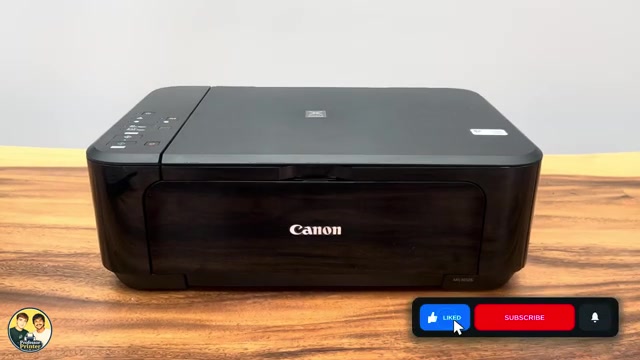
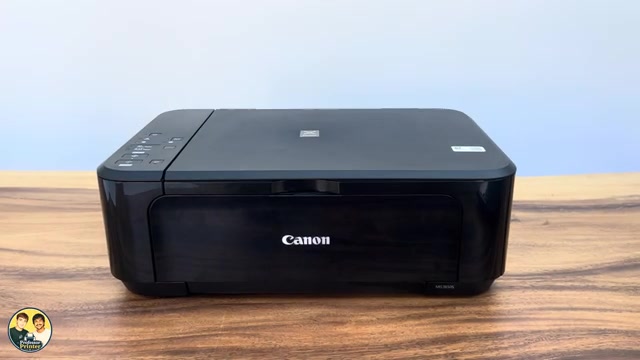
Identify the everyday controls
- ON: turns power on or off. Close the document cover before powering on, and let shutdown finish before disconnecting power.
- Wi-Fi: used with the documented setup sequence for wireless configuration. Its blue lamp describes wireless status, not ink or paper condition.
- Paper: selects the panel’s paper size/media choice. The upper Paper lamp is used for A4/Letter plain-paper copying; the lower choice is for the indicated photo-paper setting. A phone/computer print job also needs its own settings to match the actual paper.
- Black and Color: start the corresponding copy, and serve as confirmation buttons in certain documented settings. They are not interchangeable with an unlabelled universal “fix” control.
- Stop: a brief press cancels a print, copy or scan in progress. Holding it down selects maintenance or settings by Alarm flashes.
Step 1:Stop a current print, copy or scan
- Press Stop once while the unwanted operation is active. Do not hold it down for a maintenance flash count.
- Wait for the mechanism to stop. Collect a sheet only after it has exited; do not pull paper from a moving printer.
- If another job is sent afterwards, cancel it in the sending app or computer’s print queue as well. Stopping the current operation is not a promise that every device’s queued documents were deleted.
Stop can cancel the operation associated with an error, but it does not remove a paper obstruction, refill a cartridge or resolve every possible fault. Read the alarm pattern before deciding what to do next.
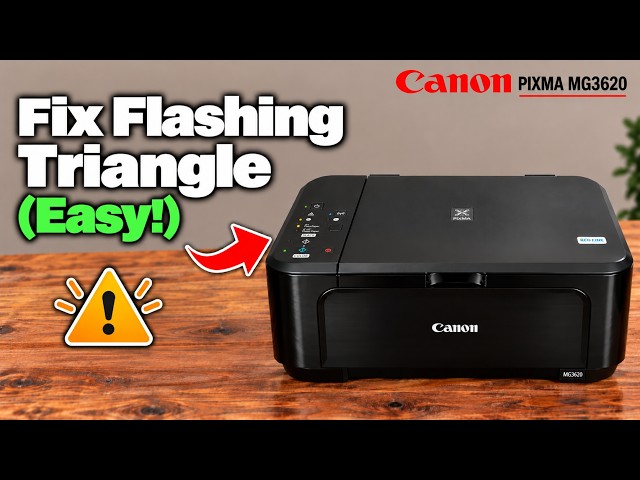
Read the lamps as a pattern
- ON off: power is off. ON steady: ready to print. ON flashing: startup/preparation or a job can be in progress.
- Alarm flashing: the printer has an error and is not ready to print. Count flashes between pauses and check the matching support code.
- ON and Alarm alternating: Canon says a service-related error may have occurred. This is not ordinary printing activity.
- Wi-Fi steady: wireless LAN is enabled. Wi-Fi flashing can accompany wireless printing/scanning or setup; one blue lamp alone does not prove a completed router connection.
- The left ink lamp concerns the colour cartridge; the right concerns black. Use the complete ink/Alarm pattern and software message to distinguish warnings and errors.
Use the correct paper and copy choice
For ordinary A4/Letter copying, load the supported plain paper in the front tray, place the original face down at the marked glass corner and close the document cover. Select the upper Paper lamp, then press Black or Color for the intended copy. Leave the original in place until scanning finishes.
Canon allows repeated presses of the same copy button to request multiple copies. Do not alternate Black and Color when building one copy request. The related print/copy/scan guide provides the complete loading and output workflow.
A long copy-button press can select a different quality mode. Use an ordinary brief press for the standard copy operation; do not rely on a held button merely because it appears unresponsive.
Treat long holds as separate procedures
In the source, the presenter initially calls the maintenance counter the Power lamp, then corrects it to the orange Alarm lamp. Count the Alarm flashes when a specific Canon maintenance procedure calls for them.
A nozzle check, cleaning, alignment, roller cleaning and a reset have different preparation and completion steps. Do not work through long-hold combinations just to explore the panel: cleaning consumes ink, and network or full initialization can erase settings and require setup again.
Use the task-specific guide and its paper/ink requirements. The existing network-reset guide explains the narrower network action; full initialization also changes other settings and is not a routine cure for a paper jam or missing ink.
Questions & troubleshooting
Does Stop clear every printer error?
No. It cancels a current operation. The cause of an alarm still needs the support-code-specific remedy.
Does a flashing ON lamp always mean a fault?
No. It can mean startup or a print/copy/scan task. An Alarm lamp or alternating ON/Alarm pattern needs separate interpretation.
Which lamp do I count for a maintenance command?
Count the orange Alarm lamp for the documented Stop-button maintenance procedure. The source corrects its initial reference to the Power lamp.
Does a steady blue Wi-Fi lamp prove the router is connected?
Canon defines it as wireless LAN enabled. Check the actual network setup result or settings when diagnosing connectivity.
References
- Professor Printer: source demonstration
- Canon: exact controls and distinct lamp states
- Canon: plain-paper copy selection and repeated same-button copies
- Canon: paper orientation, guides and output-tray requirements
- Canon: initialization consequences, distinct from ordinary button use
- Canon: MG3600 manual explicitly includes MG3620 and MG3650
- Professor Printer: supporting source