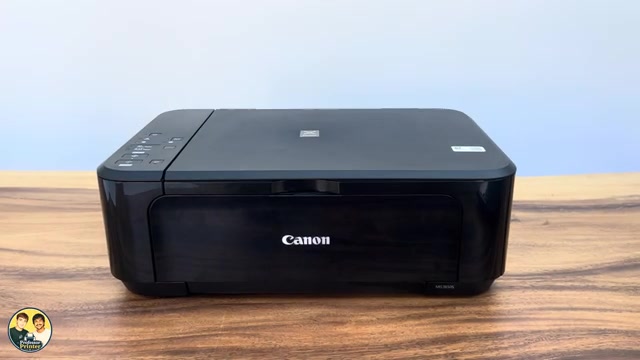
Before you start
- Use this only when you intend to clear the printer’s network configuration.
- Have the details needed to set up the printer on the network again.
Understand the consequence
The source title names MG3620; these written instructions are supported by Canon’s MG3600-series manual, which explicitly includes MG3620. The physical unit’s small label is not used to infer compatibility with other models.
Step 1:Hold Stop and count the Alarm flashes
With the printer on, press and hold Stop. Count flashes of the orange Alarm lamp, not the green ON lamp. Release Stop when the Alarm lamp has flashed 19 times, as Canon specifies.
Count the flashes rather than substituting a guessed number of seconds. Do not release at another count deliberately: this is the sequence for initialising network settings.
Step 2:Allow the reset to finish
The source describes the ON lamp flashing briefly after release. Allow the printer to finish before starting setup again. The important instruction is the nineteenth Alarm flash; a brief change in the ON lamp is not a replacement for counting the correct lamp.
Step 3:Redo network setup
Use Canon’s setup route for your exact MG3620 and operating system to connect it to the intended network again. Then select the printer on your phone or computer and check a print or scan from that device.
Clearing the network configuration is the completed reset task. It does not itself join a new router, reveal a router password or prove that the original connection fault is solved.
Questions & troubleshooting
Which light do I count?
Count the orange Alarm lamp flashes while holding Stop. Release on the nineteenth flash. The green ON lamp has a different role.
Why can’t my computer find it after the reset?
That is expected until you set the network connection up again. Canon warns that network printing and scanning are unavailable after these settings are erased.