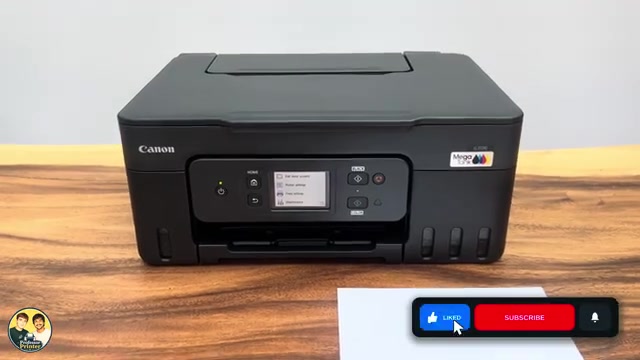
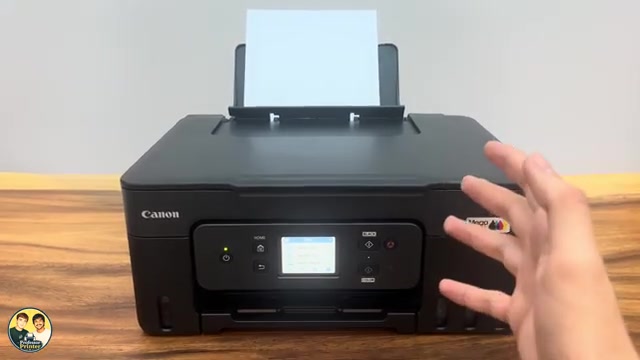
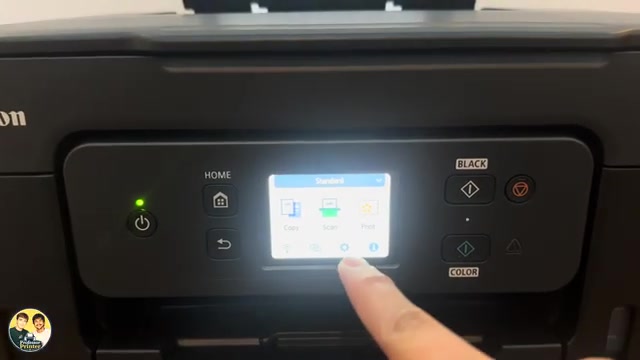
Before you start
- Read the displayed support code and identify where the paper is caught. This guide addresses the G3590 paper-jam path for 1300/1304.
- Keep the printer level when turning it to reach the back; tilting a tank printer can leak ink.
Step 1:Start with the visible paper and error code
Check the output slot and rear feed slot before opening internal parts. Remove loose, unjammed sheets from the rear tray so you can see the feed slot. If the job used small photo or card paper, use Canon’s specific small-paper remedy linked from the jam reference instead of assuming a full sheet is accessible.
For visible jammed paper at the output or feed slot, grasp it with both hands and pull slowly without tearing it. Do not force paper that will not release; use the internal access below. Reload suitable paper if necessary and select OK on the touchscreen to resume. Reprint any damaged page.
Step 2:Stop and unplug before reaching inside
- Open the scanning unit/cover and inspect for the trapped sheet and torn fragments.
- If paper is beneath the printhead holder, Canon permits slowly sliding the holder to the far left or right to access it after power is disconnected. Hold the holder itself; do not pull a tube or belt.
- Grasp the paper with both hands. If it is rolled up, unfold enough to hold its edges. Pull slowly at about a 45-degree angle, avoiding tears.
- Check under the holder and both empty side spaces for every remaining scrap. If the paper cannot be removed here, use the rear access next.
Step 3:Use the rear transport access when needed
- Keep the printer off and unplugged. Retract the output tray, then turn the printer while keeping it level.
- Detach the rear transport-unit cover and pull the jammed paper slowly with both hands. Avoid touching other internal parts.
- If the paper is still inaccessible, lift the transport unit and pull it out. Remove the paper and check for fragments.
- Reinsert the transport unit fully until it clicks into place. Refit the cover with its right-side projections in the printer first, then press the left side closed completely.
Step 4:Close, reconnect and print again
If you opened the scanning unit, lift it slightly and lower it gently to close. After all covers are fitted, reconnect power and turn the printer on. Load suitable flat paper with the guides against its edges and the correct size/type registered.
Redo the print job: Canon says jobs in the printer queue are cancelled when following the powered-off internal/rear clearing procedure. Confirm the page feeds and prints normally and the error is gone. If 1300 returns, check the rear feed slot for remaining debris. If paper cannot be safely removed or the problem continues after the checks, contact Canon rather than repeatedly powering on a trapped sheet.
Questions & troubleshooting
Will switching off and on clear a real jam?
It does not remove trapped paper. Clear the obstruction and fragments first, refit the parts, then restart as instructed. The source’s hopeful restart statement is not a guarantee.
Can I tilt the printer to look underneath?
No. Canon warns that tilting or turning it upside down can leak ink. Keep it level when rotating it for rear access.
There is no jam code, but paper will not feed.
That is a different diagnosis. Use the paper-feed checks linked from Canon’s jam page; do not dismantle transport parts solely because no page has printed.