Before you start
- Confirm replacement is actually needed using Canon’s print-quality checks; poor output alone is not a reason to skip nozzle checks and cleaning.
- Obtain the correct replacement heads for your exact model and country. Canon directs European users to its regional service centre for supply information.
- Check each ink tank is not below its single-dot mark; refill as required. Check maintenance-cartridge status and replace it if the replacement mark is shown.
Check the reason and prepare the new heads
This is a replacement procedure for an already set-up G3590, not the first-use installation sequence. Canon’s troubleshooting starts with nozzle checks and cleaning before concluding a printhead may need replacing. Replacement does not guarantee that every streak, blank page or error will disappear.
Step 1:Enter Head Replacement and wait for the holder
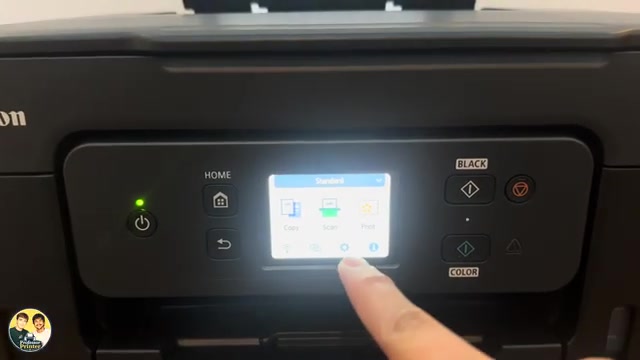
- With the printer on, open Setup from HOME, then Maintenance → Head Replacement.
- Read the displayed warning. Check the ink-level and maintenance-cartridge prerequisites before confirming Yes.
- Open the scanning unit/cover. Wait until the printhead holder stops completely; do not pull it into position or stop it with your hand.
Use this documented menu route. The shorter supporting video uses a Stop-button shortcut and calls its sequence setup; this article does not substitute that shortcut for the confirmed menu or for initial setup.
Step 2:Unlock and remove the head being replaced
Pinch the tabs on the printhead locking cover and open it. Pull the head slightly toward you, then lift it out. Follow the touchscreen’s Next prompts as you complete each indicated stage.
Handle the used head carefully because it can stain clothing or the desk. Do not touch ink tubes, metallic parts or other internal components. Do not grip a head by its nozzle or electrical-contact surface.
Step 3:Fit the replacement in the correct holder
- Unpack the new head. Gently peel off its protective label and tape, without touching the contacts or nozzles.
- Check the remaining B or C identification: C, colour, goes in the left holder; B, black, goes in the right holder. Do not choose by an assumed universal cartridge shape.
- Seat the head in its holder. Close the locking cover and press it down until it clicks. Confirm the on-screen prompts as required.
- Lift the scanning unit/cover slightly, then lower it gently to close. Wait for the printer to finish processing and address any displayed installation error.
Step 4:Check the result before declaring the repair complete
Print a nozzle check using Setup → Maintenance → Nozzle check, with A4 or Letter plain paper loaded, then confirm Yes. Inspect the pattern for missing lines or horizontal white streaks. A closed cover alone does not prove ink is ejecting correctly.
If printed ruled lines are misaligned, use Canon’s linked printhead-alignment procedure. If an error or defective pattern remains, use the exact message and the applicable troubleshooting, or contact Canon; do not keep removing heads speculatively.
Questions & troubleshooting
Does this work on every Canon MegaTank?
No. The source says it broadly, but these written steps are scoped to G3590 using its applicable manual. A different model may use another access method, head or maintenance requirement.
Can I ignore the low-ink warning?
No. Canon requires refilling any tank below the single-dot mark before replacement. Maintenance-cartridge capacity also matters; check its displayed status.
Where do I buy the correct head?
Use Canon’s information for the exact model and country. Its European G3090-family page directs users to their regional Canon service centre. This article does not copy unverified shopping links or transfer another region’s part numbers.
References
- Professor Printer: source demonstration
- Canon: replacement procedure and handling precautions
- Canon: ink and maintenance-cartridge prerequisites
- Canon: regional printhead supply information
- Canon: diagnose the printhead before replacement
- Canon: nozzle check
- Canon: printhead alignment
- Professor Printer: supporting head-installation demonstration