Check the job before using maintenance tools
Check that the ink tanks are not low and that paper type, size and colour settings match the job. A poor-quality source image or a draft-quality setting can affect output without establishing a printhead fault.
Load unused A4 or Letter plain white paper for maintenance pages and connect the HP app to this printer. The recordings show the app’s Diagnostics → Print quality tools area; labels can differ across app versions.
Step 1:Print and read a diagnostic page
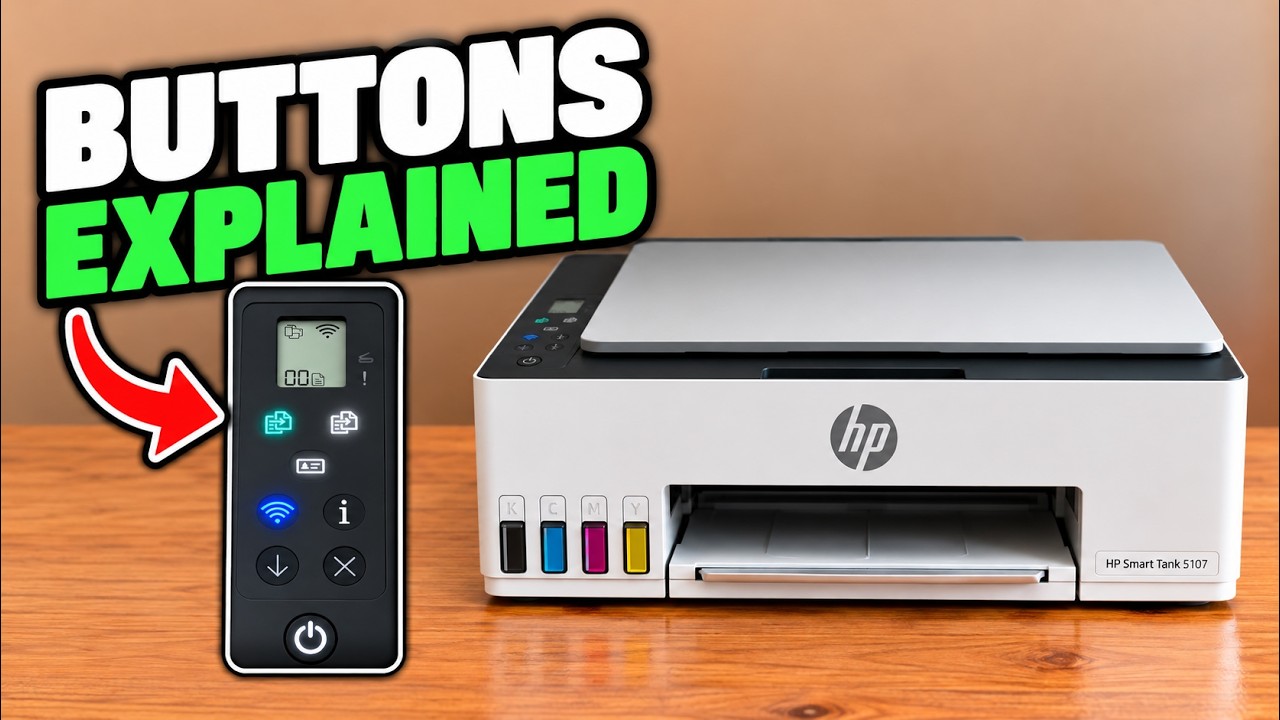
In the app’s Print quality tools, request a Print quality report. Alternatively, for this Wi-Fi model, hold Information for five seconds to enter support mode, then hold Color Copy for three seconds to print the diagnostic page.
Check the black, cyan, magenta and yellow blocks. Missing portions or streaks indicate a reason to try automatic cleaning. Misaligned or jagged straight lines indicate alignment. Use the printed page’s instructions instead of assuming that every blurry image needs every maintenance routine.
Step 2:Align when lines or colours are misaligned
Select Align printheads and print the alignment page. Place that new page print-side down at the scanner glass’s marked corner, following the orientation on the page or app. Close the lid and select Scan alignment page.
Wait for the app’s completion result. Both alignment recordings report successful alignment; remove the page from the glass afterward and inspect a fresh print. A success message confirms the routine completed, not that every possible quality issue has been repaired.
Step 3:Clean only when the report indicates a need
Open View all print quality tools and choose Clean printhead. Let the routine finish and inspect its printed progress or diagnostic page. This is the supported automatic cleaning stage shown near the start of the blank-page recording.
Use another cleaning level only when the current result and instructions call for it. HP warns that unnecessary cleaning consumes ink and shortens printhead life. Its current quality-support guidance specifies at least a 30-minute wait before repeating a cleaning cycle for severely clogged heads; persistent problems need HP support rather than nozzle soaking.
Step 4:Separate ink smears from print settings
For ink smearing, the recorded app also offers Clean Smear under View all print quality tools. Load plain paper, start that routine only for the relevant symptom and allow its paper movement to finish. It is a separate cleaning routine, not proof that every blurred source image has dirty nozzles.
For a photo or document, choose the correct media and an appropriate quality setting in its print options. Best prioritises output quality and can take longer than Draft. Match the paper setting to the paper actually loaded; a higher setting cannot supply detail absent from the original image.
Step 5:Compare a fresh print and stop if unresolved
Print the same small test again and compare lines, missing colours and smears. The source blank-page video admits its own printheads were already working; it is not a demonstrated recovery from blank output. If the diagnostic page remains defective after the appropriate automatic routine, follow HP’s support guidance before replacing parts.