Before you start
- Use the Windows computer from which the job fails and know whether this printer should use Wi-Fi or USB.
- Keep a simple one-page document for testing. Note any LCD error before clearing it or changing the setup.
Step 1:Check the printer’s own status first
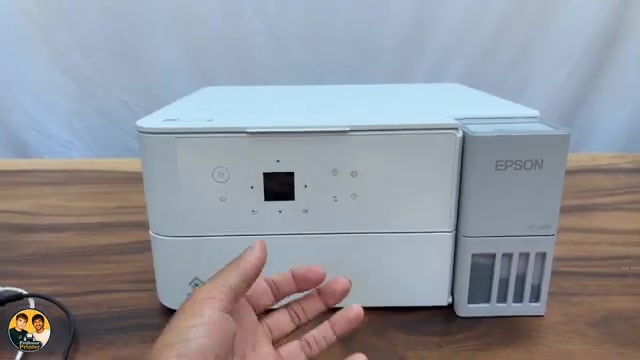
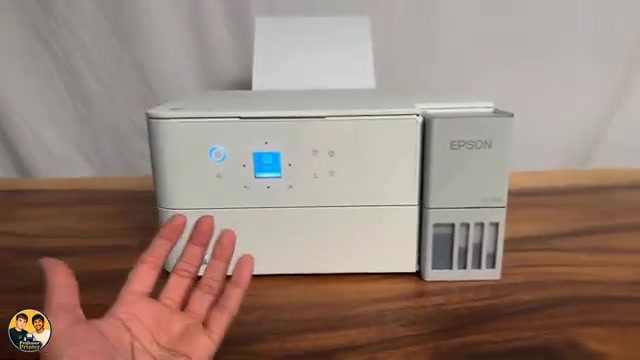
Make sure the printer is on, has suitable paper and is not showing a jam, ink or maintenance error. Read and resolve the actual message. Check the ink through the tank windows; a software estimate alone does not show the physical level.
If the LCD reports a jam, follow the linked jam-removal procedure. Keep the printer upright; do not follow the source’s suggestion to lift it to inspect underneath.
A printer-generated status sheet can help separate a print-engine problem from a computer connection problem: Settings → Print Status Sheet → Configuration Status Sheet. If that sheet cannot print, resolve the printer’s displayed condition before changing Windows queues.
Step 2:Check the network report for Wi-Fi printing
Load plain paper, then open Settings → Network Settings → Connection Check and print the result. Compare the report’s network name with the network used by the computer, and read any reported error and suggested correction.
If the network names differ, reconnect to the intended shared network. If they match but devices cannot communicate, a guest or client-isolated network may prevent discovery; ask its administrator to check the router configuration. Do not disable a firewall as a blanket fix.
For a weak or missing connection, try the printer nearer the router and remove obvious obstacles before buying equipment. Use the actual network report and router configuration rather than assuming every symbol in a network name makes it unsupported.
Step 3:Select the correct queue and clear blocked jobs
- On Windows, search for Printers & scanners, open it and select your ET-2950-series printer. Check which entry belongs to the connection you actually use; an old duplicate may remain from a previous setup.
- Open print queue. Cancel unwanted or stuck jobs, understanding that cancelled jobs must be sent again. The source’s queue is empty, so there is nothing to cancel in that example.
- If the queue’s Printer menu shows Pause Printing or Use Printer Offline selected, clear that state. In the Epson driver, Maintenance → Print Queue is another route to these controls.
- Select this same printer in the application and send one small page. Confirm that it leaves the queue and physically prints.
Step 4:Use the Epson connection checker if the job still fails
For a Windows network connection, open Epson Printer Connection Checker if installed. On Windows 11 Epson lists Start → All apps → Epson Software → Epson Printer Connection Checker; on Windows 10 it is under Epson Software in Start. Follow the diagnosed result.
If the correct Epson driver is missing or the connection checker cannot find it, use Epson’s exact-model software setup to install or reconfigure the printer. Removing a redundant queue can be useful when you have identified it; deleting every queue is not a necessary first step.
For USB instead of Wi-Fi, check a secure direct cable connection to the computer. Try bypassing a USB hub or a different port/cable before applying network-reset advice.
Step 5:Reserve reconnection or reset for an identified setup problem
After a router change, rerun the Wi-Fi setup with the intended network credentials. If you deliberately need to discard the old network configuration, use the narrower network-reset guide and prepare to reconnect afterwards.
Try the same simple job again. If another device prints but Windows still cannot, concentrate on that computer’s queue, driver and connection. If no device or printer-generated sheet succeeds, keep the displayed error and test results for Epson support.
Questions & troubleshooting
Windows says online, so why does nothing print?
Online status alone does not show that the job used the correct queue or that paper, ink and LCD conditions allow printing. Check the selected destination and queue as well as the printer.
Should I reset the whole printer first?
No. Check errors, the report and the queue first. A network reset removes connection settings; a full reset removes more. Neither is a guaranteed repair for a blocked job.
Can a network name contain no symbols at all?
Do not assume the recording’s blanket restriction applies. Check the exact network report, router settings and model documentation for the actual connection failure.