Identify which paper path is failing
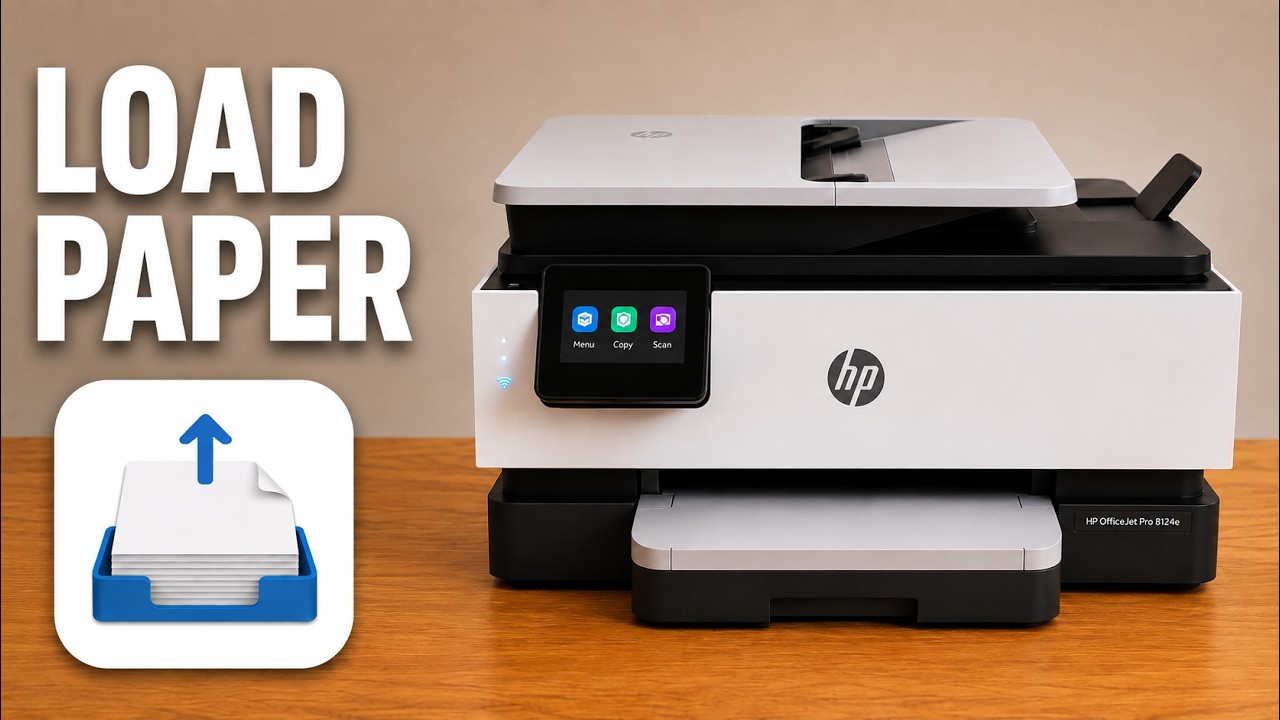
The bottom tray supplies blank sheets for printing. The top automatic document feeder draws in original pages for copying or scanning; it is not a bypass print tray. Check which one fails before changing settings or opening covers.
Step 1:Reload the bottom input tray carefully
Wait until the printer is idle, pull out the bottom tray and remove the stack. Use flat, supported paper of one size and type; replace damaged or curled sheets. Reload with the printable side down, below the maximum mark and adjust the guides so they touch the edges without bending the paper.
Match the actual size in the tray settings. A4 and Letter are different sizes, despite the source treating them as equivalent. Close the tray and test a small job before opening any mechanism.
Step 2:Check originals in the document feeder
For a feeder problem, remove the originals and check that they are supported loose document pages. Load them face up and adjust the feeder guides without squeezing. Use the scanner glass for photographs instead of feeding them through the top mechanism.
Step 3:Clean the feeder rollers only if needed
HP’s manual provides this method when the document feeder does not pick up plain paper or picks up several sheets. Turn the printer off with its Power button, unplug it from the electrical outlet and remove all originals from the feeder.
Lift the document-feeder cover to access the rollers and separator pad. Lightly dampen a clean lint-free cloth with distilled water, squeeze out excess liquid and wipe residue from those surfaces. Keep liquid away from other parts, close the cover and allow the cleaned surfaces to dry before using the feeder again.
Step 4:Retry the appropriate task
Reconnect power and try one supported original in the feeder or a small print job from the bottom tray. If it still does not pick up paper, use HP’s exact 8120/8130 paper-pickup instructions or support rather than turning the printer over or forcing inaccessible rollers.
The source tours the feeding mechanisms; it does not show a verified before-and-after repair of a pickup fault.