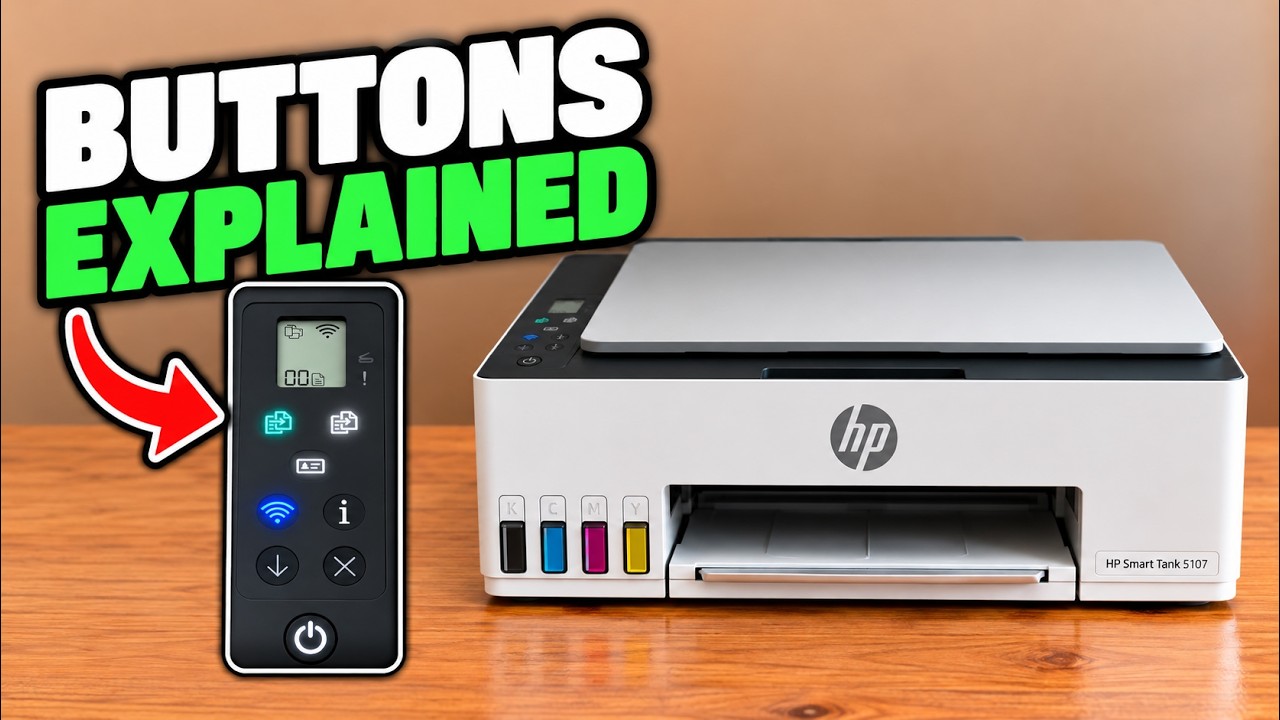
Read the blue light together with the Wi-Fi icon
On the 5107, an unlit Wi-Fi light with no Wi-Fi icon means the wireless connection is off. A steady blue light with its Wi-Fi icon indicates connection to a wireless network. A blinking light can mean the printer is not connected or is trying to connect; it is not one universal fault for every HP printer.
Setup mode has a blinking blue light and cycling signal bars, with the Wi-Fi alert icon off. HP’s manual distinguishes this from a disconnected/connecting state that can show the alert icon. Check the screen instead of treating every blink as a completed reset.
Step 1:If Wi-Fi is off, turn it on once
Press the Wi-Fi button once. If a saved network is available, the light may blink while reconnecting and then become steady. Do not repeatedly toggle it while it is attempting that connection.
Pressing Wi-Fi again turns the wireless function off. This is a toggle, not the button combination that removes saved network settings.
Step 2:Choose the next action from the current state
If the light becomes steady, check that your phone or computer is on the same intended network and try a small job. If the home router name or password changed, use the linked setup guide to reconnect.
If it keeps blinking, check that the intended 2.4GHz router network is available and its password is correct. Use the app setup procedure when connection is missing; restore network settings only when you need to clear the old connection or restart setup mode.
Step 3:Confirm the result without over-reading the light
For a router connection, expect the Wi-Fi light to stay blue and the icon to remain on. Then verify the selected printer and an actual job. A steady light shows a wireless connection, not internet access, successful account registration or a repaired ink/paper problem.