Before you start
- Identify the button by its printed label or symbol, not by its position in a camera view. A mode button selects the task; it does not automatically complete it.
Step 1:Choose the mode and its menu
- COPY, SCAN and FAX select the corresponding mode. The Copy standby screen normally appears after power-on.
- Menu/Wireless connect opens settings for the current Copy, Scan or Fax task when pressed briefly. Holding it has a different wireless-setup purpose; do not hold it just to open a menu.
- Setup opens printer-wide settings and maintenance. It is separate from the current task’s Menu.
- Use the left/right arrows to select an item and OK to confirm. Back returns to the previous screen.
Select the intended mode first, then open its menu. For example, copy page size or media type belongs to the copy menu; maintenance commands belong to Setup. Read each LCD choice before confirming.
Step 2:Start the intended task or cancel it
Black and Color can start the respective black-and-white or colour copy, scan or fax operation, depending on the mode. They are not limited to copying. Complete the task’s original placement, paper and destination requirements before pressing either.
- To cancel a running print, copy, scan or fax operation, press Stop briefly.
- Wait for the mechanism to finish stopping before touching a sheet or original.
- If another document arrives from a computer afterwards, cancel that document in the sending application or print queue too. Cancelling one active operation does not erase every device’s queue.
OK can confirm a displayed remedy or eject ADF documents in the documented context. It is not a universal repair button; follow the actual LCD instruction.
Find the appropriate Setup area
- Maintenance contains nozzle checking, cleaning and alignment. Use the specific procedure and its preparation; cleaning consumes ink.
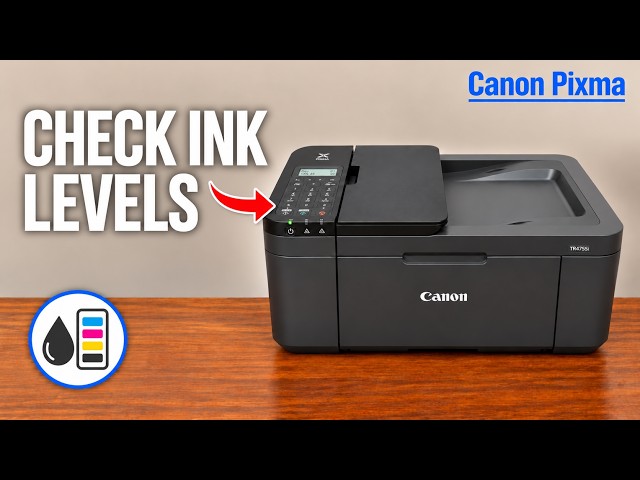
- Ink information → Remaining ink shows the current cartridge indicators.
- Paper feed settings manages registered paper information and mismatch detection. The actual loaded paper and computer/app print settings must agree.
- Device settings includes network, language and reset choices. A reset can discard configuration and require setup again.
- Wi-Fi setup starts the selected router-connection method. Wireless Direct is a separate kind of connection, not a substitute for the router’s password.
Use the related task guide for the complete sequence. Avoid experimenting with resetting or deep cleaning merely to learn the menu.
Enter letters and numbers deliberately
Use the numeric keys for the characters accepted by the current field. The Tone button switches the input mode; check the LCD’s :a, :A or :1 indicator for lowercase, uppercase or numbers. Repeated presses of a numeric key select its assigned characters.
Back deletes the last entered character while typing. When editing existing text, use left/right to position the cursor, then Back to remove that character. Confirm the completed value only after checking the field and case. Keep network passwords private.
Read the message with the lamp or icon
A lit ON lamp means the printer has power; it can take a moment to prepare after power-on. Press ON to shut down normally and wait for the lamp to go out before unplugging. Do not cut power while it is still lit or flashing.
For an error, read the LCD message and any support code. A paper jam, missing paper and cartridge problem require different actions. Stop cancels an operation but does not remove the underlying obstruction or supply problem.
Canon distinguishes Wi-Fi connected signal indicators from Wi-Fi enabled but disconnected. Check the LCD in Scan or Setup mode and the actual connection result; do not interpret every wireless icon as proof that a print job can reach the printer.
Questions & troubleshooting
Why does Menu show different choices?
It follows the current Copy, Scan or Fax mode. Setup is the separate printer-wide menu.
Does pressing SCAN save a file to my phone?
No. It selects scan mode. The applicable scan workflow still needs a configured destination and completion/save steps.
Are Black and Color only copy buttons?
Canon lists copying, scanning and faxing among their functions. Their action depends on the selected task.
Will Stop repair an orange-light error?
No. Read the LCD message/support code and follow the matching remedy. Stop cancels a current operation.