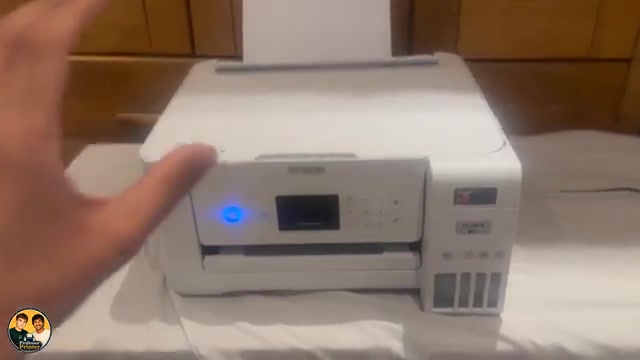
Before you start
- Read the LCD message and cancel the active print job before accessing the paper path. Wait for the mechanism to stop.
- Keep the tank printer level. Do not tip it, stand it on end or turn it upside down, because ink can leak.
Stop the job and use the proper access points
Remove loose sheets so you can distinguish the jammed sheet. If powering off for inspection as the source advises, use Power and wait for shutdown before opening; never reach inside while printing. Do not touch control-panel buttons while your hand is inside.
Step 1:Check the rear feed and removable cover
- Carefully pull accessible jammed paper from the rear paper feed. Avoid tearing it or forcing a sheet that will not move.
- At the back, press the two release buttons on the rear cover and pull the cover out. Keep the printer upright while reaching around it.
- Remove paper from the exposed rear path and from the removed cover itself. Check for torn pieces rather than assuming one visible sheet is the whole obstruction.
- Press the cover’s release buttons and refit it fully.
The linked Epson rear-cover diagram shows the releases and removal direction. This is the documented alternative to pushing tools through a narrow slot.
Step 2:Check inside through the scanner unit
- Close the document cover if it is open. Lift the scanner unit with both hands until its support locks.
- Carefully remove accessible jammed paper and scraps. Avoid the white flat cable, translucent strip and ink tubes. Do not move the printhead by hand.
- Check that no paper remains in the visible path, then lower the scanner unit slowly. Epson notes some closing resistance is intentional; keep your fingers clear.
If a piece cannot be reached without force or touching delicate components, stop and contact Epson. An inaccessible fragment is not permission to use scissors.
Step 3:Clear the message and check a new sheet
After the covers are fitted and your hands are out, power on if you turned the printer off. Follow the LCD prompts to clear the error. If the jam message remains, check the other documented access area and remaining fragments.
Reload suitable flat paper with the edge guide against it, then resend one page. Confirm it feeds and exits normally. The source has no actual jam and demonstrates possible locations; it does not show a successful removal from a jammed unit.
Questions & troubleshooting
Is the rear cover removable?
Yes. Epson’s applicable guide shows pressing its release buttons and removing it for jam access. The source’s suggestion to fish through the slot is not the method used here.
Can I use scissors to reach a scrap?
No. Use the documented access and remove paper carefully. If it cannot be safely reached, contact support rather than risking the film, cables or tubes.
Why is the jam message still present?
A torn piece may remain, a different access area may contain paper or a cover may not be fitted correctly. Follow the actual LCD message and both documented jam locations before retrying.
Does a printer failing to print always mean a jam?
No. Read the displayed message. A connection, ink or paper-loading error can also stop printing and needs a different diagnosis.