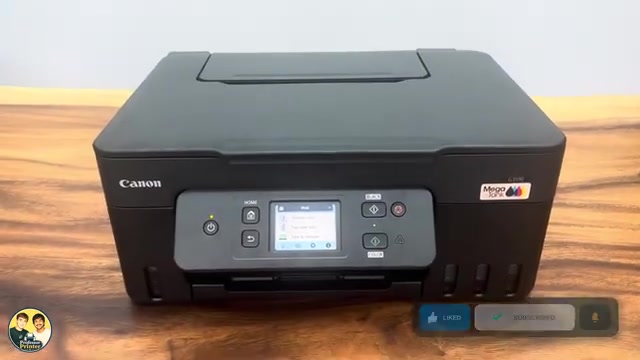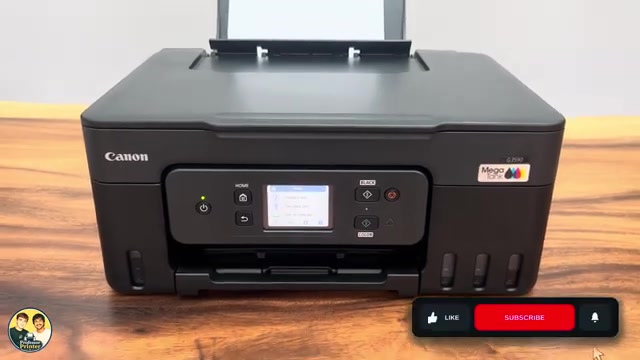
Canon PIXMA TR4755i
Canon PIXMA TR4755i setup: ink, Wi-Fi and Windows
Install the TR4755i cartridges and paper, connect with Canon PRINT on an iPhone, then add Windows using the official installer if app setup fails.
Getting startedRead & watch
Start with your exact Canon model, or browse the available guides below.
printertutorials.com is an independent resource and is not affiliated with Canon.
Choose a model to find its guides in one place.
Narrow the list by printer model or the task you need help with.
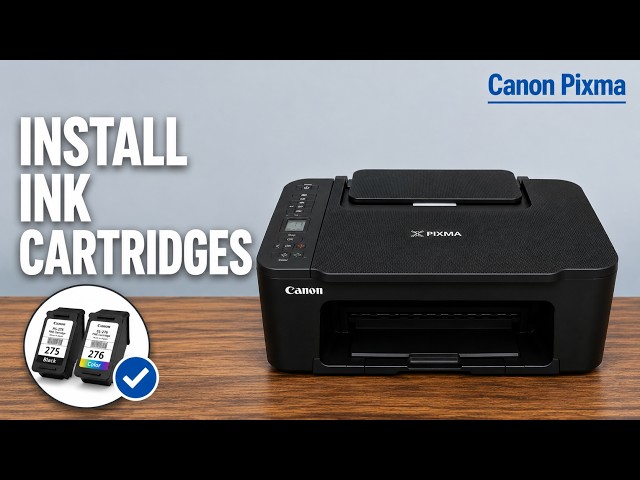
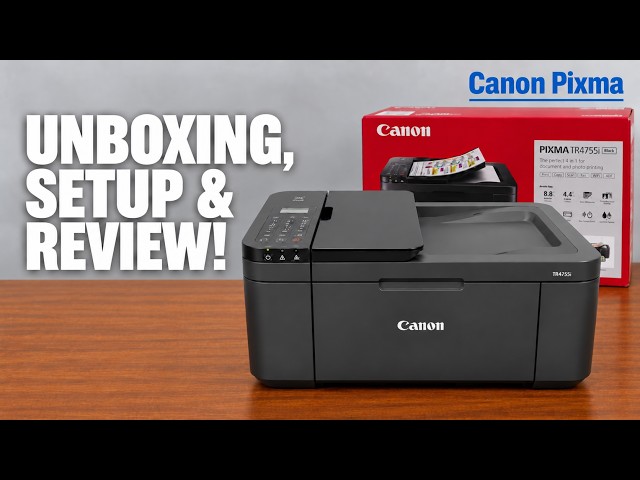
Install the TR4755i cartridges and paper, connect with Canon PRINT on an iPhone, then add Windows using the official installer if app setup fails.
Read the TS3750i LCD and support code, then choose the right paper, cover or cartridge check for E02, E03, E04 or E05 without an unnecessary reset.
Install the TS3750i cartridges and rear-tray paper, connect with Canon PRINT, correct the first-print paper settings, and add the printer on Windows.
Use the Stop button to cancel the current print, copy or scan operation on a Canon PIXMA G3590, and understand what happens to a partly printed page.
Print the Canon PIXMA G3590 network report, find the router-network IP address, and include the initial administrator password only when you need it.
Use Quiet setting to reduce Canon PIXMA G3590 operating noise. Printing can be slower, and some sounds remain.
Restore Canon PIXMA G3590 settings with Reset all. This clears network configuration and restores the default administrator password, so connection setup must be repeated.
Use LAN settings only to restore Canon PIXMA G3590 network defaults without choosing the broader Reset all option. Reconnect the printer afterward.
Change Keypad volume to silence Canon PIXMA G3590 button and touchscreen beeps. Alarm volume and printing noise have separate settings.
Fit the colour and black cartridges in the TS3750i, secure the locking levers, then complete Canon’s alignment check.