Before you start
- Use A4 or Letter plain paper for nozzle patterns and enough ink for a reliable test. Cleaning consumes ink; it is not a routine quality boost for a normal pattern.
Step 1:Check paper, settings and cartridges first
- Load suitable paper with its printable side down in the front tray. Register its actual size and type on the LCD and match them in the computer or phone print settings.
- For blurry or uneven colour, try an appropriate higher quality setting in the application or driver. Labels vary; the recording’s Output quality → High is one Windows example.
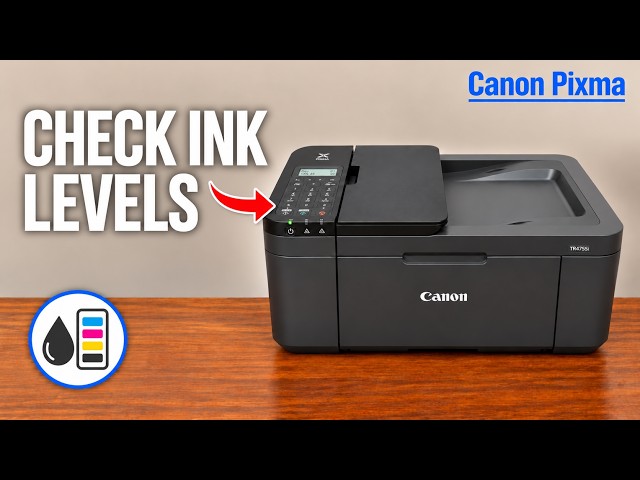
- Press Setup, select Ink information and press OK, then select Remaining ink and press OK. Check the estimates and any actual error message. Replace an empty cartridge rather than running repeated cleaning.
- If a newly fitted cartridge is not printing, use the replacement guide to check that its protective orange tape was removed and the locking lever clicked shut. Do not touch, wipe or rinse the nozzles.
A low-ink estimate is useful evidence, not proof that every poor print has the same cause. Use the displayed error and diagnostic pattern to choose the next action.
Step 2:Print and compare a nozzle pattern
- Load one A4 or Letter plain sheet centrally, portrait orientation and print-side down. Fit the guides without bending the sheet; keep it below their tabs. Register the actual size and Plain paper.
- Open the output tray, pull out the output support and open its extension.
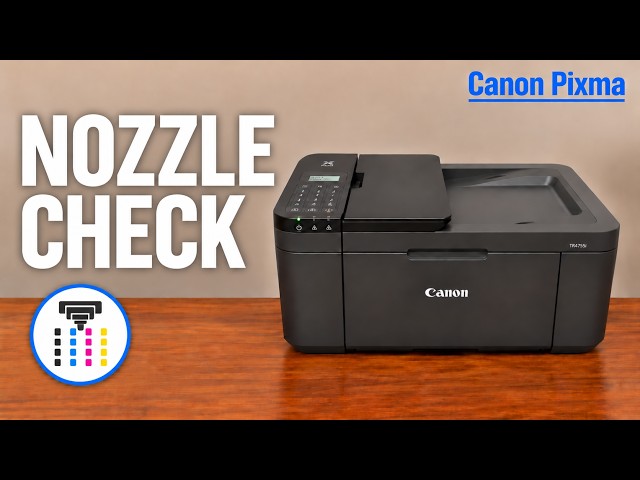
- Press Setup → Maintenance → Nozzle check, confirming each choice with OK. Wait for the completed sheet.
- Compare it with the linked Canon pattern diagrams: missing line segments, horizontal streaks or an absent colour call for cleaning. A complete pattern does not.
If the pattern is complete, revisit the document, media, print settings or the particular job. Misaligned ruled lines call for alignment, while ink on the back of paper calls for a different cleaning task.
Step 3:Use ordinary cleaning, then check again
- Press Setup, select Maintenance and press OK.
- Select Cleaning and press OK. Leave the printer alone until the cycle finishes.
- Print another nozzle pattern and compare it with the first. Stop if it is now correct.
- If the pattern remains deficient, repeat one ordinary cleaning-and-check cycle.
Canon’s sequence allows two ordinary cycles before moving to Deep Cleaning. Do not skip ordinary cleaning because a recording says it will not help.
Step 4:Escalate only if two ordinary cycles fail
- If the diagnostic pattern still has gaps, select Setup → Maintenance → Deep Cleaning and press OK.
- Wait for completion without operating other controls, then print and inspect another pattern.
- If it still fails, turn the printer off normally, leave the power cord connected and wait 24 hours before repeating Deep Cleaning. Print and inspect the next pattern.
- If the second deep clean has not resolved it, Canon directs replacement of the relevant FINE cartridge. If replacement also fails, contact Canon for service.
Do not wipe the cartridge nozzles
The supporting recording taps removed cartridges onto damp and dry cloths. Canon explicitly says not to rinse or wipe a FINE cartridge because it can cause trouble. That manual-cleaning segment is not part of the written procedure.
This guide does not promise that cleaning repairs a damaged cartridge. Judge the actual next pattern and choose the documented next step instead of assuming a visible change guarantees recovery.
Questions & troubleshooting
Should I select Deep Cleaning first?
No. With enough ink and a deficient nozzle pattern, Canon specifies ordinary cleaning and checking twice before Deep Cleaning.
How long should I wait after an unsuccessful deep clean?
Turn the printer off normally, leave the cord connected and wait 24 hours before repeating it. Inspect the pattern afterwards.
Can I tap or wipe the cartridge on a damp cloth?
Canon warns against rinsing or wiping the FINE cartridge. Use the documented maintenance cycle and replacement/service route.
What if the nozzle pattern is good?
Do not keep cleaning. Check the document, selected paper and print settings; misalignment and physical smears require different remedies.
References
- Professor Printer: source demonstration
- Canon: paper and quality settings before maintenance
- Canon: ink, protective tape and deficient pattern checks
- Canon: maintenance order and prohibition on wiping cartridges
- Canon: nozzle pattern and interpretation
- Canon: pattern comparison diagrams
- Canon: ordinary cleaning and two-cycle threshold
- Canon: deep cleaning, 24-hour connected-cord wait and service limit
- Canon: paper loading and output path
- Canon: cartridge installation
- Canon: LCD ink estimates
- Canon: applicable manual explicitly lists TR4720 and TR4755i
- Professor Printer: supporting source