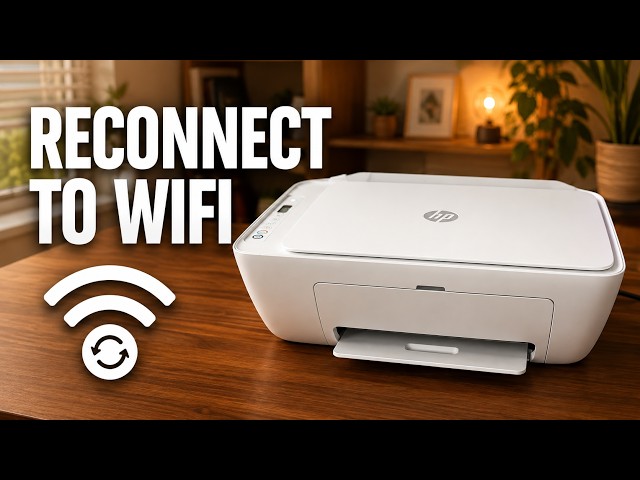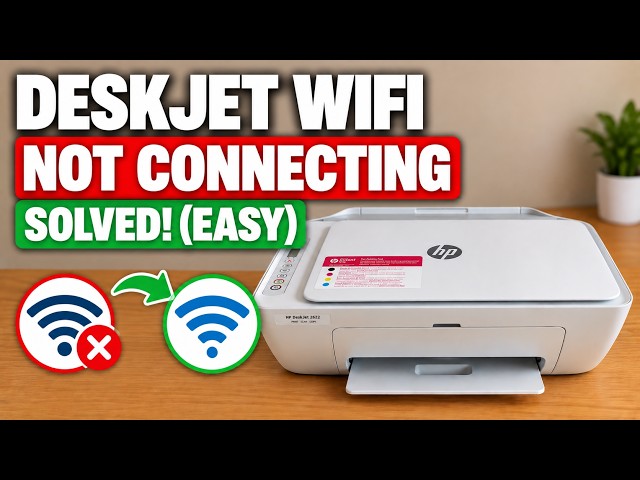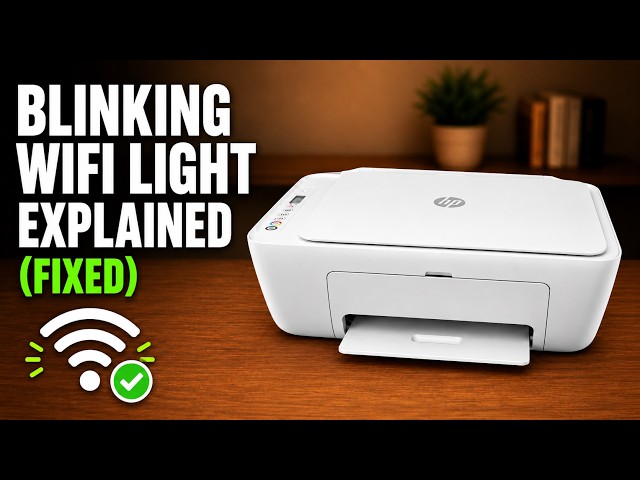
HP DeskJet 2600 blinking Wi-Fi light: what to check
A flashing blue wireless light means the DeskJet 2600 has not joined a wireless network. Check its light and connection stage before changing any saved settings.
Browse help with connecting your printer and staying connected.
A flashing blue wireless light means the DeskJet 2600 has not joined a wireless network. Check its light and connection stage before changing any saved settings.
Reconnect a DeskJet 2600 after a router, Wi-Fi name or password change. Try HP app setup, use the demonstrated recovery if discovery fails, then check the printer from home Wi-Fi.
Find where DeskJet 2600 setup is stopping: app discovery, the temporary printer connection, or the home network. Check the working connections before resetting wireless settings.
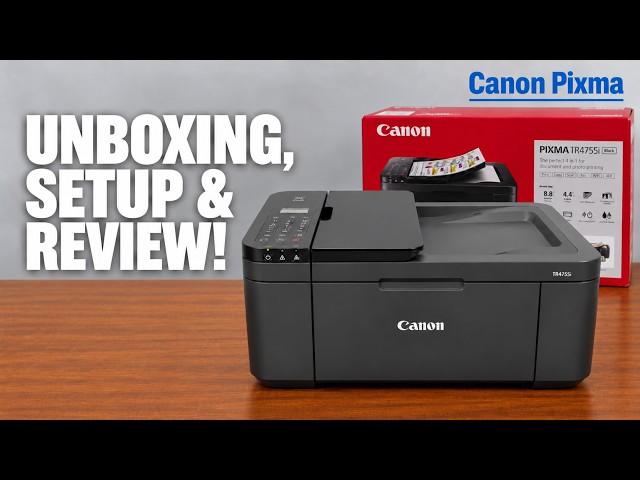
Install the TR4755i cartridges and paper, connect with Canon PRINT on an iPhone, then add Windows using the official installer if app setup fails.
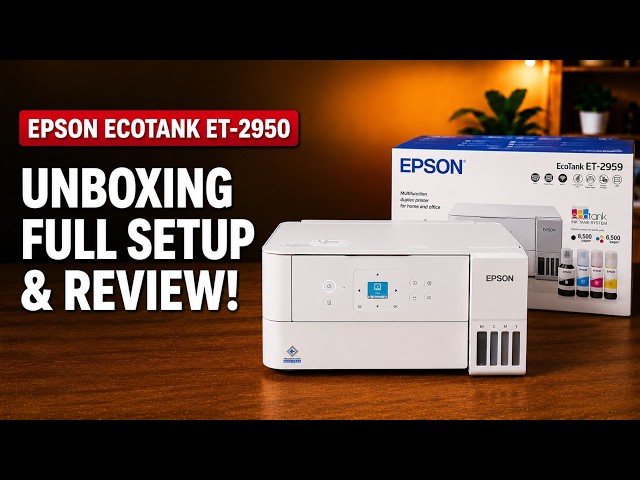
Set up the ET-2959 with Epson Smart Panel: fill and charge the ink, join Wi-Fi, complete alignment, then check Windows printing and Epson Scan 2.
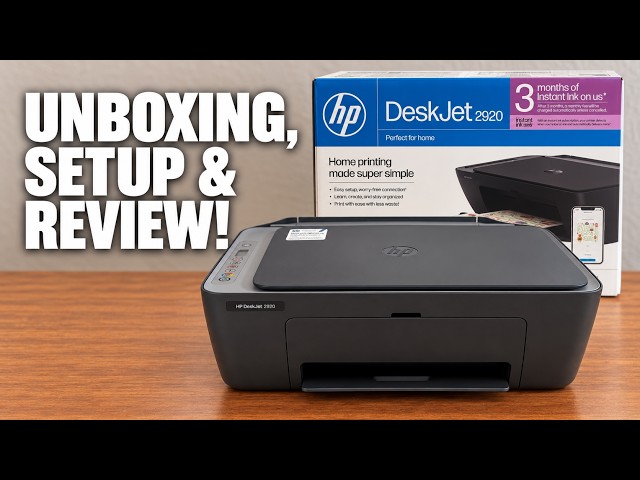
Set up the demonstrated DeskJet 2920 with paper, cartridges, alignment and iPhone Wi-Fi setup, then add it on a Mac and save a scan.
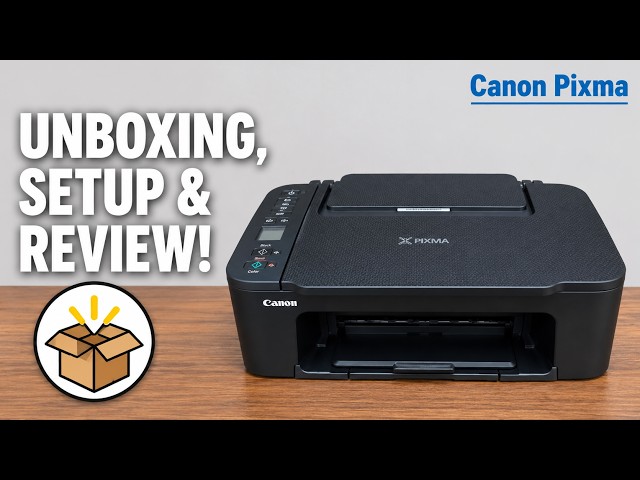
Install the TS3750i cartridges and rear-tray paper, connect with Canon PRINT, correct the first-print paper settings, and add the printer on Windows.
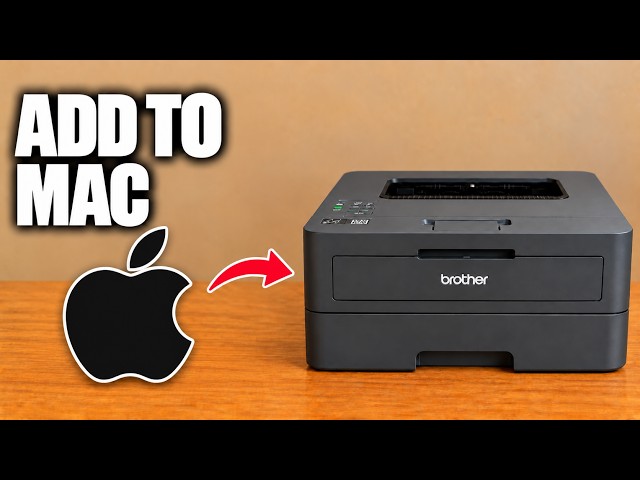
Add the networked HL-L2445DW in macOS Printers & Scanners, then select it for a small print check.
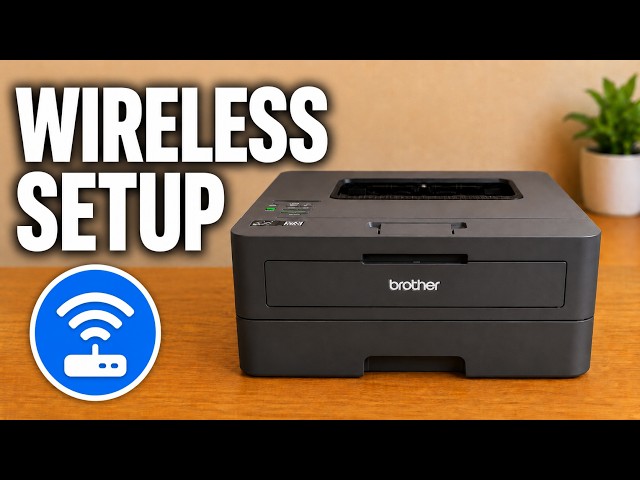
Use Brother Mobile Connect to register the HL-L2445DW, supply the home Wi-Fi password and check that setup finishes on the intended network.