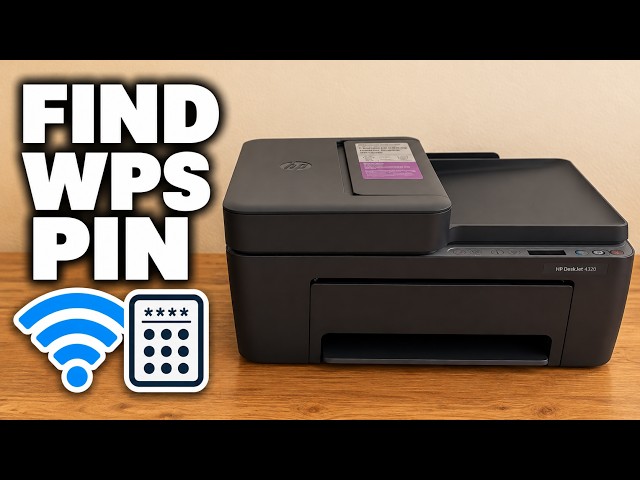
Check which credential is requested
The label PIN is the default printer setup or administration credential. It is different from the router password, Direct password and temporary WPS PIN. If you changed the embedded-web-server password, use that changed password for its login. The original label does not override your change.
Step 1:Open the cartridge-access area
Open the front door and the inner cartridge-access door. If the carriage moves, keep clear and wait for it to stop. No cartridge removal is needed.
Step 2:Read your own PIN label
Locate the label marked PIN inside that area. The nearby serial number and QR code are different information. Read your own code carefully.
HP’s applicable manual specifies this internal location. The source’s guesses about the back or underside are not needed for these models; do not turn the printer over to look.
Step 3:Close the doors and use the intended prompt
Close the doors and enter the PIN only in the genuine printer setup or settings prompt that requested it. If rejected, recheck the credential type and whether the administrator password was changed.
Keep the label private. The source invites viewers to use its code; this guide does not reproduce or recommend that code.