Before you start
- The printer is on and has finished any cleaning or alignment operation.
- Know your home network name and its current password. For the iPhone route, connect the phone to that intended network and install Canon PRINT from Canon.
Choose one connection method
Manual connect lets you enter the router password on the printer. Easy wireless connect uses Canon PRINT on a phone; the demonstrated phone is an iPhone. Choose one route, then check the connection at the end.
A new router or password does not automatically require Reset all. That command also resets other printer settings and the administrator password. If network configuration genuinely needs clearing, use the separate network-only reset instructions and reconnect afterward.
Option A: connect from the touchscreen
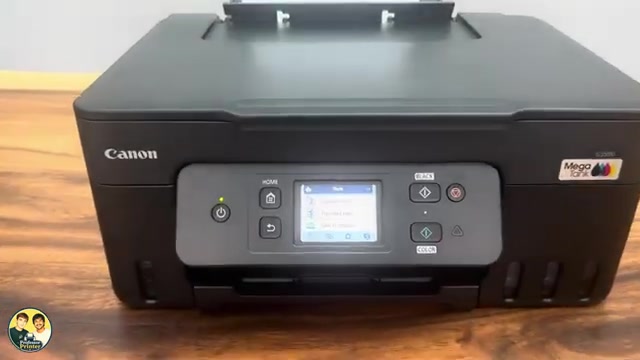
- From HOME, tap the Network icon, then Wi-Fi → Wi-Fi setup → Manual connect. Use Wi-Fi, not Wireless Direct, for your home router.
- Select your intended network from the list. If no network appears, check the router is on, move within a usable signal range and choose Search again.
- Tap the password field and enter the router’s current password. Text is case-sensitive. Use the displayed character-type controls for letters, numbers and symbols, and the right-arrow control to move on after a character where required.
- Confirm the entered password with OK, then confirm OK to connect. Wait for “Connected to the wireless router.” and acknowledge it with OK.
- Return to HOME. Canon’s guide shows the Wi-Fi-connected icon at the lower left after a successful connection.
The recordings encounter a choice about multiple routers using the same name. Select the option matching your actual network; do not assume that the first MAC address or “multiple” is correct for every home. If you cannot identify the intended router, check its documentation before selecting it.
Option B: start Easy wireless connect
- On the printer’s HOME screen, tap the Wireless connect icon, shown as linked shapes, then Start. Wait for the screen directing you to continue on a computer or smartphone.
- Open Canon PRINT on the iPhone. Read its consent choices and allow the local-network access needed to discover your printer. Do not treat optional data-sharing choices as permission to ignore a network-access prompt.
- Choose Search and select the found Canon printer. Check the proposed Wi-Fi network is the one you want the printer to join.
- Continue through the accessory setup shown on the phone. In this recording iOS transfers the connection without retyping the router password; if your setup requests credentials, use the current password for the selected network.
- Keep the app open through setup, then choose Done when the accessory has joined. Let Canon PRINT finish finding and adding the printer to its device screen.
Android also has Canon PRINT, but its permission and setup screens differ. This written phone sequence describes the iPhone recording, not an assertion that every Android or old iOS version has identical screens.
Confirm discovery and one real print
Check the printer’s connected network status and that the phone or computer uses the intended network too. Open the printer in Canon PRINT or the device’s printer selector. The source shows discovery in Canon PRINT and, in the reconnect recording, AirPrint.
Send a short document and inspect its output to complete your own check. Appearing in the printer list confirms discovery, not a completed print or access to every app feature. If discovery fails, verify the network selection and required local-network permission before considering a reset.
Questions & troubleshooting
Do I need Reset all before reconnecting?
No. It is a broader settings reset, not a routine first step. Try Manual connect with the correct network and password. If clearing network settings is necessary, use the narrower LAN settings only option with its reconnection consequences understood.
Why does the app ask for a password when the video did not?
The iPhone recording uses an accessory setup flow that transfers its network information. Screens vary with the app, phone and existing configuration. A router password prompt needs the password of the network you selected.
The printer cannot find my router.
Check the router is on, the network name is correct and the printer has a usable signal. Choose Search again. Canon’s linked manual-connection troubleshooting covers a hidden network and other configuration causes.
References
- Professor Printer: source demonstration
- Canon: select the G3090-series Wi-Fi method
- Canon: Manual connect network selection
- Canon: password entry and connection completion
- Canon: Easy wireless connect entry and Start
- Canon: manual-connection troubleshooting
- Canon: reset scopes
- Canon PRINT: official app and supported mobile platforms
- Professor Printer: additional source for this connection method
- Professor Printer: additional source for this connection method