Before you start
- The printer is already connected to the intended Wi-Fi or Ethernet network.
- Use a phone or computer permitted to reach the same local network.
Use the address for the active connection
An IP address identifies this printer on a particular network; it is not a Wi-Fi password or administrator PIN. For a router connection, read the current Wi-Fi or Ethernet address. A saved Windows entry may still contain an older address after a network change.
Step 1:Read the address on the touchscreen
- From Home, open Menu → Settings under Utilities → Network.
- Open Wi-Fi for a wireless connection, or Ethernet for a cable connection, then View Details. The recording calls its wireless details screen Wi-Fi Details.
- Read the current IP address. HP also documents opening Status Center on Home to view the address of a Wi-Fi-connected printer.
Step 2:Open printer information from the same network
Connect your phone or computer to the same intended network and type that actual address into the browser address bar. The printer’s embedded web server can show status and settings. Only change settings you intend to manage.
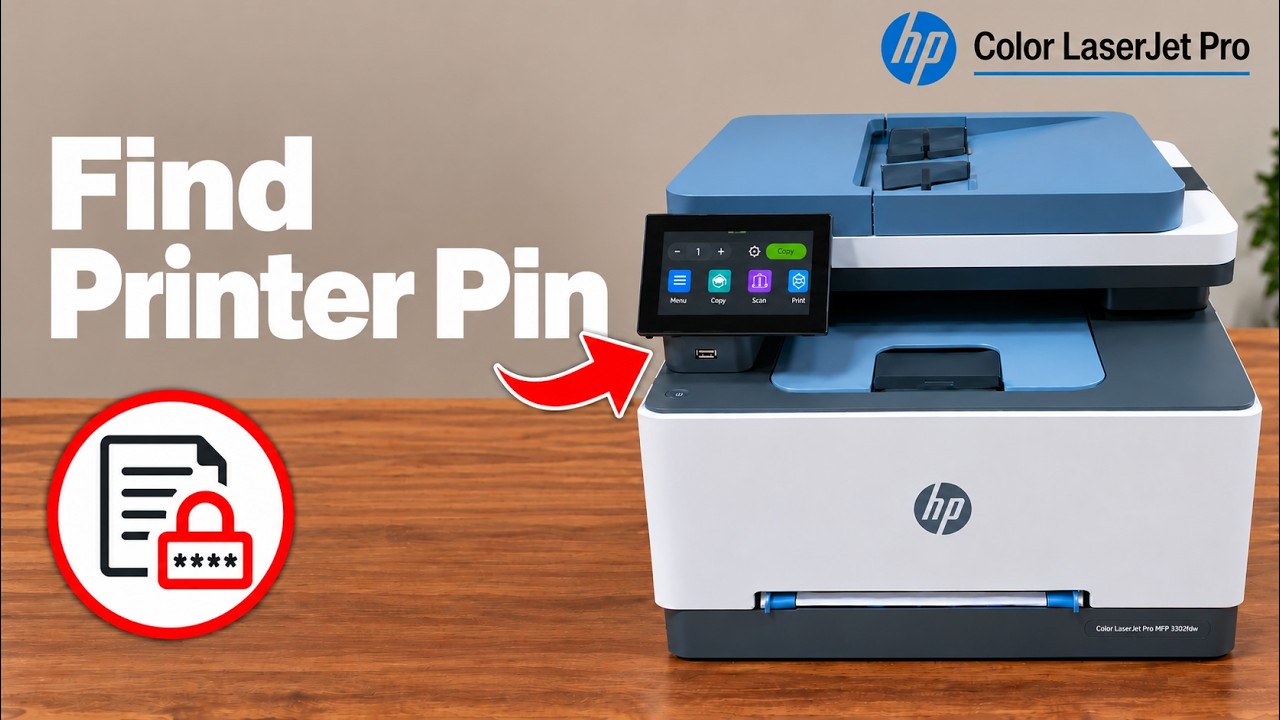
If a protected setting asks for a password, use the current administrator credential. HP says an unchanged default PIN is on the label inside the access door; that PIN is separate from the IP address. Do not reproduce your private label or network information in a public screenshot.
Step 3:The Windows information route shown in the video
On the recording’s Windows computer, the presenter opens Printers & scanners, selects the HP printer and opens Device information to read its address. Use that route if your Windows installation exposes it; the touchscreen remains the direct check of the printer’s current network details.
Check that the address reaches your printer
The result is an address for the active connection and, when permitted on that network, your printer information page. If the page cannot be reached, check that you used the correct Wi-Fi/Ethernet section and that the devices can communicate on the same network.